Dropbox
Introducción
ONLYOFFICE te permite editar los archivos almacenados en tu cuenta de Dropbox y colaborar en ellos utilizando tanto los editores en línea como los editores de escritorio de ONLYOFFICE. De este modo, puedes usar no solo las herramientas de colaboración en línea, sino también las funciones disponibles en tu aplicación de escritorio:
- acceso a fuentes del sistema, el portapapeles y las impresoras del sistema.
Paso 1. Conectar a Dropbox
Inicia ONLYOFFICE Desktop Editors. Para conectar Desktop Editors a tu cuenta de Dropbox, sigue las instrucciones a continuación:
- Haz clic en el botón Más
 junto a la sección Nubes en el panel lateral izquierdo.
 -
Haz clic en el botón del servicio en la nube Dropbox, o utiliza el enlace Conectar ahora en la parte inferior.
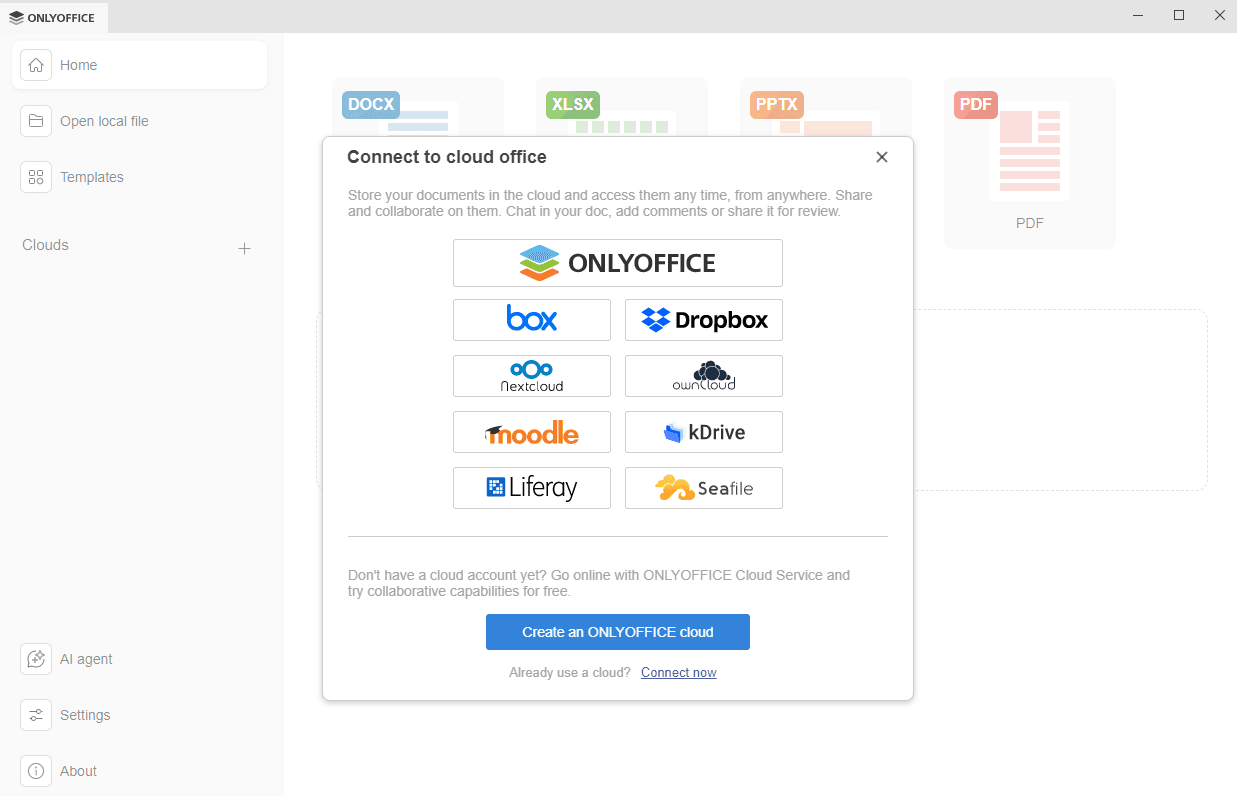
-
Tan pronto como presiones el botón del servicio en la nube Dropbox, se abrirá la ventana Conectar a la oficina en la nube con Dropbox seleccionado. Si usas el enlace Conectar ahora, elige Dropbox de la lista desplegable. La URL del servicio de Dropbox está predefinida. Haz clic en el botón Conectar ahora.
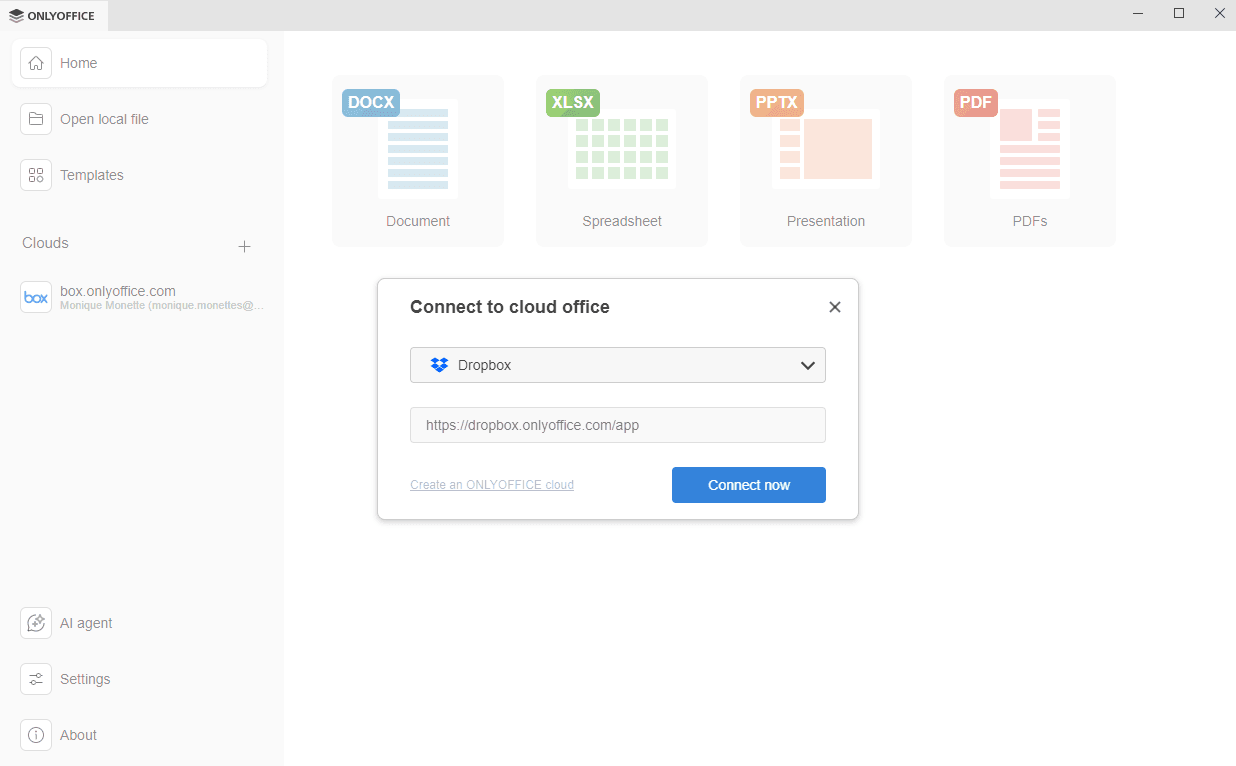
-
La página de inicio de sesión de Dropbox se abrirá en una nueva pestaña de la interfaz de Desktop Editors.
- Inicia sesión en tu cuenta de Dropbox usando tus credenciales de Google o Apple, o utilizando el correo electrónico y la contraseña que usas para acceder a tu cuenta de Dropbox.
-
Haz clic en el botón Continuar.
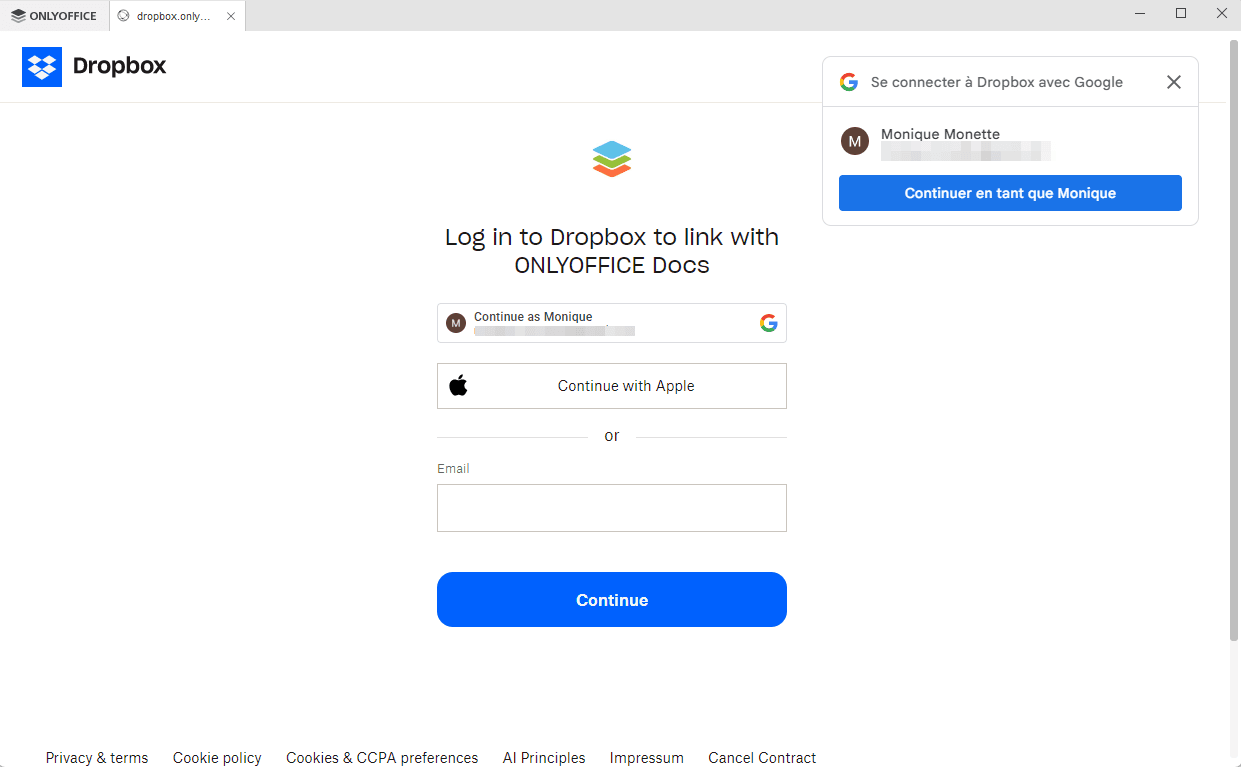
-
Permite que ONLYOFFICE acceda y edite tus archivos de Dropbox y vea la información de tu cuenta de Dropbox.
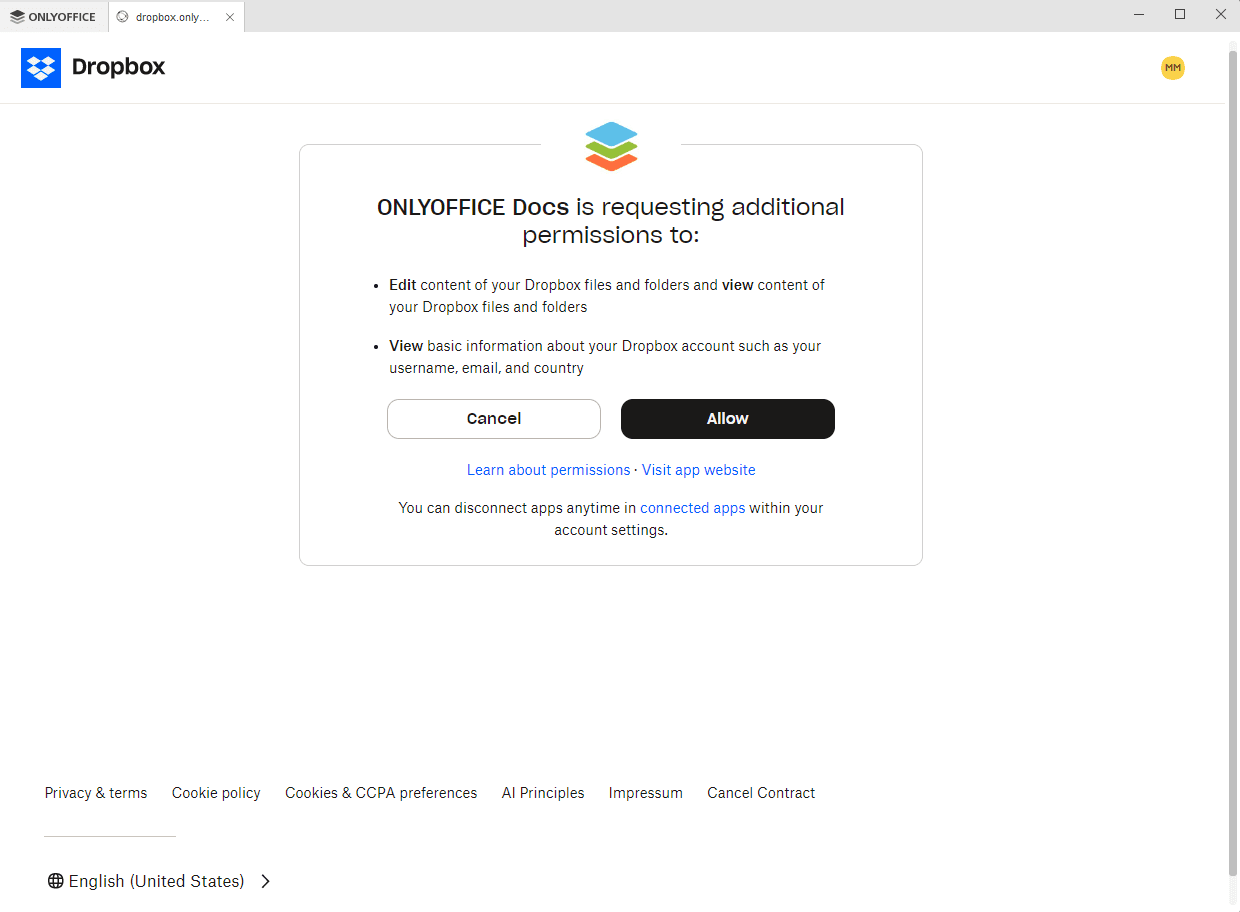
La página principal de tu cuenta de Dropbox se abrirá en una nueva pestaña de la aplicación Desktop Editor. Ahora puedes editar tus archivos existentes, crear nuevos, compartir tus documentos y colaborar con usuarios de Dropbox utilizando los editores de ONLYOFFICE.
Paso 2. Gestionar tus cuentas conectadas
Haz clic en el logo en la esquina superior izquierda de la interfaz de Desktop Editors para volver a la ventana principal del programa. Todas las cuentas en la nube conectadas aparecen en el panel lateral izquierdo debajo de la sección Nubes. Haz clic en los tres puntos  que aparecen al pasar el ratón sobre la nube conectada para acceder a las opciones del menú contextual de la nube:
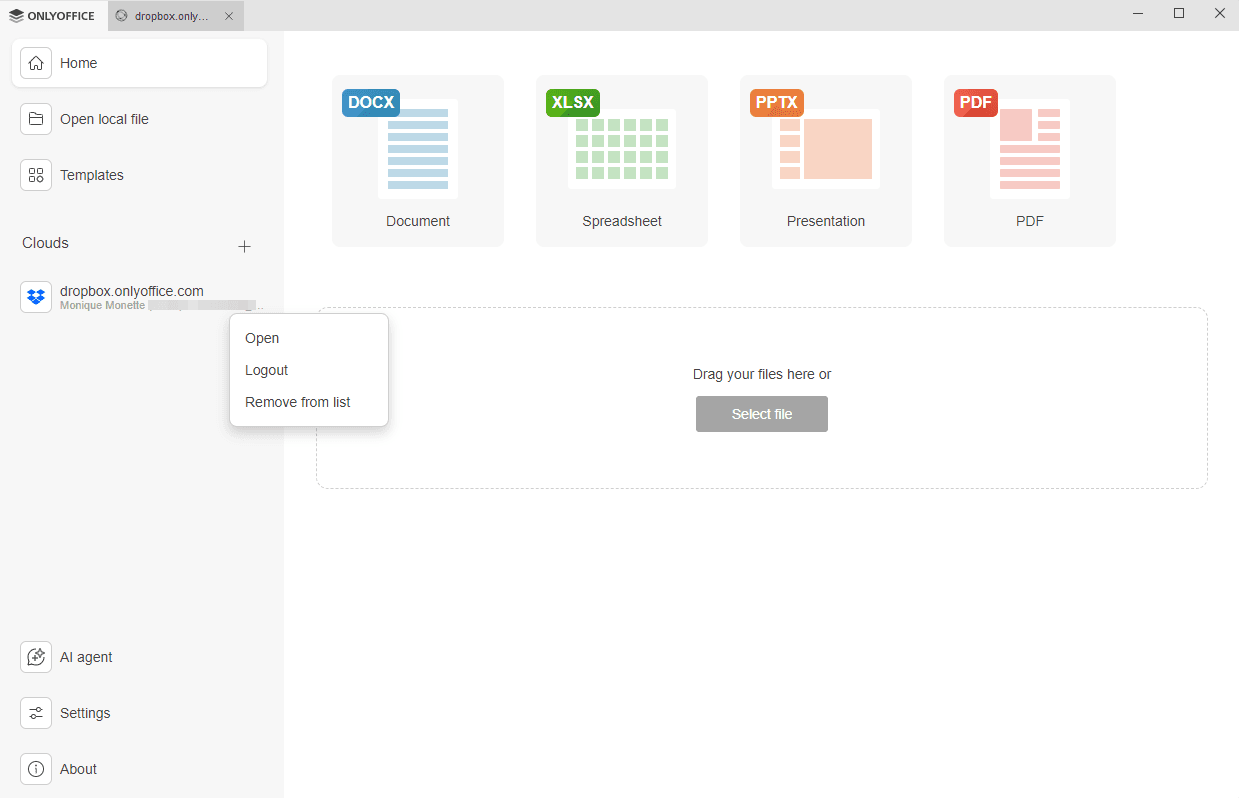
- Abrir - para cambiar a la pestaña de almacenamiento en la nube correspondiente si ya has iniciado sesión en esta cuenta, o para abrir la ventana Conectar a la oficina en la nube si no has iniciado sesión actualmente (en tal caso, deberás ingresar tus credenciales).
- Cerrar sesión - para salir de tu cuenta. La cuenta conectada aún aparece en el panel lateral izquierdo, pero tendrás que iniciar sesión nuevamente la próxima vez para acceder a tus archivos de Dropbox.
- Eliminar de la lista - para desconectar la cuenta seleccionada y eliminarla de la lista.
Para agregar varias cuentas o nubes, haz clic en el botón Más junto a la sección Nubes en el panel lateral izquierdo.