Getting Started
Introduction
ONLYOFFICE Apps is a new way to collaborate on documents with teams, clients, partners, etc., based on the concept of rooms – special spaces with predefined permissions. Starting from version 4.0, the workspace is organized into separate apps: Files, Rooms, Forms, and AI agents.
ONLYOFFICE Apps provides the following capabilities:
- Creating various room types: Public rooms, Collaboration rooms, Virtual Data Rooms, and Custom rooms. Creating Form filling spaces in the separate Forms app.
- Providing flexible access permissions: viewing, commenting, reviewing, form filling, and editing.
- Creating and editing documents, spreadsheets, presentations, forms, PDFs, and ebooks. Viewing multimedia files (images, video and audio files). Working with markdown files and diagrams.
- Inviting users for collaboration: real-time co-editing, commenting, and communication via chat or video calls within online editors.
- Storing and managing personal documents within the dedicated Files app.
- Managing rooms: adding files, inviting members and assigning permission levels, viewing detailed info and recent activities, archiving rooms.
- Creating AI agents as well as connecting any AI assistants to the editors for enhanced efficiency and faster workflows. Using the built-in AI Chat in any room or folder to work with documents, generate content and images, and search the web.
- Configuring integration features: connecting external services and storages. Currently, third-party storages can be used for performing backups only.
- Embedding ONLYOFFICE Apps or its parts into your own web application with JavaScript SDK.
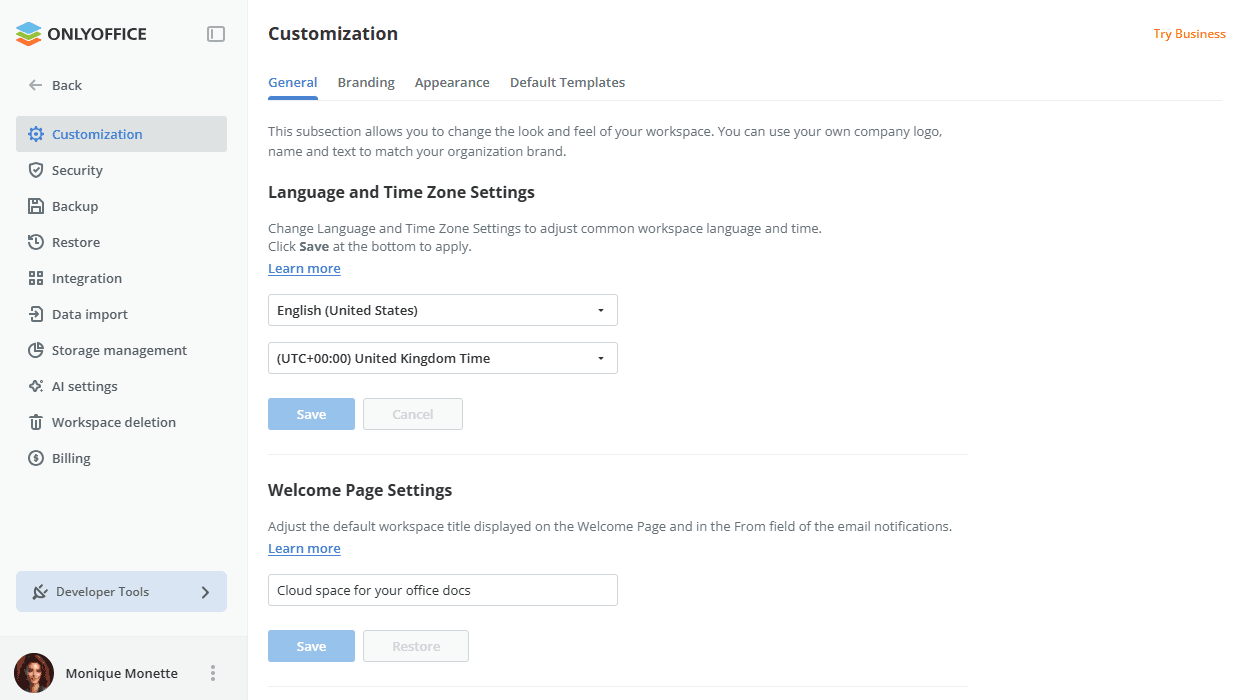
- Adjusting customization and branding features.
- Using developer tools: webhooks, OAuth applications, API keys, and Docs Connect for connecting cloud editors to a third-party platform via an API key.
- Setting up security features: backup and restore, two-factor authentication, IP security, audit trail, suspicious login alerts, audit and login history forwarding to external SIEM systems, and more.
- Integrating ONLYOFFICE Apps into your platform with ready-to-use connectors for Drupal, Pipedrive, WordPress, Zapier, Zoom, Moodle, etc.
Workspace structure
In the left-side menu, the following sections are available:
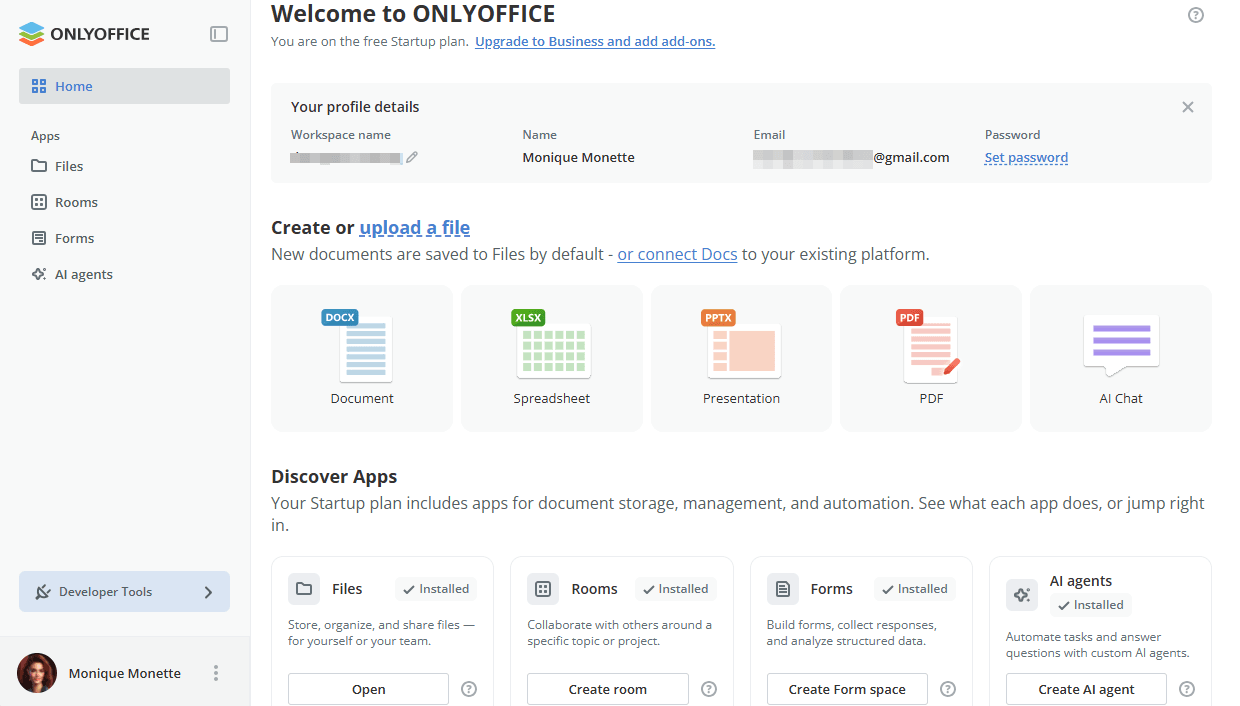
- Home – an overview dashboard of your workspace. Here you can view your profile details, quickly create or upload files, open each app, and connect ONLYOFFICE Docs to your existing platform.
- Files – an app for storing personal documents. Documents and folders shared with you by other members from their Files app are available in the Shared with me subsection.
- Rooms – an app for active rooms available for you. Admins can create and manage rooms; users and guests can access only the rooms they are invited to. Archived rooms are available in the Archive subsection: admins can restore or permanently delete archived rooms; users and guests can only view the rooms they were invited to.
- Forms – an app for working with forms: it contains Form filling spaces and form templates.
- AI agents – an app for AI agents available for you. Admins can create and manage their own AI agents; users and guests can access only the AI agents they are invited to.
- Developer Tools – a section at the bottom of the left-side menu providing quick access to the developer tools. When the menu is collapsed, it shrinks to an icon with a tooltip.
Each app has its own set of sections:
- Favorite files – a space for documents and folders that you marked as favorites.
- Recent files – a space for documents that you recently opened in the editor. It contains the latest 100 files, which are stored for 90 days.
- Shared with me (for the Files app) – a space for storing documents and folders shared with you by other members.
- Templates (for the Rooms and Forms apps) – a space for storing the created room and form templates.
- Archive (for the Rooms app) – a space for archived rooms. Admins can restore or permanently delete archived rooms; users and guests can only view the rooms they were invited to.
- Trash – a space for removed rooms and documents which can be restored or permanently deleted.
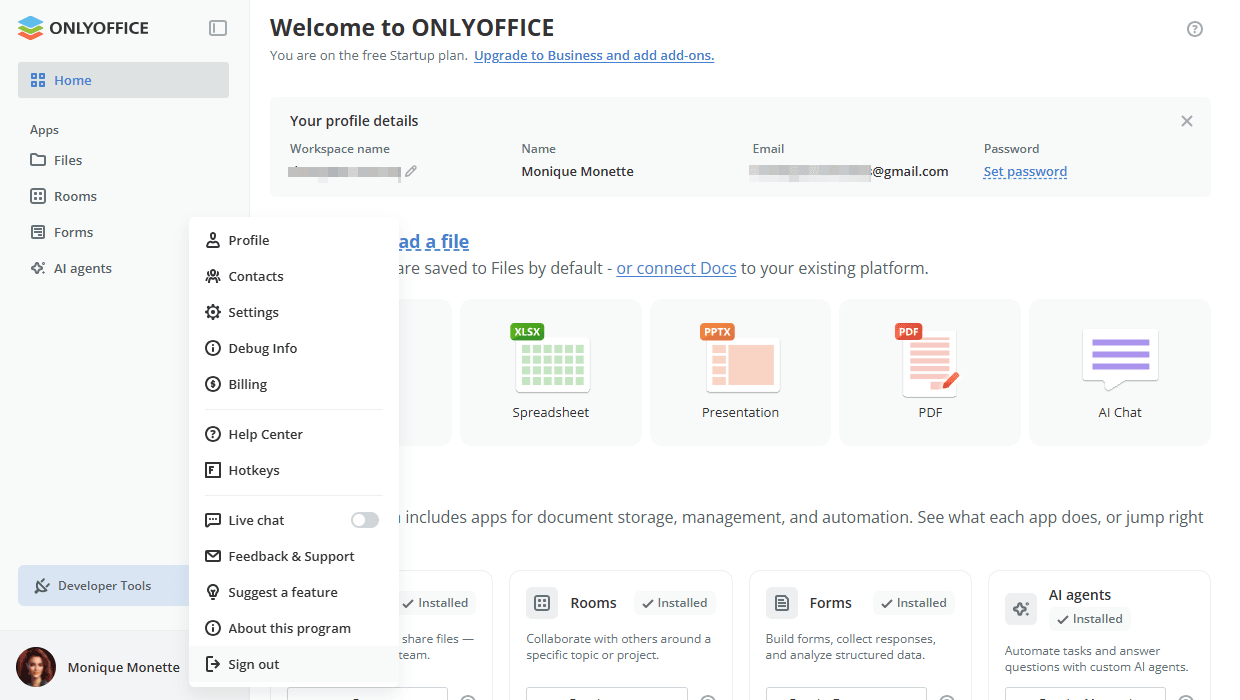
In the  menu located next to the user name in the lower left corner, users can view their profiles and helpful information, such as Hotkeys or Help center articles. Admins can also access the workspace Settings and Contacts using this menu.
Defining access rights
User types and permissions
A user type is a category which defines the type of access a user has to different sections of the system. In ONLYOFFICE Apps, there are five user types with the following permissions:
- Guests can only access the rooms they are invited to by admins. They cannot create their own rooms. They can create, upload, and delete folders or files only if they are assigned as Content creators. Guests can be invited via rooms only. This is a Free account (it is possible to add an unlimited number of guests without any fee).
- Users can create and edit files in the room, but cannot create rooms, manage users, or access settings. This is a Free account (it is possible to add an unlimited number of users without any fee).
- Room admins can do the same as users can, as well as create and manage the assigned rooms, invite new users and assign permission levels below their level. All admins have access to the Files app. This is a Paid account (a fee will be charged depending on the number of admins).
- Full admins can do the same as room admins can, as well as access the workspace settings, manage and archive rooms, enable or disable paid services, and run backups. Full admins have read-only access to rooms they were not invited to, but they can change the owner for such a room or archive it. This is a Paid account (a fee will be charged depending on the number of admins).
- Owner can do the same as Full admin can, as well as add admins. The Owner has read-only access to rooms they were not invited to, but they can change the owner for such a room or archive it. The Owner is a Payer who has access to payment details and is the only user that can adjust the quota, top up the wallet, and make payments. The Owner is the only user who can delete the workspace. This is a Paid account.
| Section\User type | Owner | Full admin | Room admin | User | Guest |
|---|---|---|---|---|---|
| Files | |||||
| Creating, uploading, moving, copying, renaming, downloading, and deleting files and folders | |||||
| Rooms | |||||
| Viewing all rooms | |||||
| Viewing own rooms | |||||
| Viewing rooms the user is invited to | |||||
| Creating and editing rooms | |||||
| Pinning rooms to top | |||||
| Viewing room info (contacts, history, details) | |||||
| Inviting external users (guests) to a room | |||||
| Inviting internal users to a room | |||||
| Assigning permission levels of own room members | |||||
| Changing permission levels of own room members | |||||
| Removing users from own room | |||||
| Archiving own rooms | |||||
| Creating a copy of own room | |||||
| Creating a copy of someone else's room | |||||
| Editing someone else's rooms: inviting users, assigning and changing permission levels of the room members, removing users from the room | |||||
| Viewing links of someone else's public room | |||||
| Changing the owner of someone else's room | |||||
| Archiving someone else's room | |||||
| Archive | |||||
| Viewing all archived rooms | |||||
| Viewing own archived rooms | |||||
| Viewing archived rooms the user is invited to | |||||
| Editing archived rooms | |||||
| Pinning archived rooms to top | |||||
| Viewing archived room info (contacts, history, details) | |||||
| Inviting users to an archived room, assigning and changing permission levels of members | |||||
| Restoring, copying, or removing someone else's archived rooms | |||||
| Restoring, copying, or removing own archived rooms | |||||
| Trash | |||||
| Contacts | |||||
| Inviting "Full admin" | |||||
| Inviting "Room admin" | |||||
| Inviting "User" | |||||
| Inviting "Guest" | |||||
| Promoting to "Full admin" | |||||
| Promoting to "Room admin" | |||||
| Promoting to "User" | |||||
| Demoting "Full admin" to "Room admin" or "User" | |||||
| Demoting "Room admin" to "User" | |||||
| Demoting "User" to "Guest" | |||||
| Disabling "Full admin" | |||||
| Disabling "Room admin" | |||||
| Disabling "User" | |||||
| Disabling "Guest" | |||||
| Editing or removing users | |||||
| Viewing own guest list | |||||
| Viewing someone else's guest list | |||||
| Groups | |||||
| Creating and editing groups | |||||
| Viewing groups | |||||
| File management settings | |||||
| Workspace settings | |||||
| Removing the workspace | |||||
| All other settings |
Account and user statuses
Each account can have one of the following statuses:
- Active - such people have already accepted the invitation and can collaborate with other members.
- Pending - such people were invited, but have not accepted the invitation yet. They are marked in the list with the
 icon.
icon. - Disabled - such people were transferred by an admin to the list of disabled members. They cannot sign in to the workspace any more. They are marked in the list with the
 icon. Disabled users can be removed from the workspace or re-enabled.
Each user has one of the following statuses: Paid or Free.
- Paid - Owner, Full admin, Room admin. The number of paid users that can be added is defined by the selected tariff plan.
- Free - User, Guest. An unlimited number of users and guests can be added.
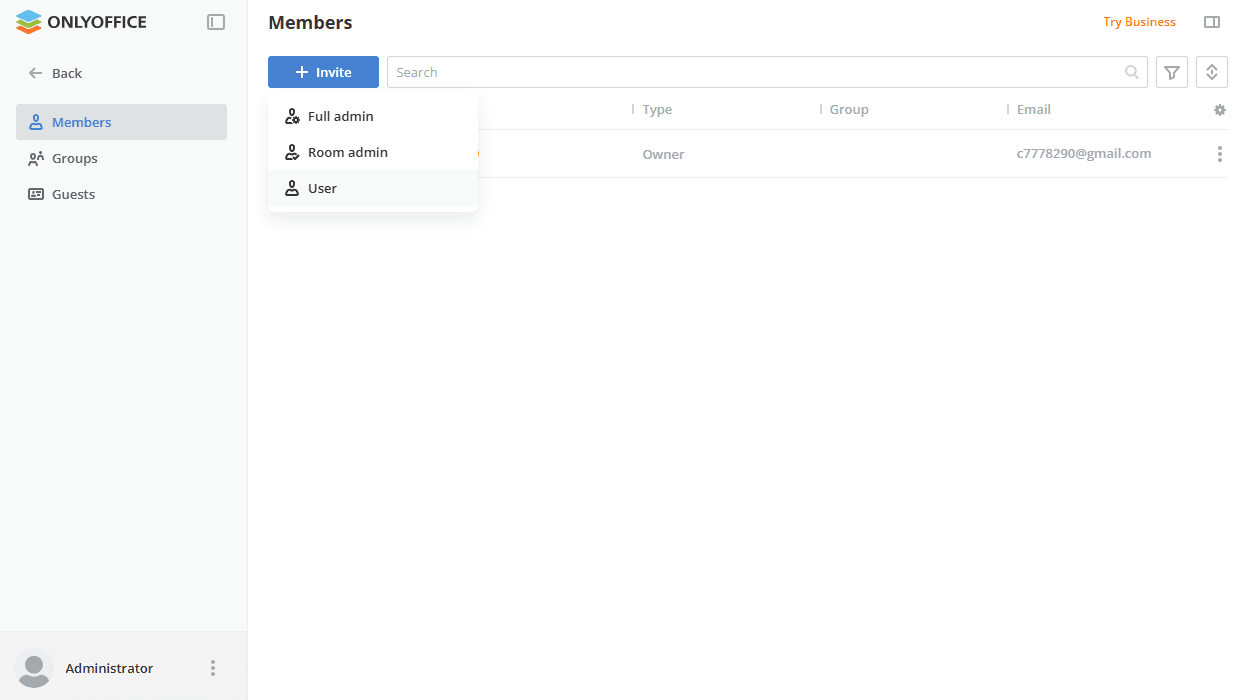
The Owner and admins can invite new users to the workspace and manage the existing ones.
Managing rooms
Room types
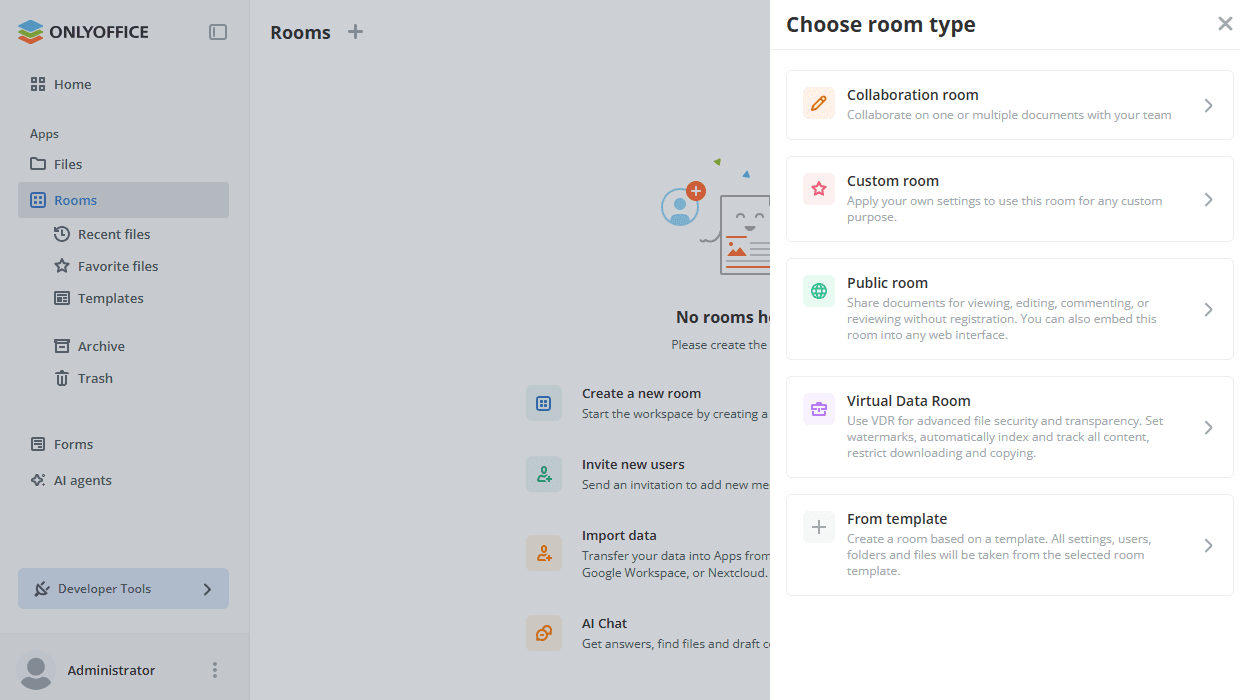
Rooms are spaces for collaboration on documents. Access rights to documents stored in a room depend on the permission level. The permission level which can be assigned to a user depends on the room type. Admins can invite users to the room and assign or change their permission levels.
- Collaboration room allows you to collaborate on documents with your team using two co-editing modes: Fast and Strict.
- Custom room allows you to apply your own settings to use this room for any custom purpose.
- Public room allows you to invite users via external links to view documents without registration. You can also embed this room into any web interface.
- Virtual Data Room allows you to use advanced file security options: set watermarks, automatically index and track all content, and restrict downloading and copying. It is also possible to use Virtual Data Rooms for role-based form filling.
- From template allows you to create a room based on an existing template or create a first room template.
Permission levels within a room
A permission level is a set of permissions for actions that a user can perform. Admins can assign a permission level to a user within a certain room. Each room type comprises different permission levels which can be assigned to its members:
- Public room - Room manager, Content creator.
- Collaboration room - Room manager, Content creator, Editor, Viewer.
- Virtual Data Room - Room manager, Content creator, Editor, Viewer, Form filler.
- Custom room - Room manager, Content creator, Editor, Reviewer, Commenter, Viewer.
| Public room | Collaboration room | Virtual Data Room | Custom room | |
|---|---|---|---|---|
| Viewer | ||||
| Commenter | ||||
| Reviewer | ||||
| Form filler | ||||
| Editor | ||||
| Content creator | ||||
| Room manager |
Depending on the permission level, the following actions with files are available for the user within a room:
- Viewer - Operations with the existing files: viewing.
- Commenter - Operations with the existing files: viewing, commenting.
- Reviewer - Operations with the existing files: viewing, commenting, reviewing.
- Form filler - Operations with the existing files: viewing, commenting, reviewing, form filling.
- Editor - Operations with the existing files: viewing, commenting, reviewing, form filling, and editing. Viewing version history.
- Content creator - Operations with the existing files: viewing, commenting, reviewing, form filling, and editing. Viewing version history. Creating and uploading new files/folders. Managing version history, locking files for co-authors. Copying, moving, and removing their own files/folders.
- Room manager - Operations with the existing files: viewing, commenting, reviewing, form filling, and editing. Viewing version history. Creating and uploading new files/folders. Managing version history, locking files for co-authors. Copying, renaming, moving, and removing their own and someone else's files/folders.
| View | Comment | Review | Fill forms | Edit | View version history | Manage files | |
|---|---|---|---|---|---|---|---|
| Viewer | |||||||
| Commenter | |||||||
| Reviewer | |||||||
| Form filler | |||||||
| Editor | |||||||
| Content creator | |||||||
| Room manager |
On the History tab of the room info panel, you can filter the activity feed by a selected day and use the Export history button to download either the entire history or a custom date range as an .xlsx file. The report is generated asynchronously and downloaded once ready. This option is available in all room types for all user types except guests and anonymous users.
Room managers can create new rooms, add documents to them, invite new users, and manage the existing rooms. Users can create and edit files in the room, but cannot create rooms, manage users, or access settings.
Managing forms
The Forms app is a space for working with forms. It contains the created form spaces as well as the Recent files, Favorite files, Templates, and Trash sections.
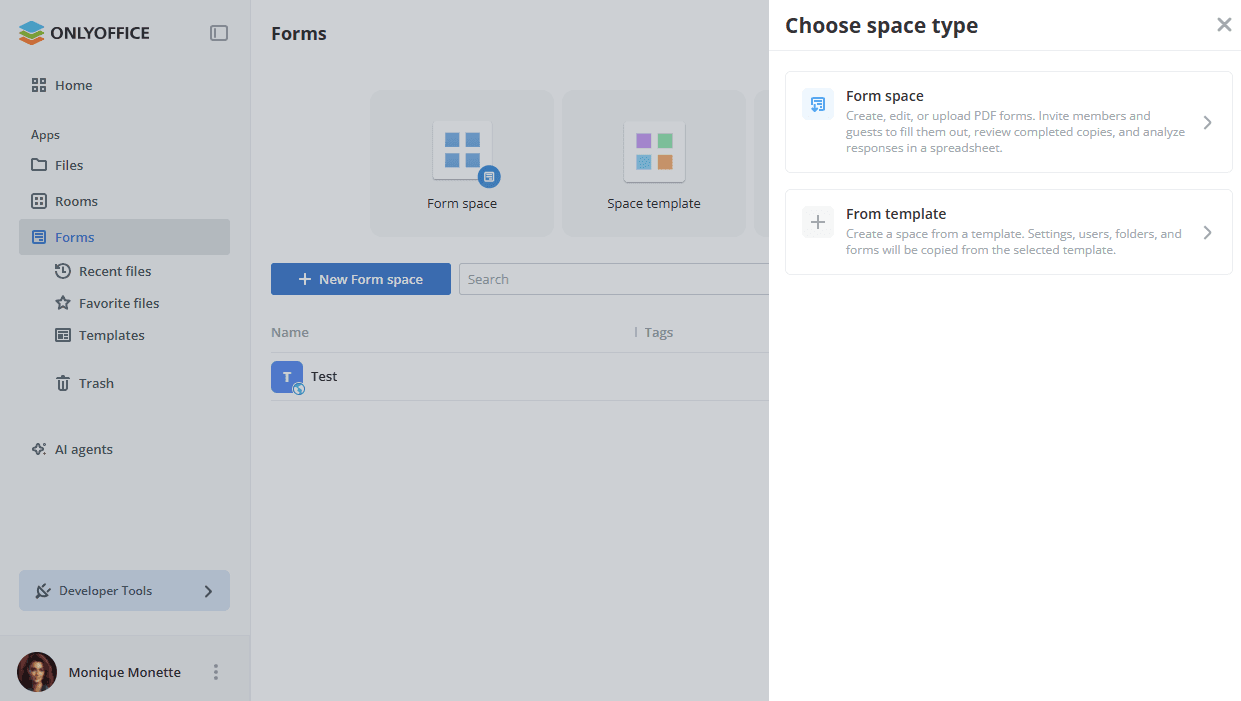
To create a new space, click the New Form space button and choose the space type:
- Form space allows you to create, edit, or upload PDF forms, invite members and guests to fill them out, review completed copies, and analyze responses automatically collected in a spreadsheet. It is also possible to set up automatic export of the completed forms to an external database.
- From template allows you to create a space from a template. Settings, users, folders, and forms will be copied from the selected template.
Permission levels within a form space
The following permission levels can be assigned to the form space members or set as a role for the shared access link:
- Room manager - Room managers can manage the assigned form spaces, invite new users and assign roles below their level, upload forms to the space, and have full access to the Complete and In Process folders.
- Content creator - Content creators can upload forms to the space and have full access to the Complete and In Process folders.
- Form filler - Form fillers can fill out forms and view only their completed/started forms within the Complete and In Process folders.
For more details on creating and managing form spaces, read this article.
Using AI agents
AI agents allow you to enhance your work with documents.
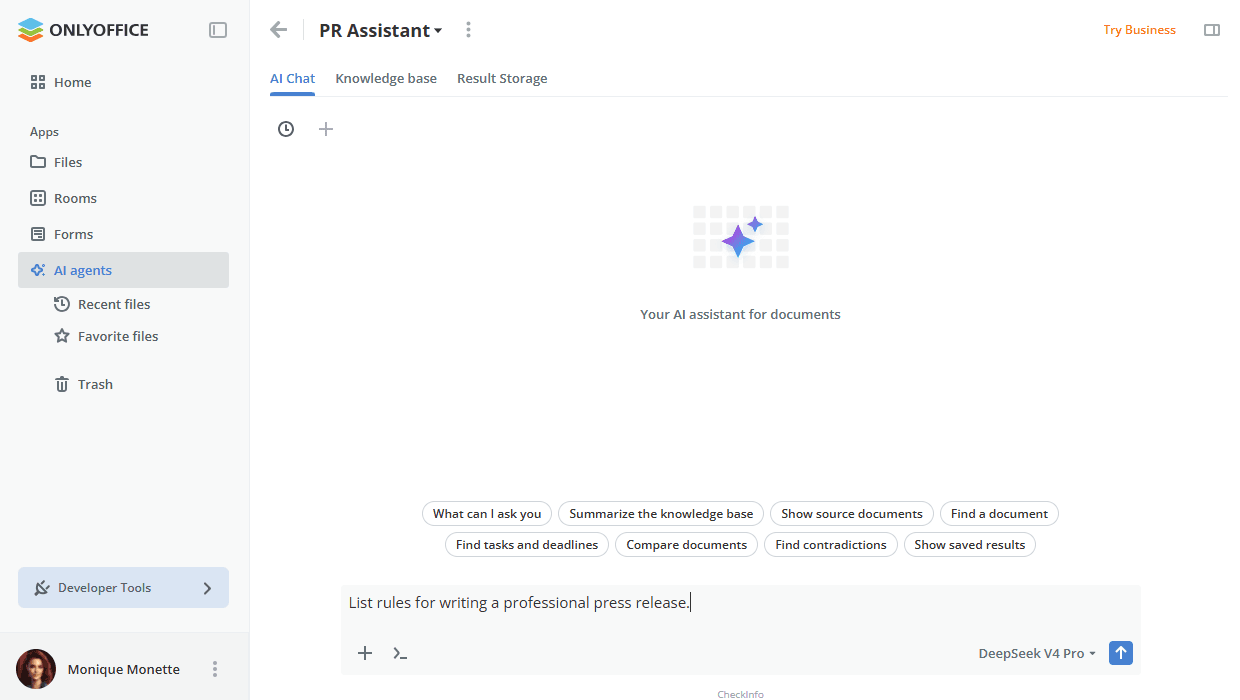
The built-in AI Chat is available not only within AI agents, but also in any room or folder – use the AI Chat button to open it. Chat threads, the assigned model, and Web Search settings are resolved based on your current location. Within an AI agent, the model is defined by the agent profile; outside agent rooms, you can select a model directly in the chat composer. You can attach files and images, save assistant answers back as files, use saved prompts, and connect external MCP servers. The AI Chat is not available for guests and anonymous users.
There are a few easy steps to start using an AI agent in ONLYOFFICE Apps:
- First, a Full admin must enable the AI features add-on in the workspace settings -> AI settings.
- Then, the admin creates a new AI agent in the AI agents section, selecting an AI model for the agent.
- The admin invites users for collaboration, assigning different permission levels.
- Invited users can use the created AI agent in accordance with their permissions.
Permission levels within an AI agent
The permission levels in AI agents differ from those in rooms. The following permission levels are available in AI agents:
-
Agent manager (Paid) - Agent managers can manage the assigned AI agent, invite new users, and assign roles below their level. They can use the chat, upload knowledge files, work with the Result Storage, and manage chat settings.
Guests and Users cannot be assigned as Agent managers. Only Room and Full admins are suitable for this role.
-
Content creator - Content creators can use the chat and work with files in the Result Storage. They can upload files to the knowledge base but cannot manage users or access agent settings.
Guests cannot be assigned as Content creators. Only Room and Full admins and Users are suitable for this role.
-
Viewer - Viewers can only view files in the Result Storage with outputs generated by others. They do not have access to the chat or the knowledge base.
Unlike rooms, in agents, guests can only be assigned as Viewers.
Only the agent owner who created the agent or the invited agent manager can edit settings of this agent. Other admins can only view the agent. Users and guests can view only the AI agents they are invited to.
Managing and editing documents
The Owner, admins, and users can:
- use the Files app,
- upload and create new files and folders both in Files and in rooms.
The Owner, admins, and users can also manage documents within rooms:
- manage version history,
- lock files for co-authors,
- copy, rename, move, and remove their own and someone else's files and folders (users can copy, move, and remove their own files/folders only).
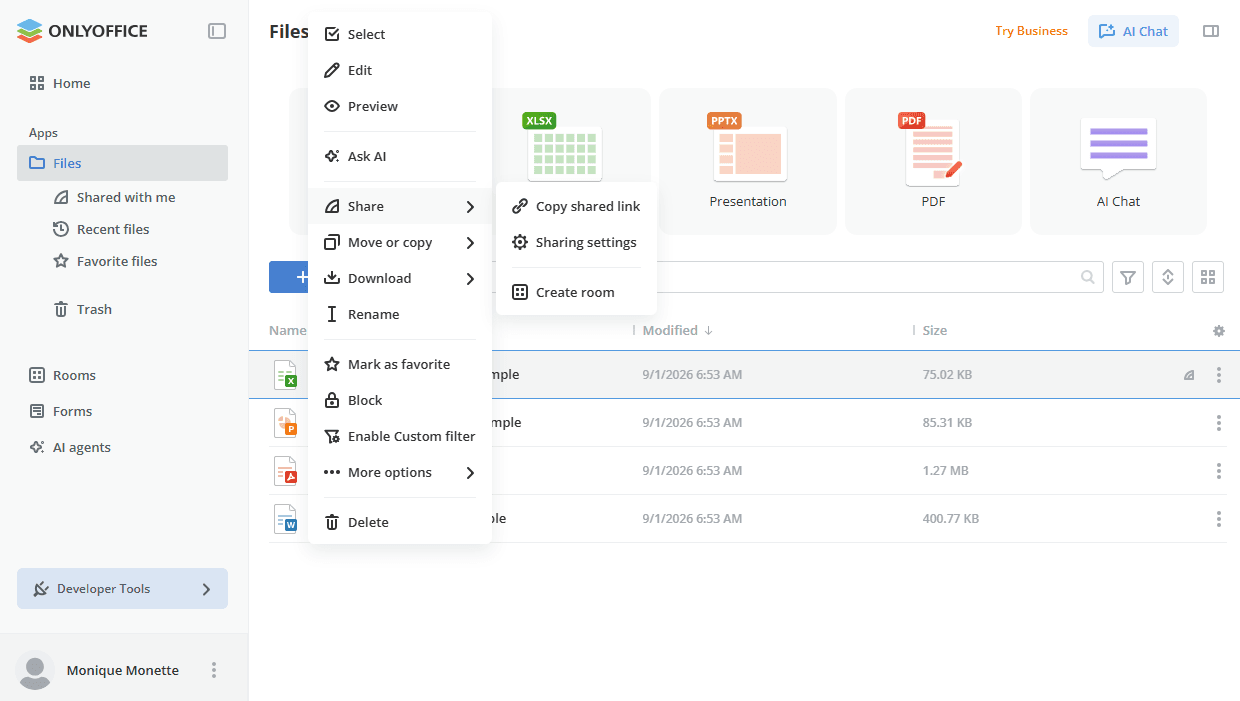
Long-running file operations (copying, moving, etc.) can be stopped while in progress.
For more details on document management, read the Managing and editing documents in Files and Managing and editing documents in Rooms articles.
Guests can only work with the existing documents within a room they are invited to.
All users, regardless of their permission levels in the room, can:
- view the content of documents,
- view comments added to documents,
- copy the content to the clipboard,
- print and download documents.
Extended access rights depend on the permission level within the room.
All editing operations are performed via the ONLYOFFICE Online Editors:
Configuring settings
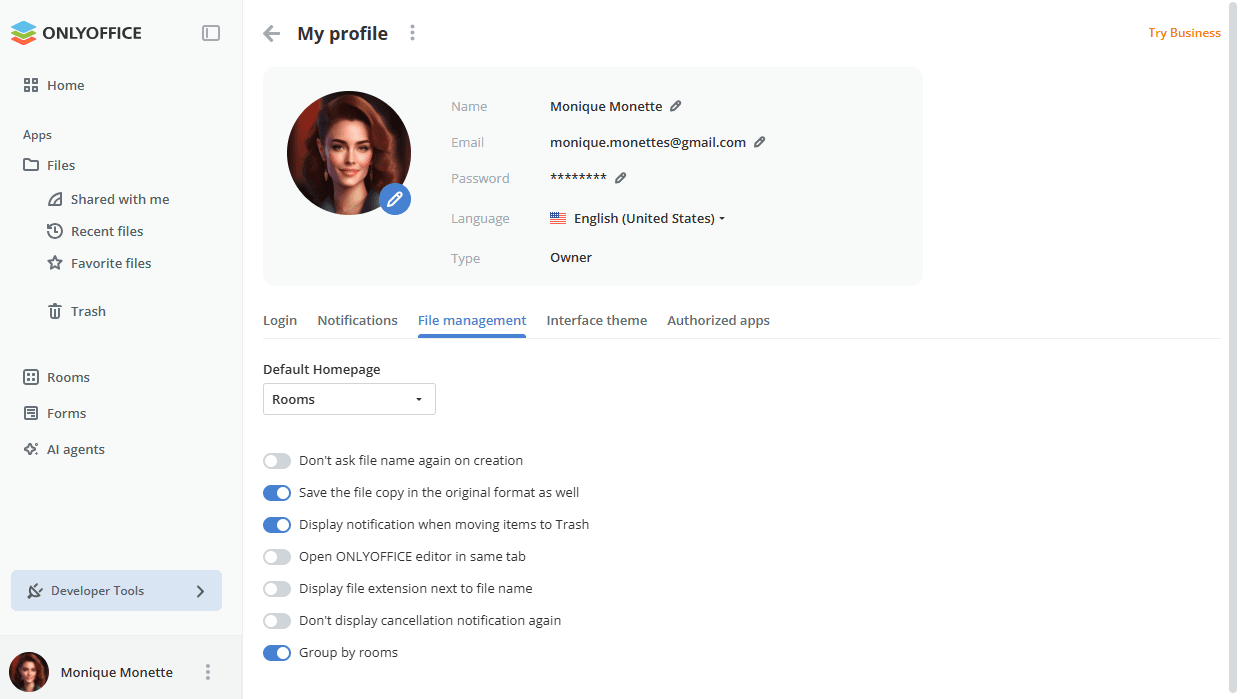
The workspace settings are divided into the following types: the file management settings and the workspace settings.
The file management settings allow all users and guests to control their own work with documents within rooms.
The Owner and Full admins can access the workspace settings.
Payments are now available on a separate page with a dashboard displaying the wallet balance, spendings for the current month, upcoming payments, payment method details, and active add-ons. Paid services (such as Web search or Docs Connect) can be enabled or disabled not only by the Payer, but also by Full admins; only the Payer can top up the wallet. Backup can be performed by all admins without enabling the service, provided the wallet balance is sufficient.