ONLYOFFICE Workspace
Introduction
In this article, we will show you how to transfer the ONLYOFFICE Workspace data to ONLYOFFICE Apps.
ONLYOFFICE Apps supports exporting ONLYOFFICE Workspace users, groups, users' files, sharing settings, common and project files.
Export the ONLYOFFICE Workspace data
First, you need to export your users' data from ONLYOFFICE Workspace.
Please read instructions on how to create backup for the Cloud version. Currently, backup can be created in the Workspace Cloud version only. The created backup can be uploaded to the Cloud or Server version of ONLYOFFICE Apps.
Import the data to ONLYOFFICE Apps
-
Log in to your ONLYOFFICE Apps.
-
Use the
 menu in the lower left corner and select the Settings option.
-
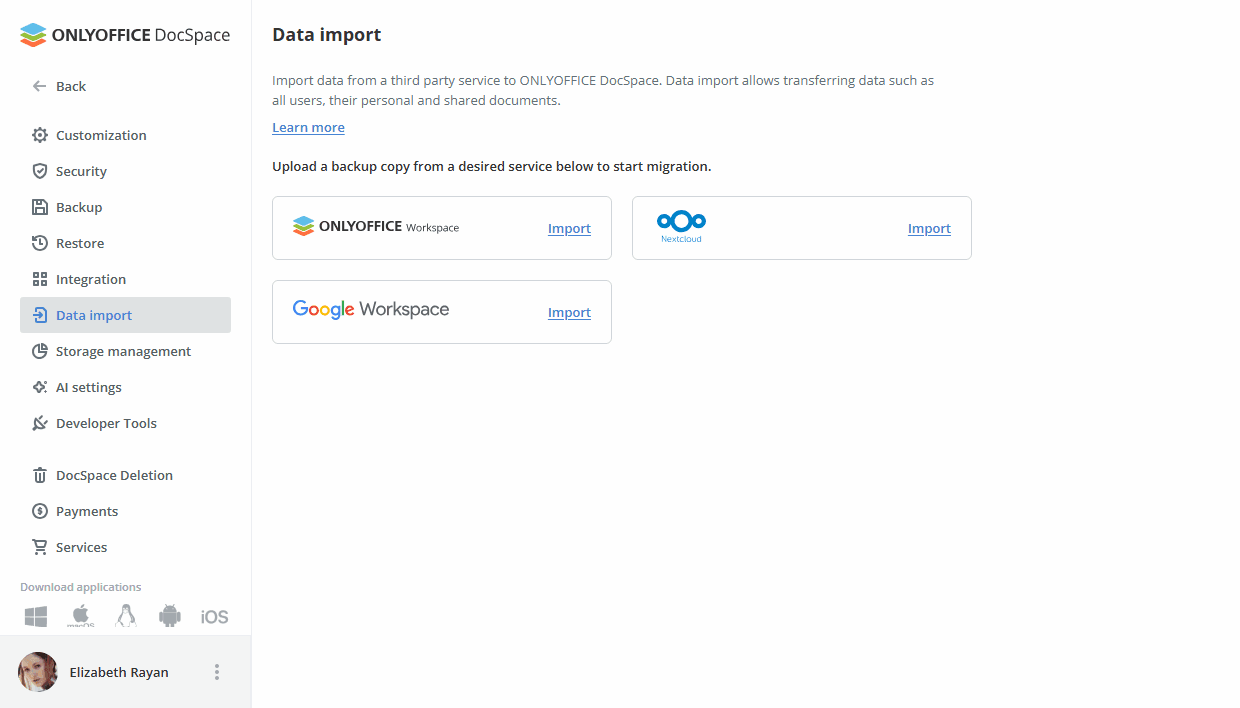
Choose the Data import section.
-
Click the Import link next to the ONLYOFFICE Workspace service or the ONLYOFFICE Workspace item itself.
-
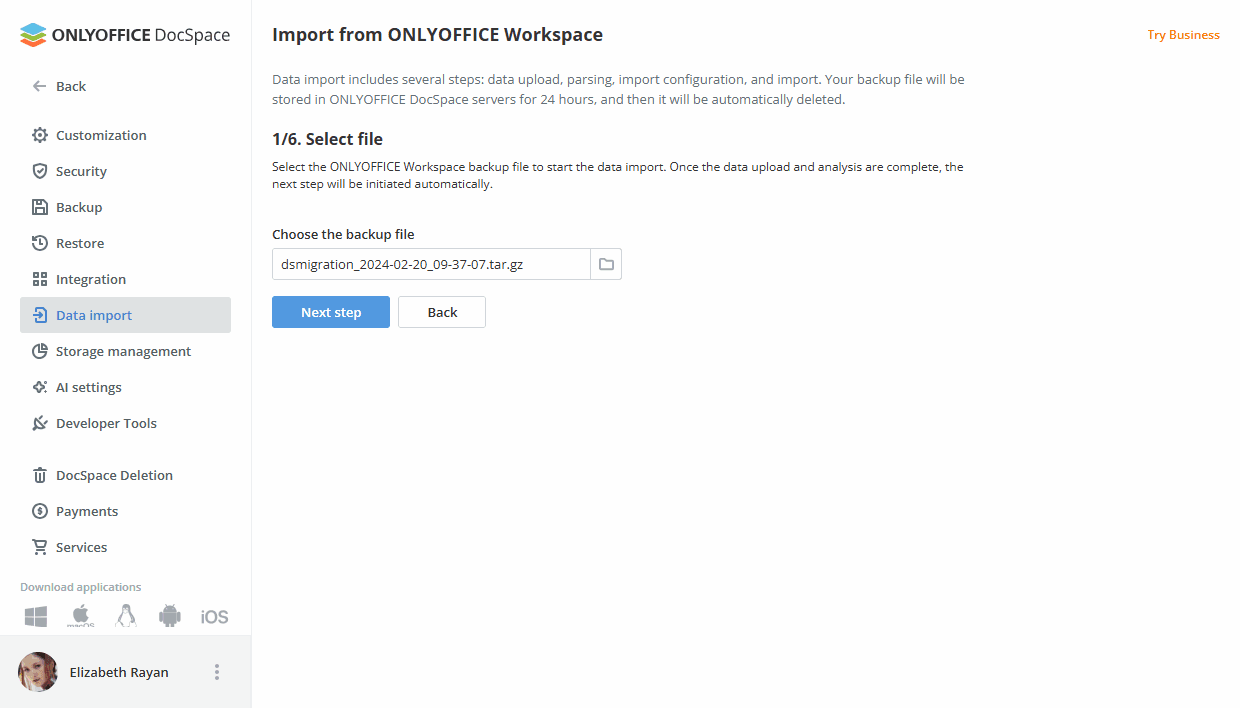
Click the folder icon next to the selection box or the Backup file box itself and select the archives of the users.
Wait for the archive to load. When the loading is complete, click the Next step button.
-
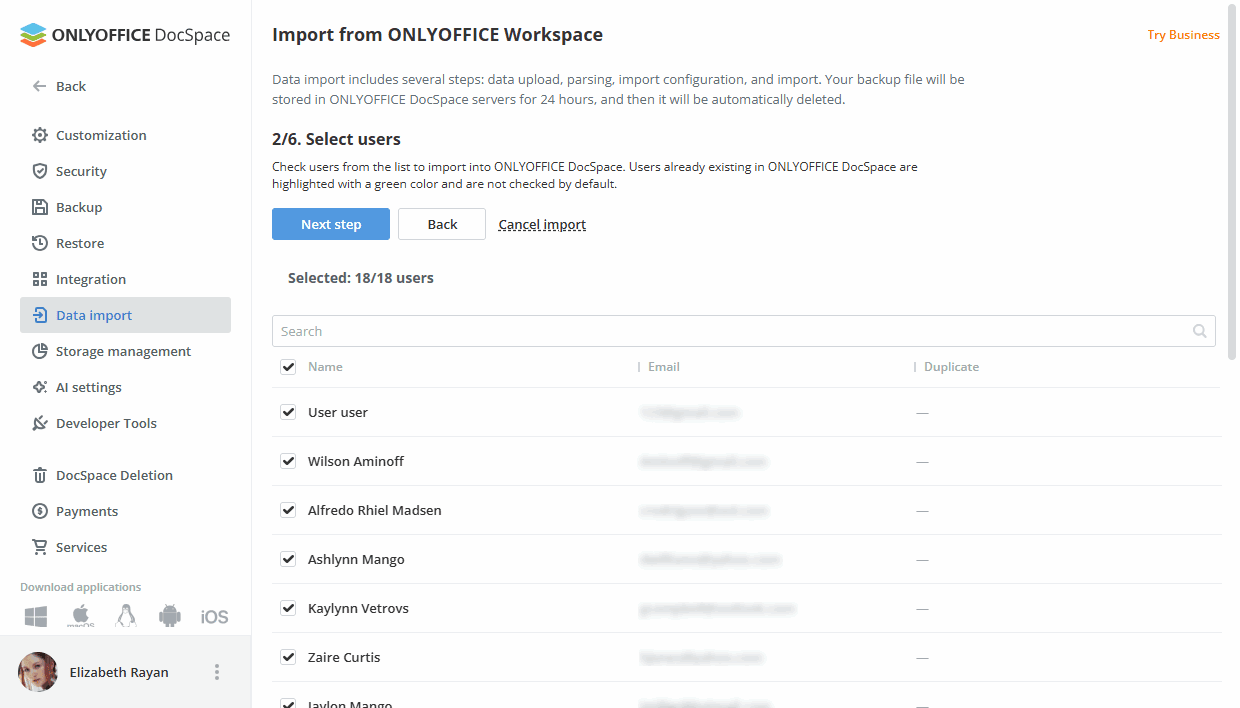
Select users from the list and click the Next step button.
-
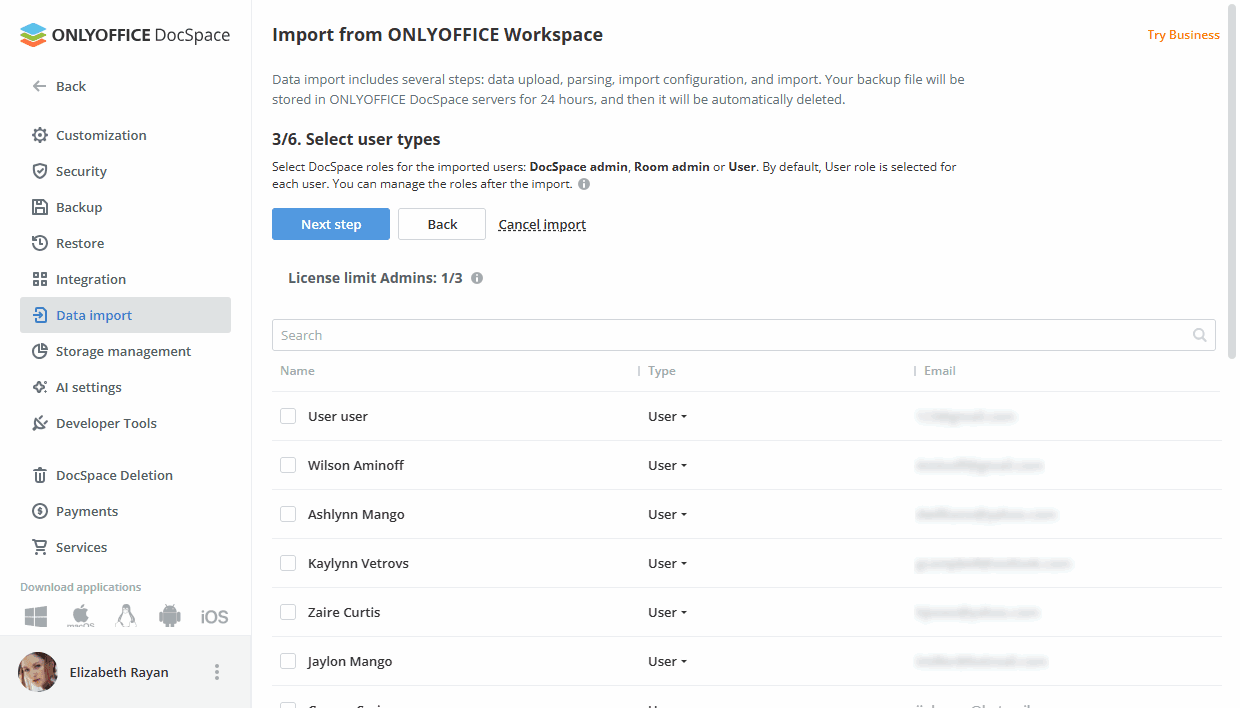
Select user types (Full admin, room admin, user) and click the Next step button.
noteIf the admin limit is exceeded, an error will appear and the button for moving to the next step will be blocked.
-
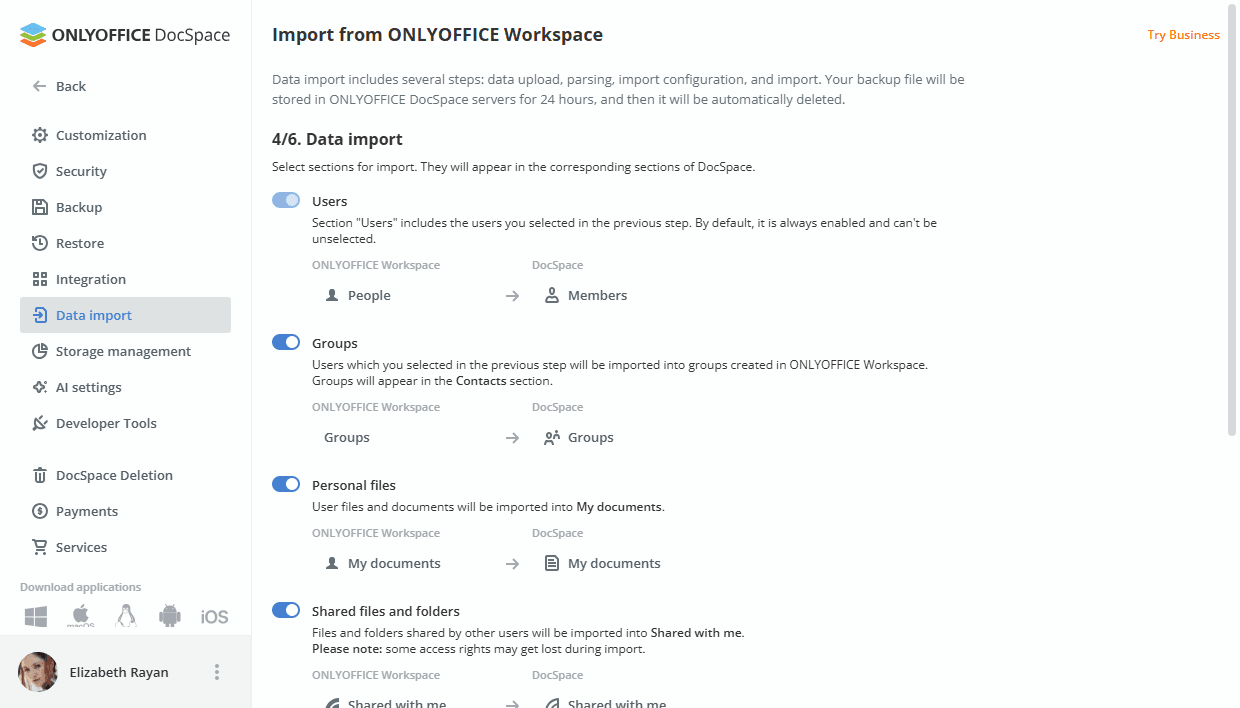
Select modules for import (Users, Groups, Personal files, Shared files and folders, Common files, Project files). Click the Start data import button to proceed with the final step.
noteIf the Personal files module is disabled, the Shared files and folders module is blocked.
-
After the data is migrated, click the Finish button to complete the data import.
Use the Download log button if you want to download information about migration, as well as errors occurred.
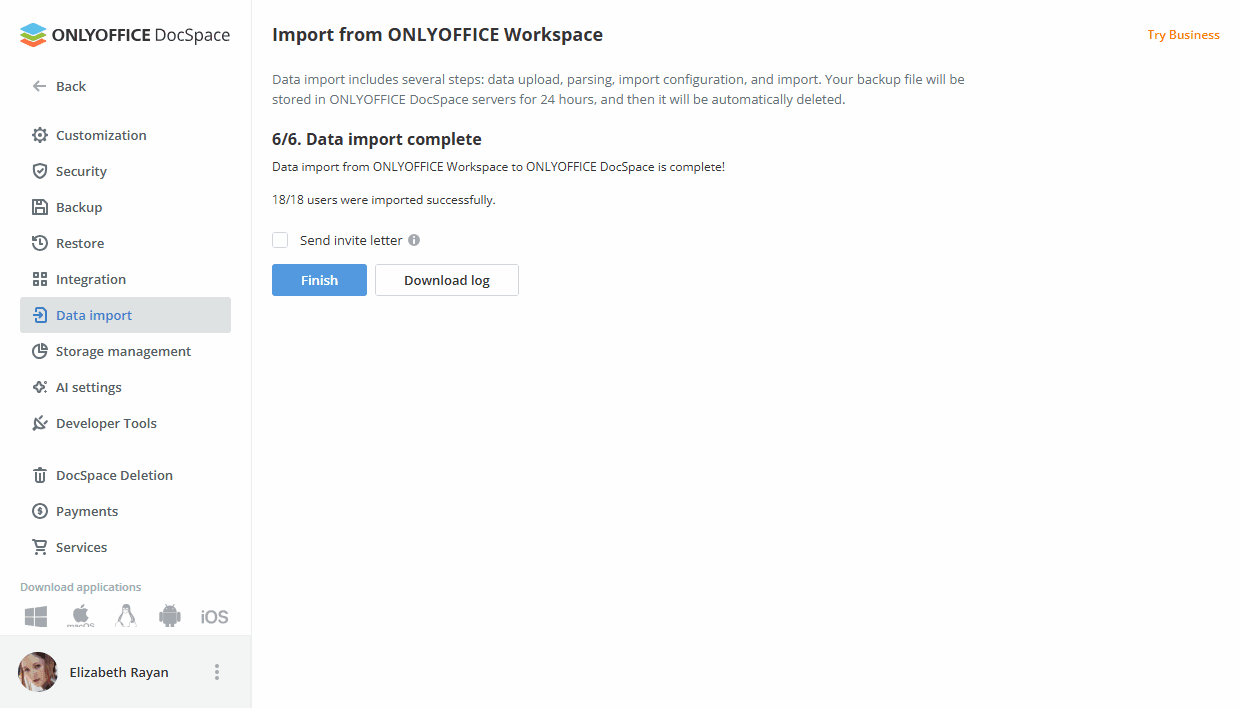
Also, you can send a welcome letter to the new users. This letter will inform your users about migration to ONLYOFFICE Apps. It contains a brief description of the main features and a login link. To send the letter, check the Send invite letter option before clicking the Finish button.
After the migration is complete, the new users and groups can be found in the Contacts section.
Personal files can be accessed through the Files app. Files and folders shared by other users can be accessed through the Shared with me section of the Files app. Common files and project files can be accessed through the Rooms app.