AI
AI settings
The AI section is used to connect an AI provider, add MCP servers, connect a web search engine, enable a knowledge base. These settings are required for using AI agents.
AI provider settings
Connect your own AI service to unlock advanced features in DocSpace. Once added, it will be accessible to all users in AI chats.
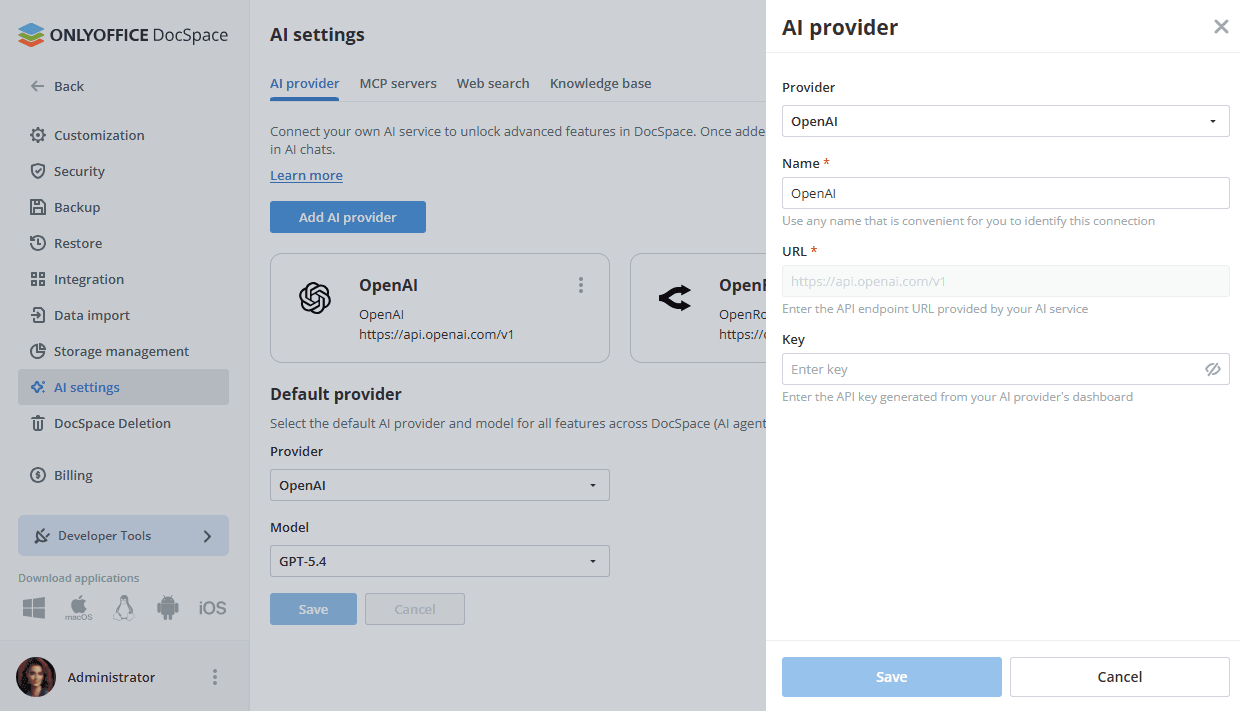
To add a provider,
- Click the Add AI provider button.
- In the Provider list, select one of the available providers: OpenAI, Anthropic, Together AI, OpenRouter, DeepSeek, Google, xAI.
- In the Name field, enter any name that is convenient for you to identify this connection.
- In the URL field, the API endpoint URL provided by your AI service is set by default.
- In the Key field, enter the API key generated from your AI provider's dashboard.
- Click Save.
Added providers appear on the AI provider tab, each displaying the provider name and its API endpoint URL. To edit or remove a provider, use the  menu on the corresponding card.
Default provider
The Default provider section lets you select the AI provider and model used by default across all DocSpace features: AI agents, editors, and more.
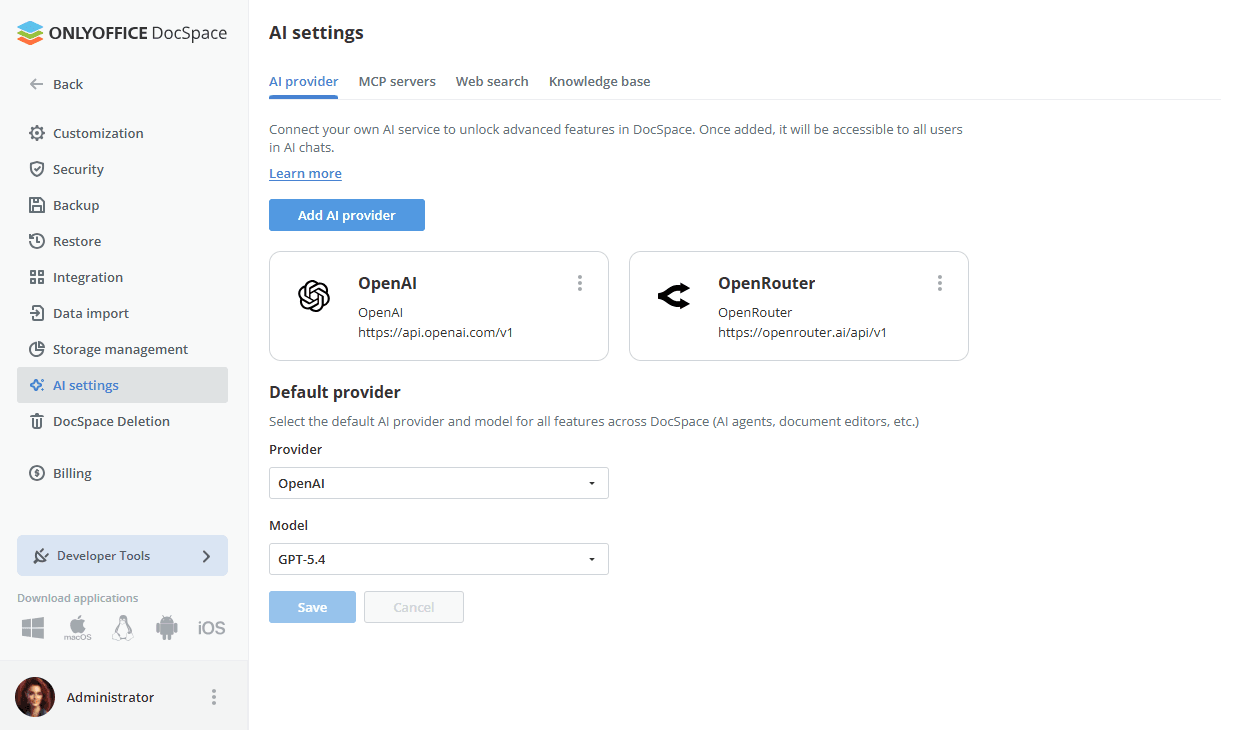
- In the Provider dropdown, select one of the connected providers.
- In the Model dropdown, select the specific model to use.
- Click Save.
MCP servers settings
This section lets you manage MCP servers for AI chats within rooms. You can enable system MCP servers or add custom ones to meet your company's needs.
The ONLYOFFICE DocSpace MCP Server is available by default. It streamlines AI-driven workflows, integrating LLMs with external systems for efficient and secure document management.
To add a custom MCP server,
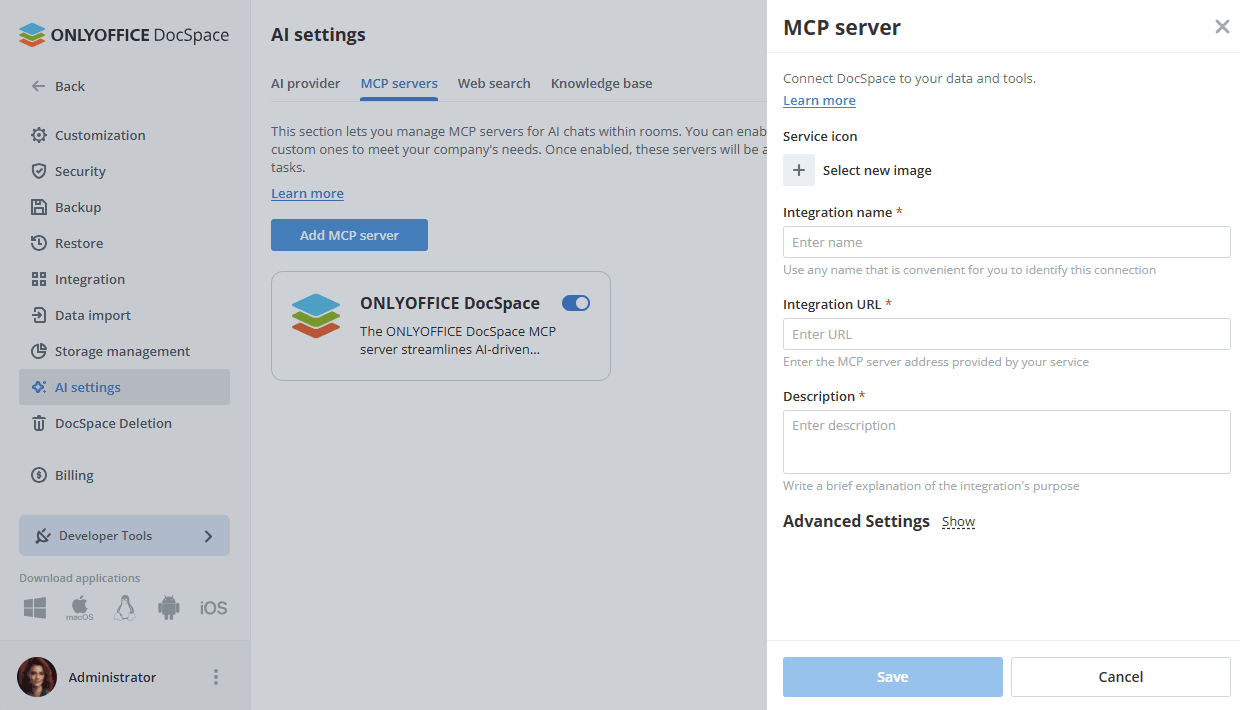
- Click the Add MCP server button.
- In the Service icon section, click the '+' button and select an image.
- In the Integration name field, enter any name that is convenient for you to identify this connection.
- In the Integration URL field, enter the MCP server address provided by your service.
- In the Description field, enter a brief explanation of the integration's purpose.
- In the Advanced Settings section, specify additional HTTP headers, like authorization tokens. Click the 'Show' link and enter 'Header name' and 'Header value'. You can add more headers by clicking the '+' button.
- Click Save.
Once enabled, these servers will be accessible to other users for their tasks.
Web Search settings
Connect a web search engine to enhance AI chats with real-time information from the internet.
- In the Web Search Engine list, select the available provider: Exa.
- In the API Key field, enter the API key obtained from your web search provider.
- Click Save.
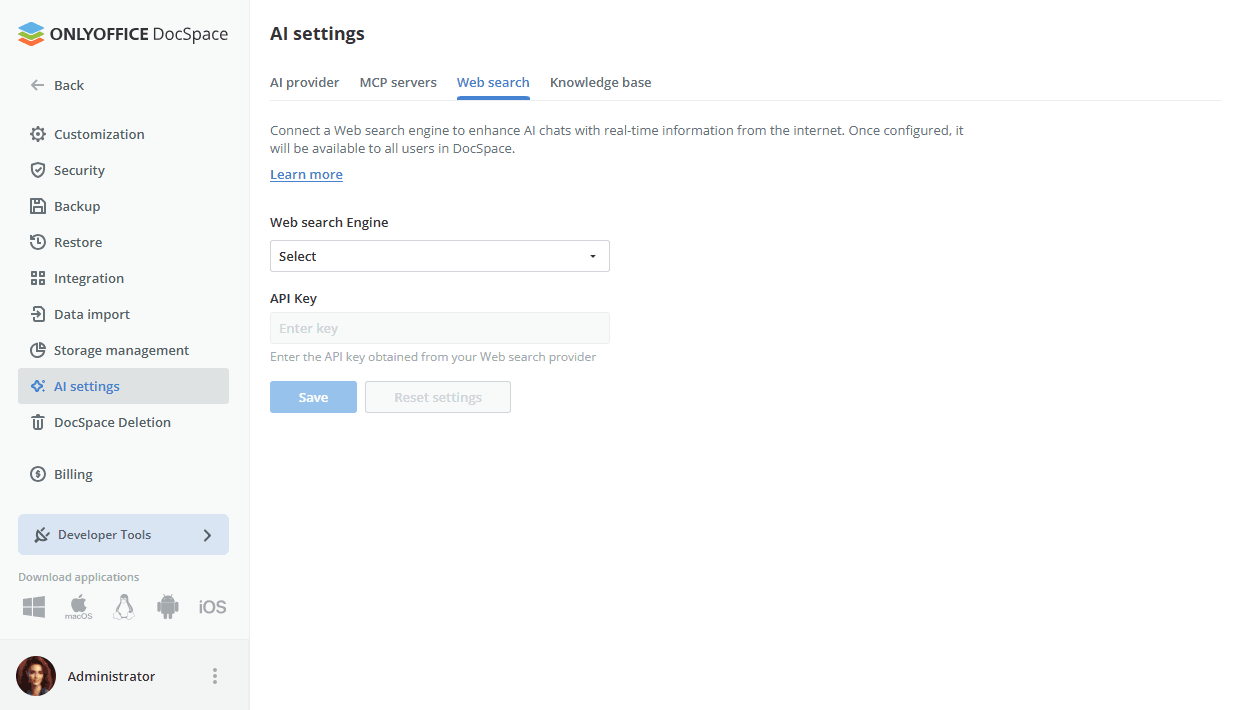
Once configured, it will be available to all users in DocSpace.
Knowledge settings
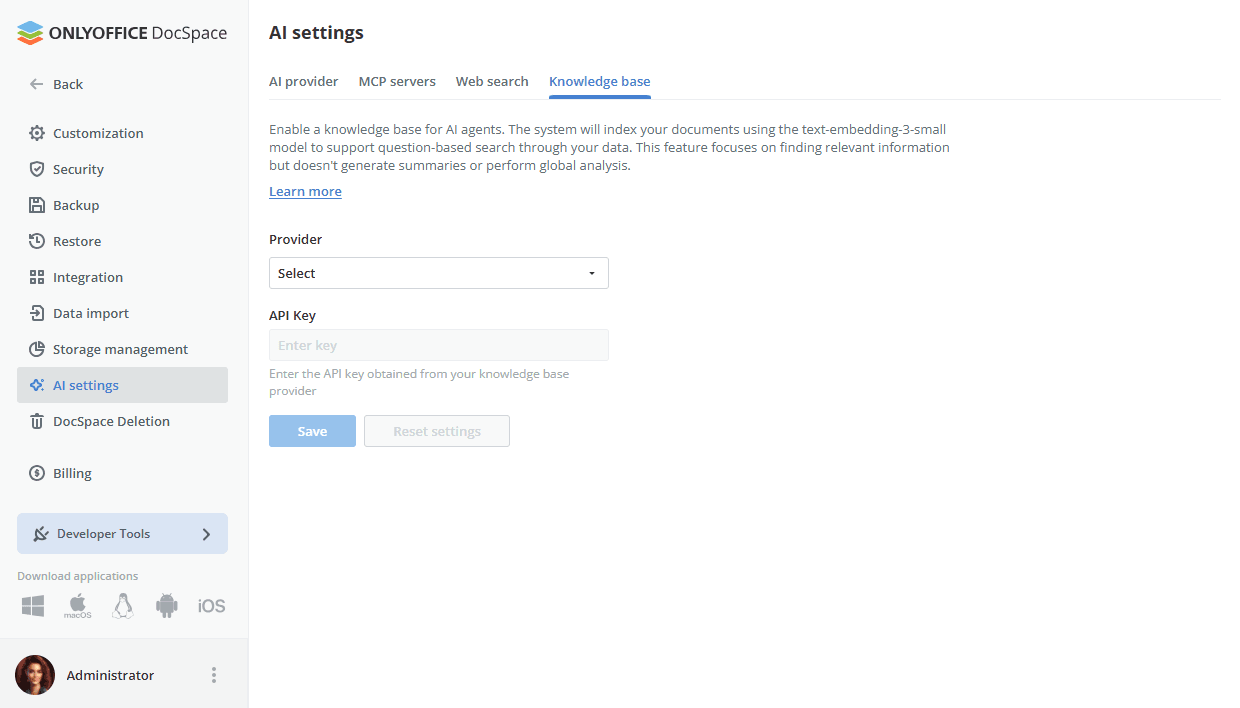
Enable a knowledge base for AI agents. The system will index your documents using the text-embedding-3-small model to support question-based search through your data. This feature focuses on finding relevant information but doesn't generate summaries or perform global analysis.
- In the Provider list, select one of the available providers: OpenAI, OpenRouter.
- In the API Key field, enter the API key obtained from your knowledge base provider.
- Click Save.
Once the AI settings are configured, you can start creating your AI agent. For more details on creating AI agents, please refer to our instructions.