Nextcloud
Connect the Nextcloud service to use the connected cloud storage as a third-party resource when creating backups or public rooms, or to allow users to sign in to your workspace with their Nextcloud account.
Storing backup
To store your workspace data backup in Nextcloud:
-
Go to the Backup section (Settings -> Backup -> Third-party resource).
-
Select Nextcloud as the required storage and click the Connect button.
-
Enter the Connection URL.
For example, the URL that gives access to your Nextcloud files via WebDAV looks like this:
https://yourdomain.com/remote.php/dav/files/. To find this URL: sign in to your Nextcloud account, go to Files, click the Files settings icon in the lower left corner, and copy the entire URL from the WebDAV field. Then switch to ONLYOFFICE Apps and paste the entire copied URL, including the protocol, into the Connection URL field.
-
-
Fill out the Login and Password fields.
-
Click the Save button.
-
Click Create copy.
For more details about backup, read this article.
Storing public room data
To store your public room data in Nextcloud:
-
Go to the Rooms app on the left.
-
Use the New room button in the upper left corner or the
 Plus icon above the list of rooms.
-
Select the Public room.
-
Enter the room name, add tags, upload an image.
-
Turn on the Third-party storage toggle.
-
Select Nextcloud from the list and click Connect.
-
In a new window, specify the connection URL, your login and password, and click Save.
For example, the URL that gives access to your Nextcloud files via WebDAV looks like this:
https://yourdomain.com/remote.php/dav/files/. To find this URL: sign in to your Nextcloud account, go to Files, click the Files settings icon in the lower left corner, and copy the entire URL from the WebDAV field. Then switch to ONLYOFFICE Apps and paste the entire copied URL, including the protocol, into the Connection URL field.
-
-
A new folder for storing this room's data will be created in the connected storage. If necessary, clear this checkbox and select the already existing folder in the connected storage.
-
Click Create.
For more details about creating rooms, read this article.
Signing in with Nextcloud
Users can sign in to your workspace using their Nextcloud account. To enable this:
-
Go to Settings -> Integration -> Third-party services.
-
Locate Nextcloud in the list and click the Enable button.
-
Enter your Nextcloud Client ID and Client Secret.
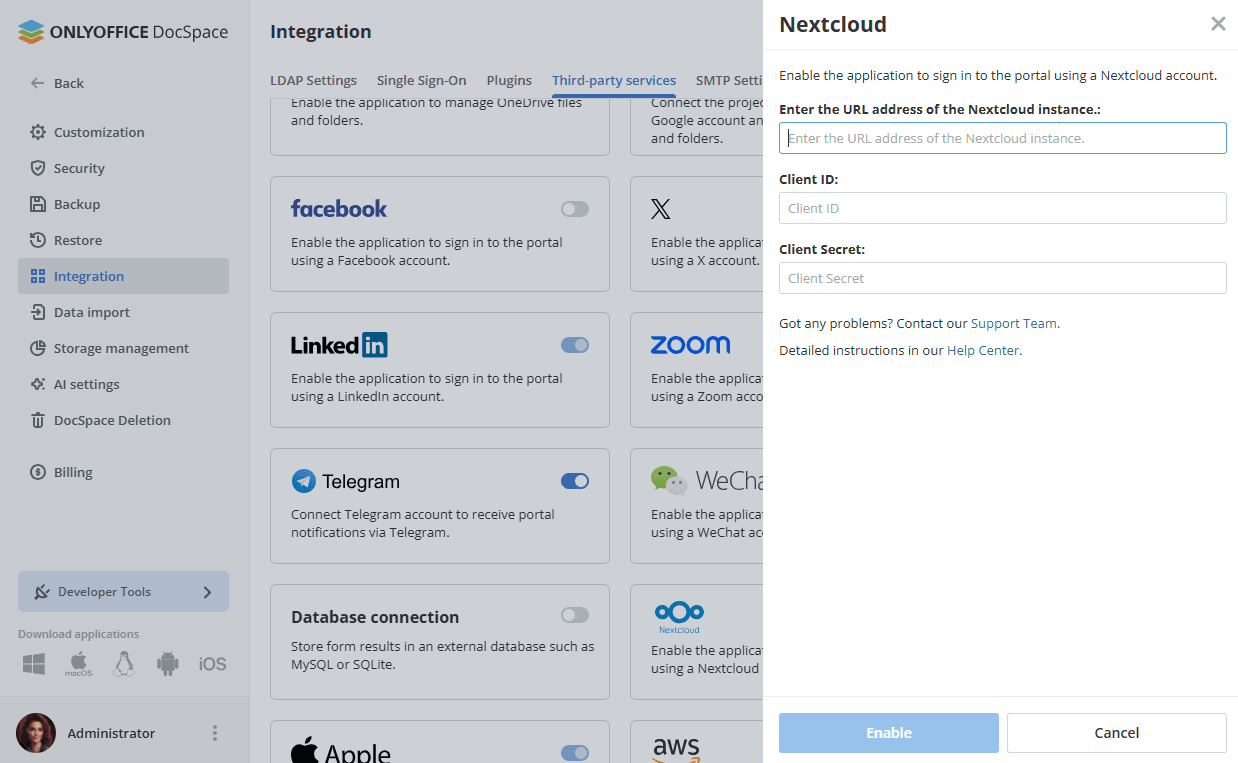
You can find these values in your Nextcloud admin panel under Settings -> Security -> OAuth 2.0 clients. Make sure the redirect URI is set to your workspace address.
-
-
Click the Save button.
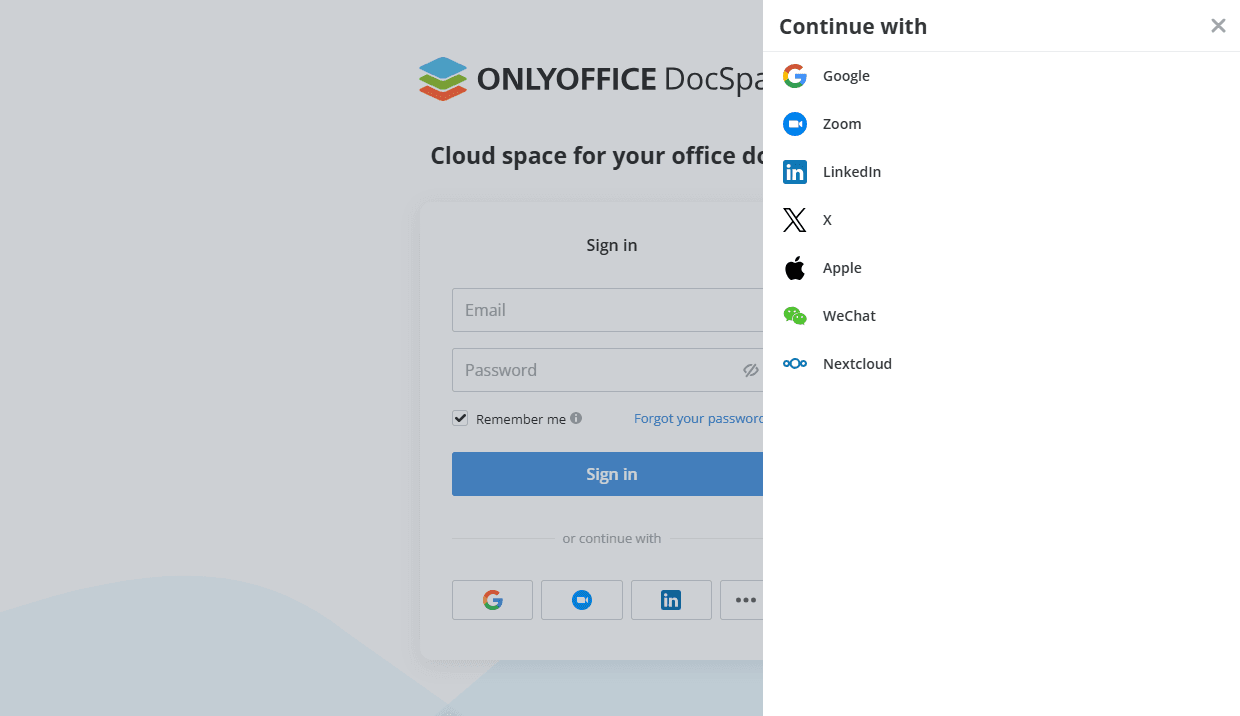
Once configured, the Sign in with Nextcloud option will appear on the workspace login page.