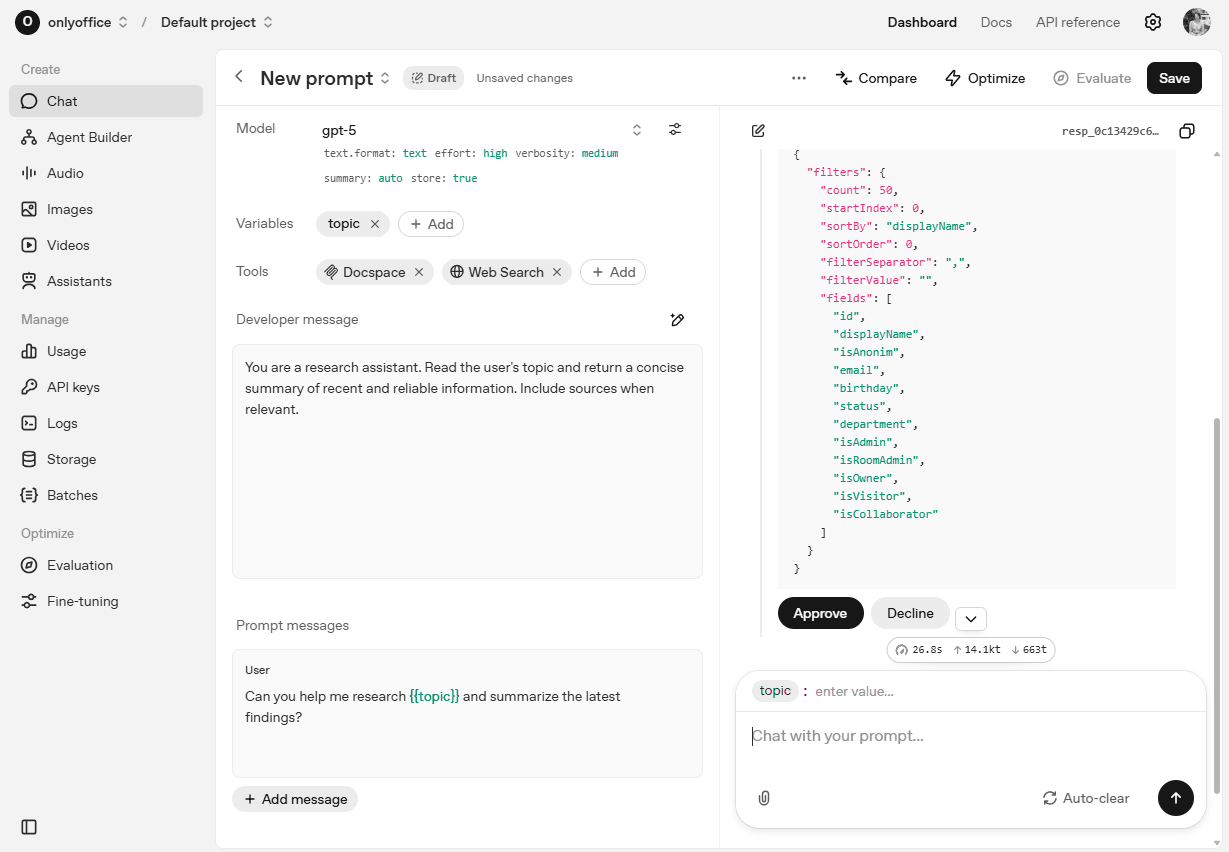
Connecting ONLYOFFICE Apps MCP Server to OpenAI Platform using custom headers
Introduction
The ONLYOFFICE Apps MCP Server is a tool for managing the interaction with language models tailored to enhance efficiency, to streamline the AI-driven workflows, document and task management and to bring out the full potential of the ONLYOFFICE Apps.
The ONLYOFFICE Apps MCP Server may be connected to clients that support connection to the MCP servers running on a remote machine.
The public instance is available at https://mcp.onlyoffice.com/mcp for clients that support modern Streamable HTTP transport and at https://mcp.onlyoffice.com/sse for clients that support only the legacy SSE transport. We recommend that you use the Streamable HTTP transport whenever possible.
These instructions demonstrate how to connect an MCP Client to a remote MCP Server using custom headers provided such a client allows you to pass custom headers. Use this authentication method only if you cannot use OAuth for some reason since this method is less secure.
To connect ONLYOFFICE Apps MCP Server to OpenAI Platform:
-
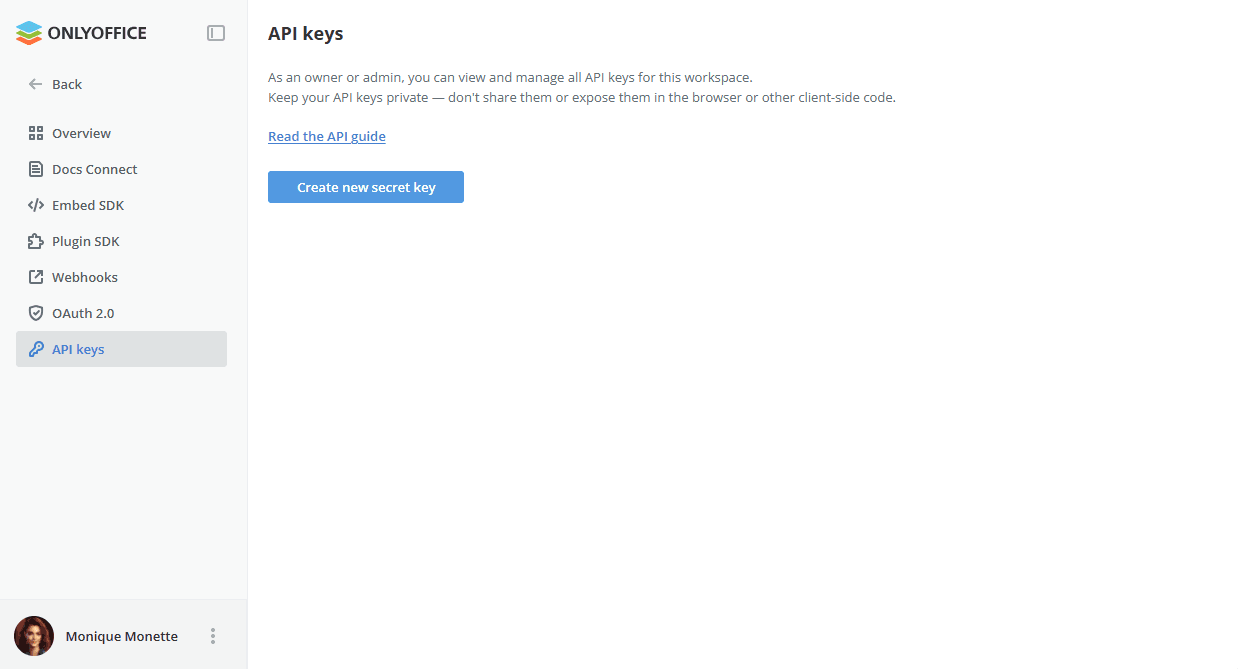
Generate your own Apps api key. The Custom Headers authentication method is less secure compared to OAuth therefore it's not advisable to use the Owner's or the Room Manager's API keys. To generate an API key, go to your Apps. Click the Developer Tools tab in the left panel. Choose the API keys tab on top and click the Create new secret key button. Copy the generated key.
-
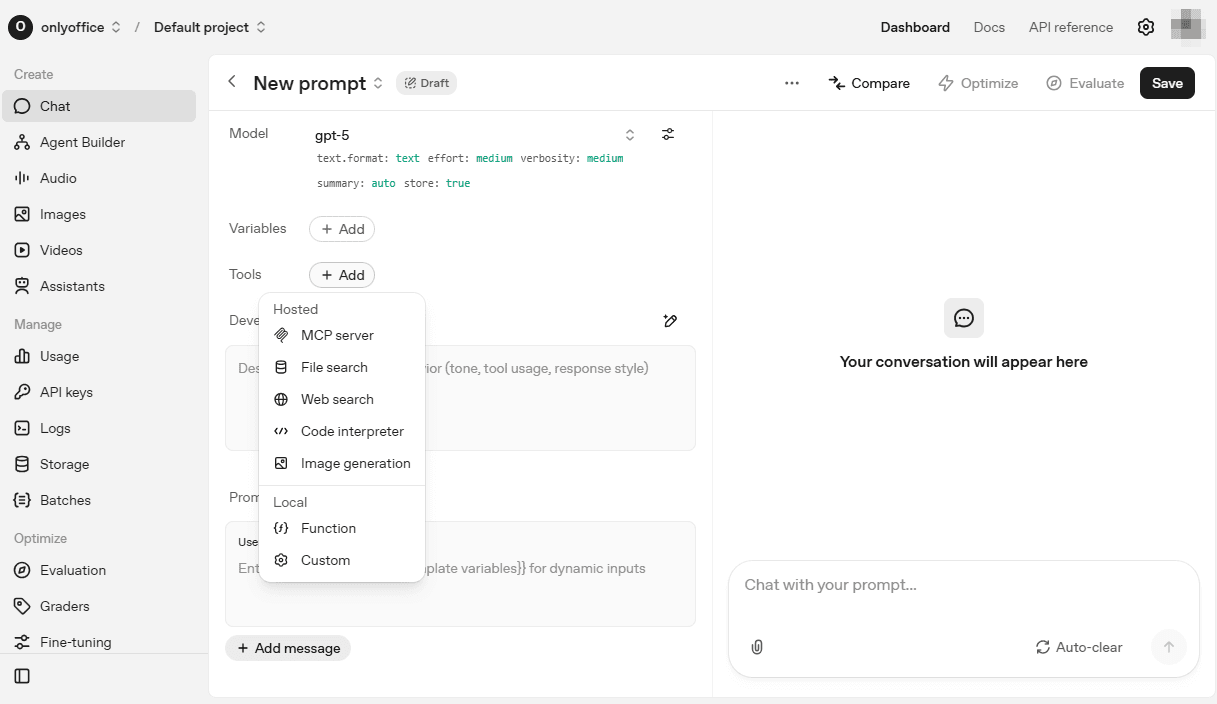
Access your OpenAI account and open a new prompt in Chat.
-
Find Tools option and click the Add button.
-
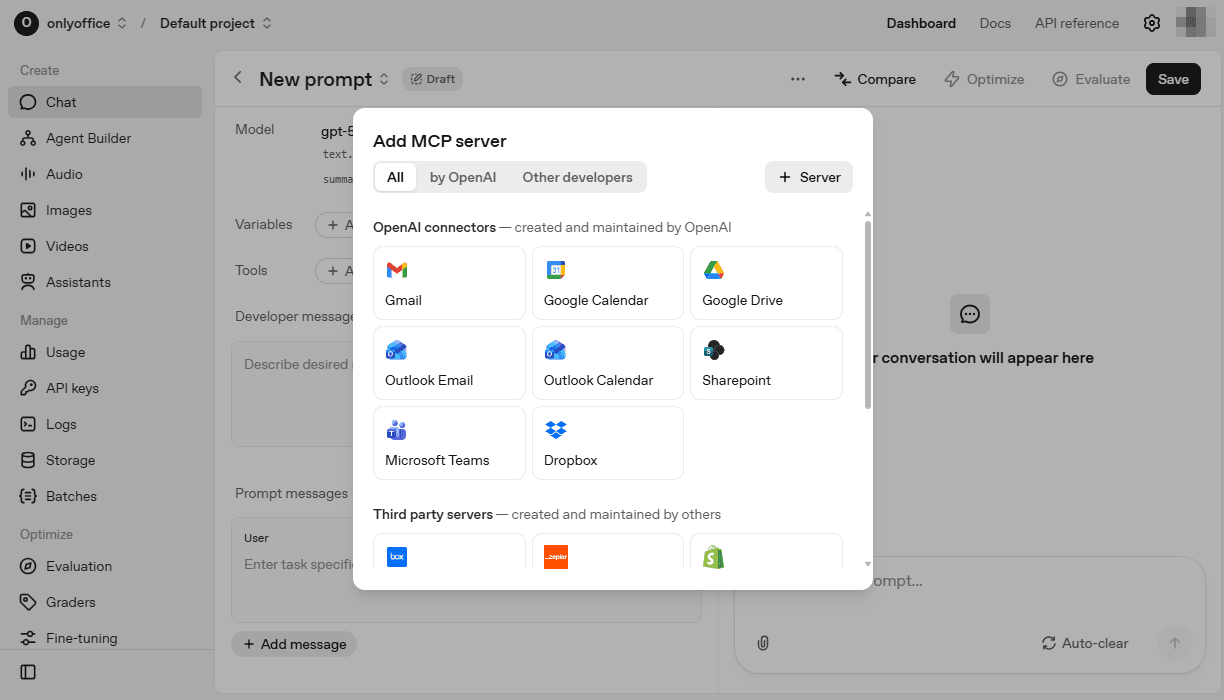
In the window that opens, click Server in the upper right corner.
-
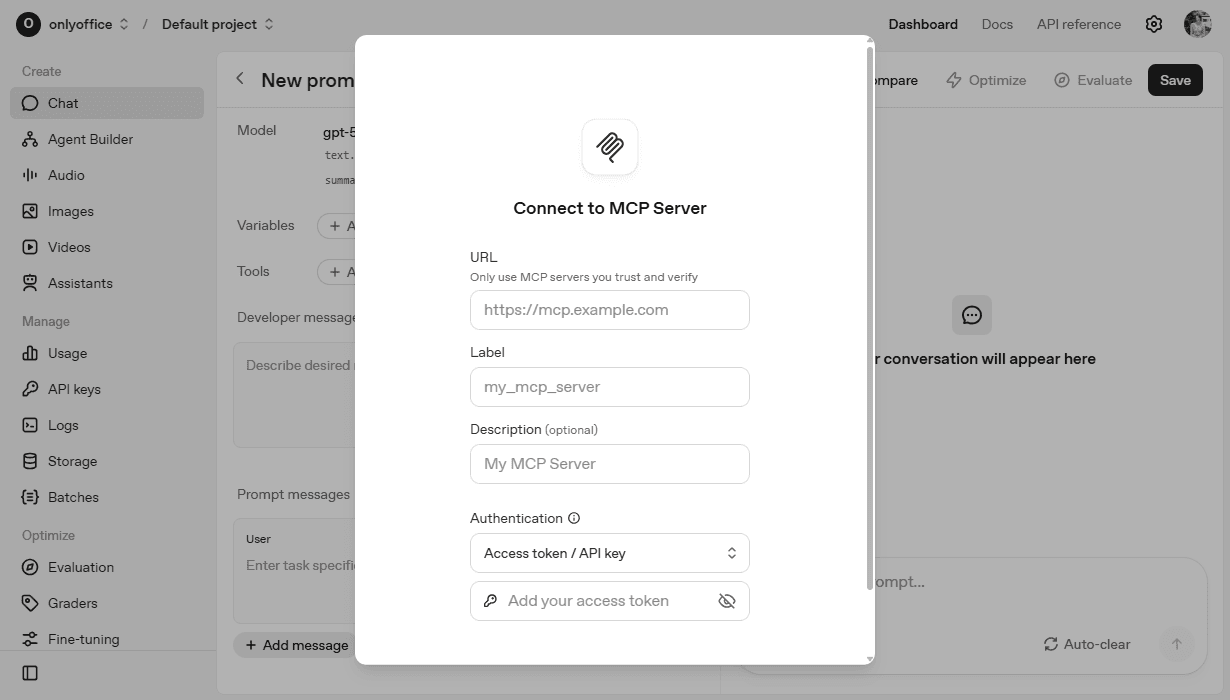
Fill in the required MCP server parameters:
-
URL:
https://mcp.onlyoffice.com/mcp -
Label – fill in the name to distinguish the MCP server.
-
Description – give a short description for the MCP Server to improve the server identification. It’s an optional parameter.
-
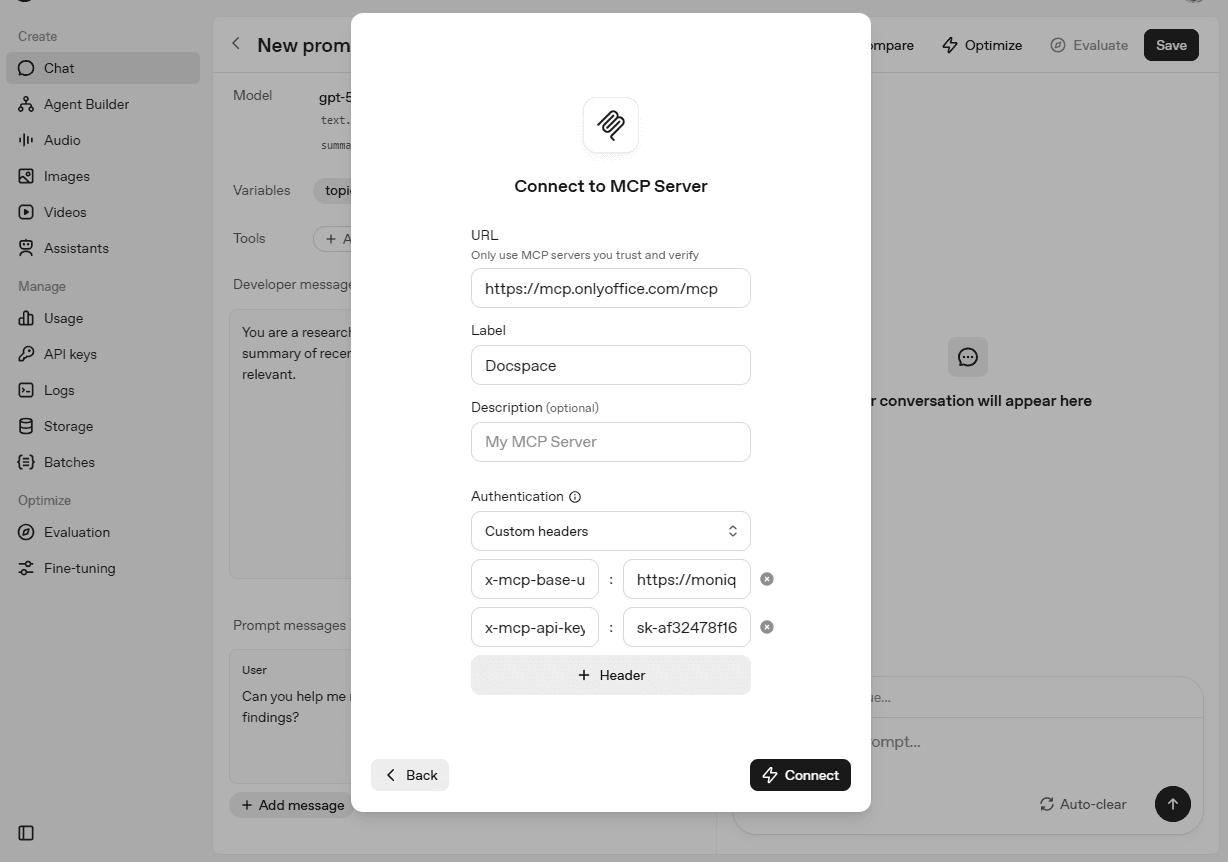
Authentication – define the authentication method and settings. Choose Custom headers from the drop-down list, and use your
DocSpaceAPI keyandbase URLof your Apps portal to connect to. Fill in the fields that open as follows:X-Mcp-Base-Url: https://your-instance.onlyoffice.com/X-Mcp-Api-Key: sk-a499e...X-Mcp-Base-Url - web address of your Apps for the MCP Server to connect to the right portal.
X-Mcp-Api-Key - the Apps API key that has been generated as described in Step 1 above to authorize the MCP Server's access to Apps.
-
-
Click Connect and wait for the connection to establish.
-
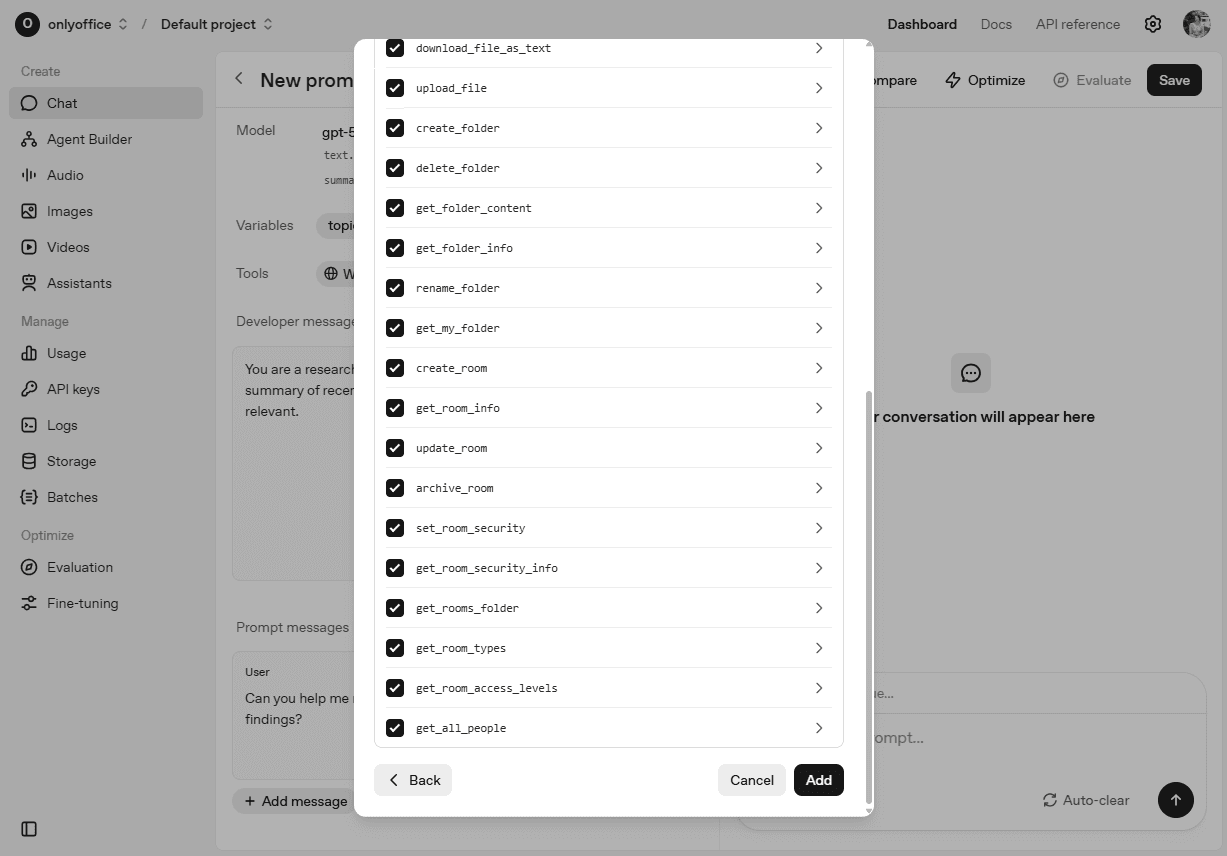
As soon as the MCP Server connects, you will see the list of the MCP server tools. Choose the necessary tools or choose all, and click the Add button at the bottom of the list.
-
Use the OpenAI chat with the Apps MCP Server tools connected. Give your prompt, click Approve to confirm the list of tools used to respond to your prompt.