Connecting ONLYOFFICE Apps MCP Server to Mistral
Introduction
The ONLYOFFICE Apps MCP Server is a tool for managing the interaction with language models tailored to enhance efficiency, to streamline the AI-driven workflows, document and task management and to bring out the full potential of the ONLYOFFICE Apps.
The ONLYOFFICE Apps MCP Server may be connected to clients that support connection to the MCP servers running on a remote machine.
The public instance is available at https://mcp.onlyoffice.com/mcp for clients that support modern Streamable HTTP transport and at https://mcp.onlyoffice.com/sse for clients that support only the legacy SSE transport. We recommend that you use the Streamable HTTP transport whenever possible.
The following two authentication methods can be used to connect the ONLYOFFICE Apps MCP Server to Mistral: OAuth and API Token Authentication. The latter is used with clients that allow you to pass the configuration in custom headers and query parameters. We recommend using OAuth authentication whenever possible.
To add the ONLYOFFICE Apps MCP Server connector to Mistral:
-
Access your Mistral Chat account.
-
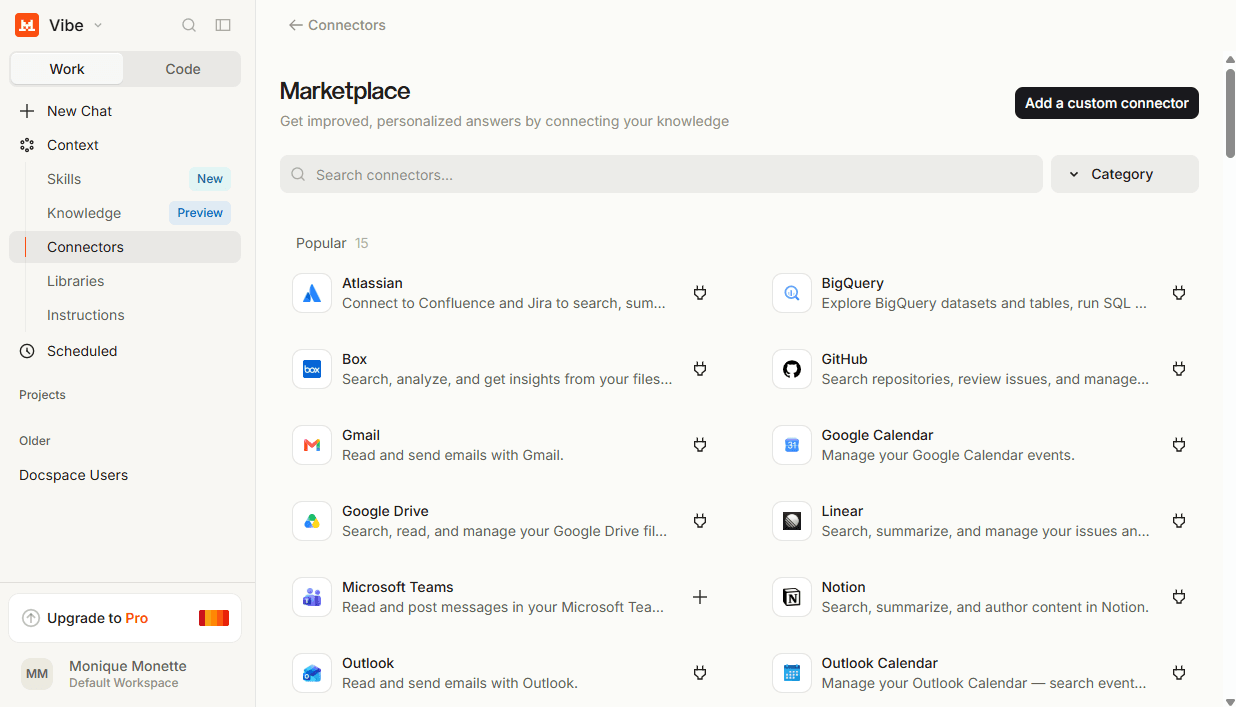
Go to Intelligence → Connectors in the left panel and click the Add connector button.
-
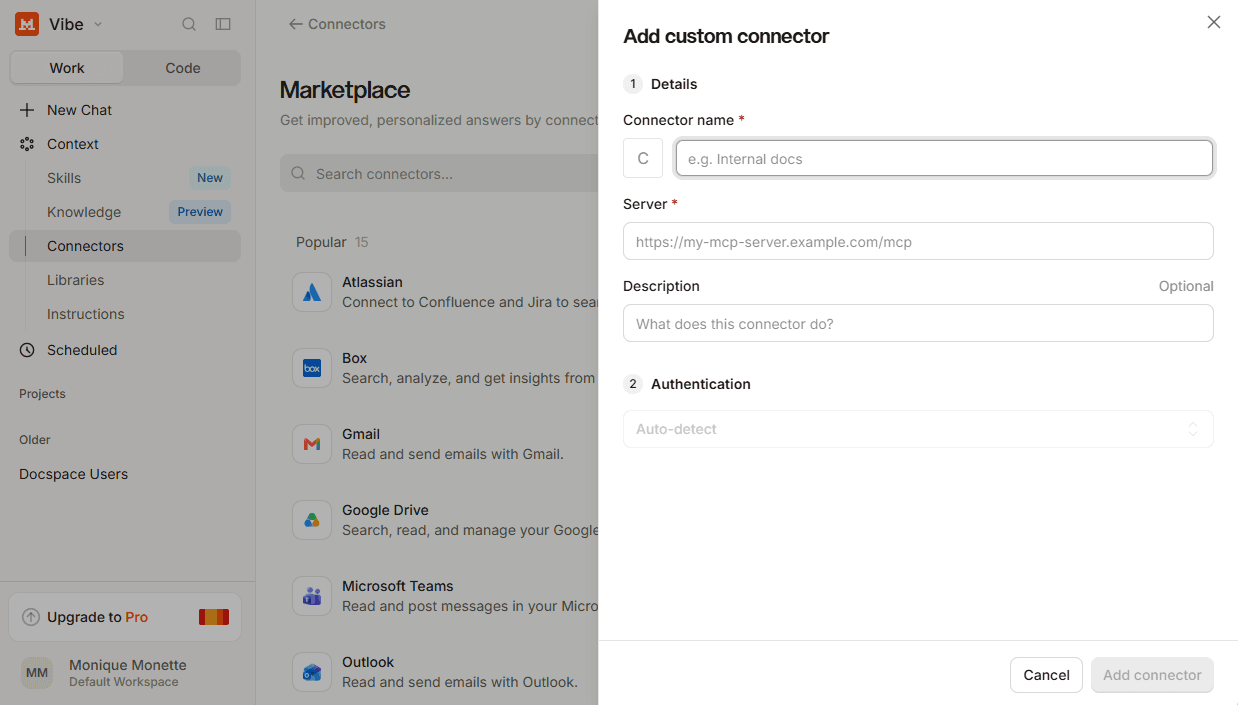
Choose Custom MCP Connector in the upper right corner and configure the MCP server parameters:
OAuth Authentication
-
Type in the connector name.
-
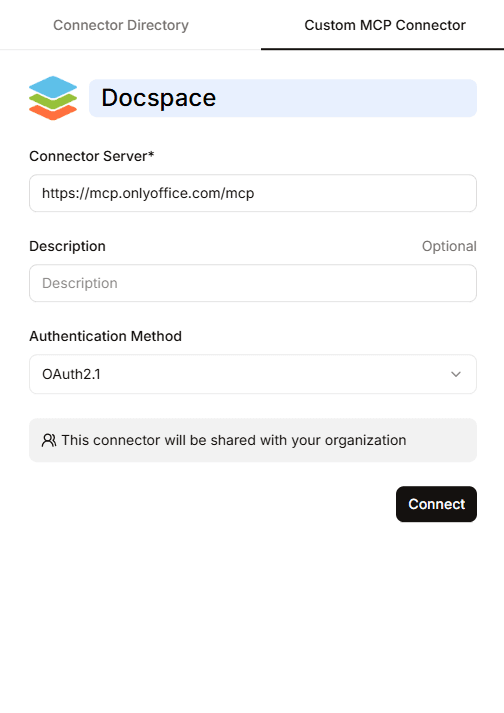
Connector Server - paste the ONLYOFFICE MCP Server URL:
https://mcp.onlyoffice.com/mcp -
Description – give a short description for the MCP Server to improve the server identification. It’s an optional parameter.
-
Authorization Method - choose the OAuth2.1 as a method of authorization for the Apps MCP Server and click Connect.
-
Complete the OAuth authentication process:
-
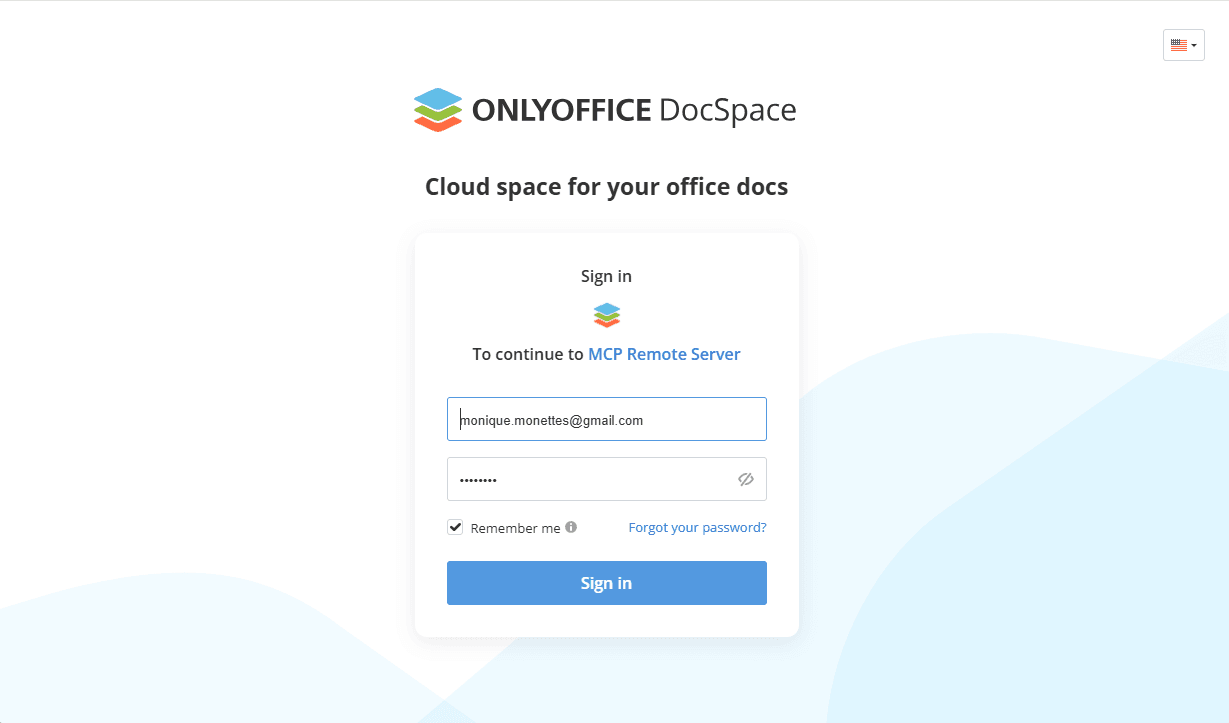
Fill in your Apps credentials.
-
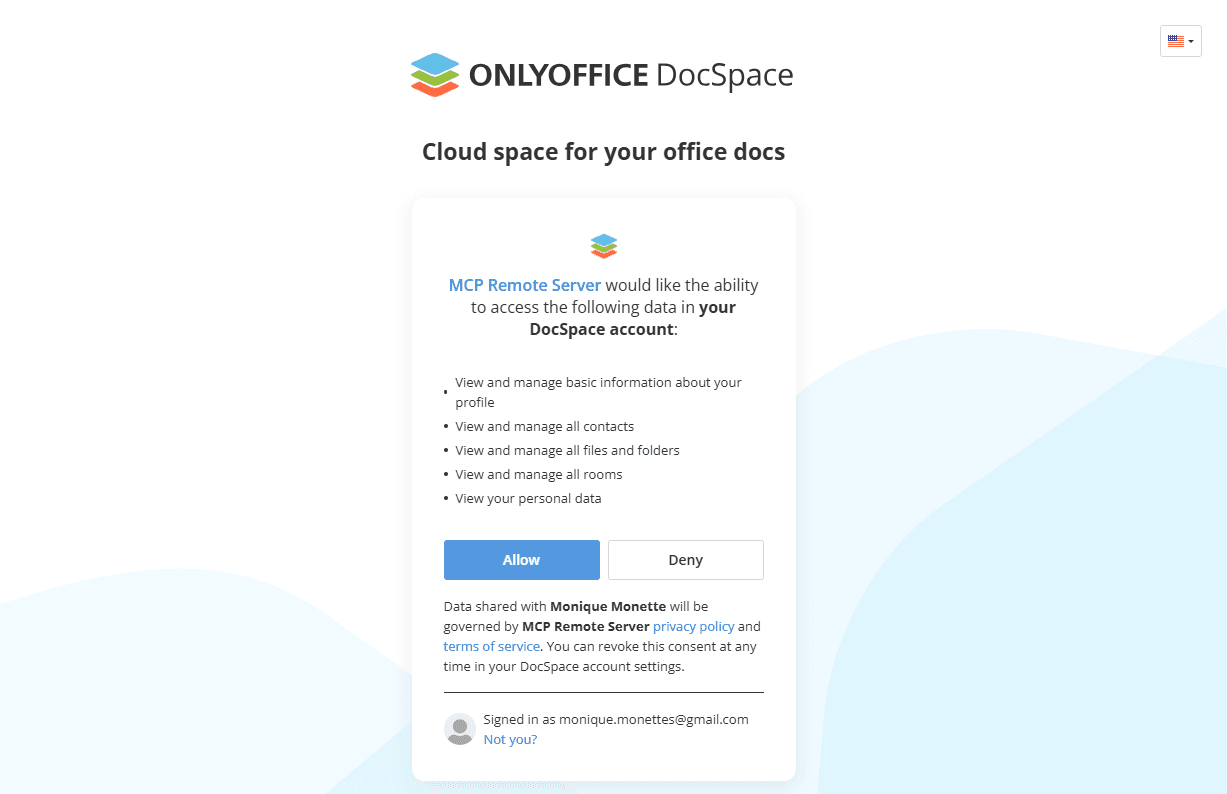
Allow the MCP Remote Server to access your Apps account.
-
API Token Authentication
Use this authentication method only if you cannot use OAuth for some reason since it's less secure. This method allows you to connect the MCP server using the API key in default header and the base URL in query parameter.
-
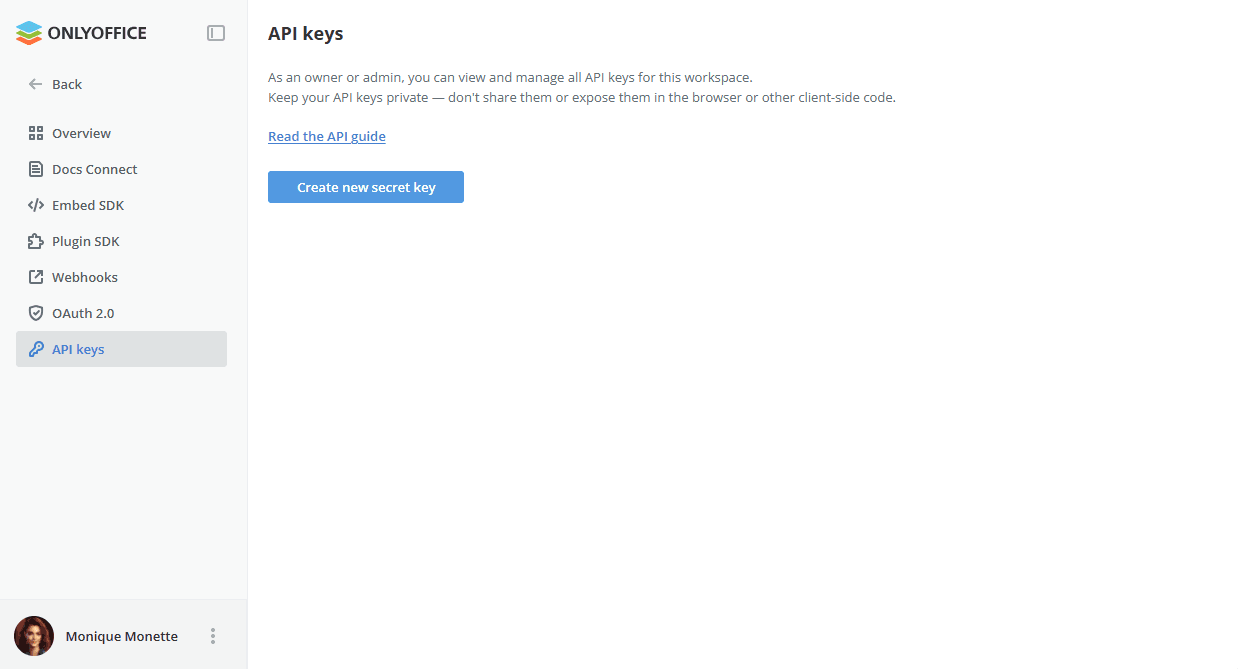
Generate your own Apps API key. It's not advisable to use the Owner's or the Room Manager's API keys. To generate an API key, go to your Apps. Click the Developer Tools tab in the left panel. Choose the API keys tab on top and click the Create new secret key button. Copy the generated key.
-
Type in the connector name.
-
Connector Server - add the base URL of your Apps instance to the ONLYOFFICE Apps MCP Server URL, and pass it via query parameters following the structure below:
https://mcp.onlyoffice.com/mcp?base_url=https://your-instance.onlyoffice.com -
Description – give a short description for the MCP Server to improve the server identification. It’s an optional parameter.
-
Authorization Method - choose the API Token Authentication as a method of authorization for the Apps MCP Server.
Default header - add your Apps API key to the Authorization header as a Bearer token. It's a mandatory parameter since this header is used to authorize requests to Apps.
Authorization: Bearer sk-a499e... -
Click Create to add the Apps MCP Server to Mistral connectors.
Using the ONLYOFFICE MCP Server
-
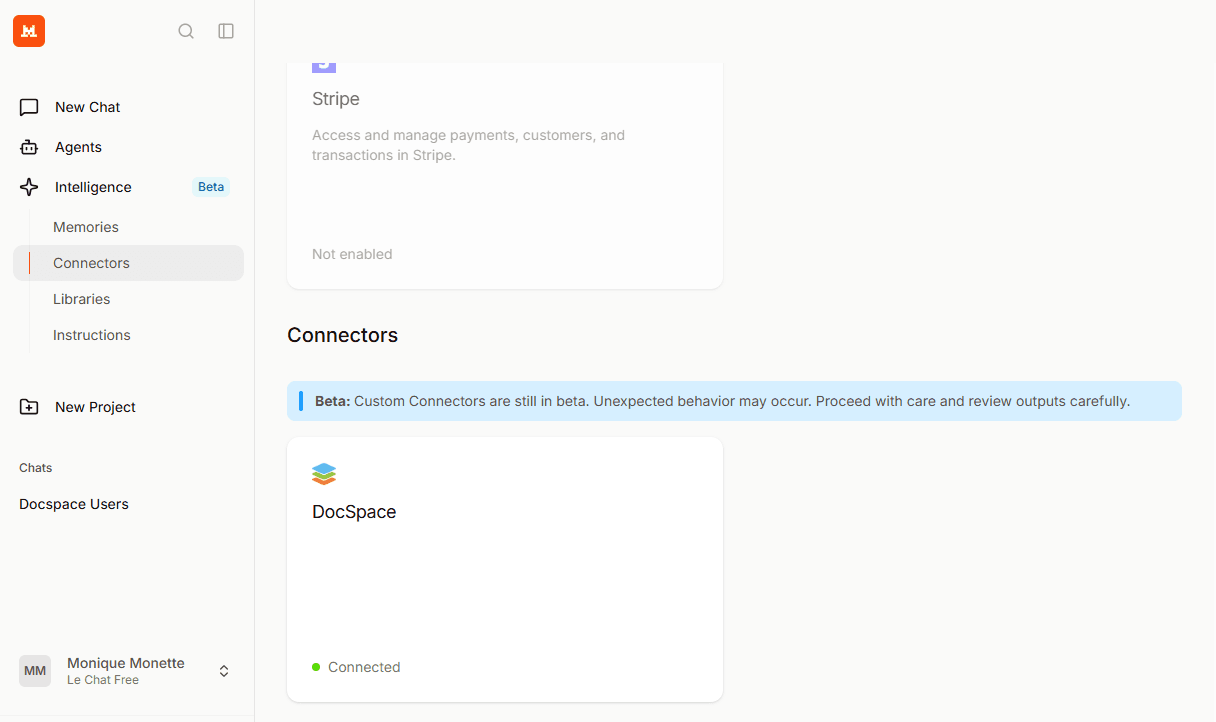
After a successful authentication, Apps connector appears among the available connectors.
-
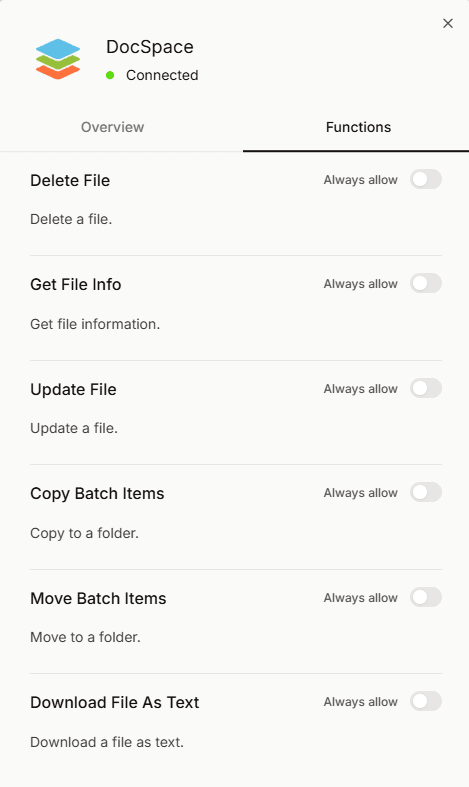
Click it to display the connector overview and functions. The Overview tab gives the description of the connector you provided upon the setup, and the possibility to delete the connector clicking the ellipsis.

-
The Functions tab allows you to scroll through the available tools, and to enable the necessary ones.
-
Open the chat and give your prompt. In the Connectors list, make sure Apps (or the name you assigned to it) is selected.
-
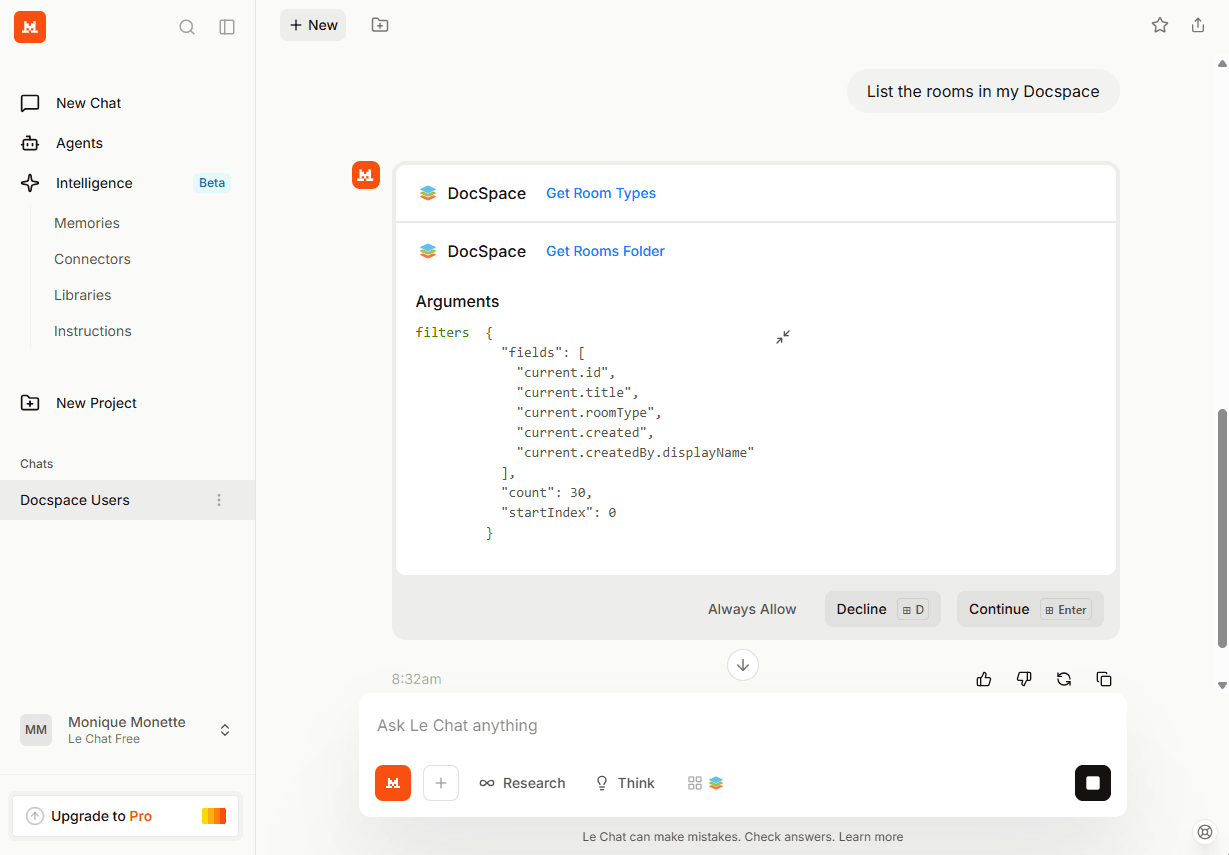
Click Continue to confirm the list of tools used to respond to your prompt.