Workspace Deletion
Deactivating/deleting the workspace
The Workspace deletion section of the settings allows you to temporarily deactivate or permanently delete your workspace. Currently, this option is only available in the SaaS version.
Workspace deactivation
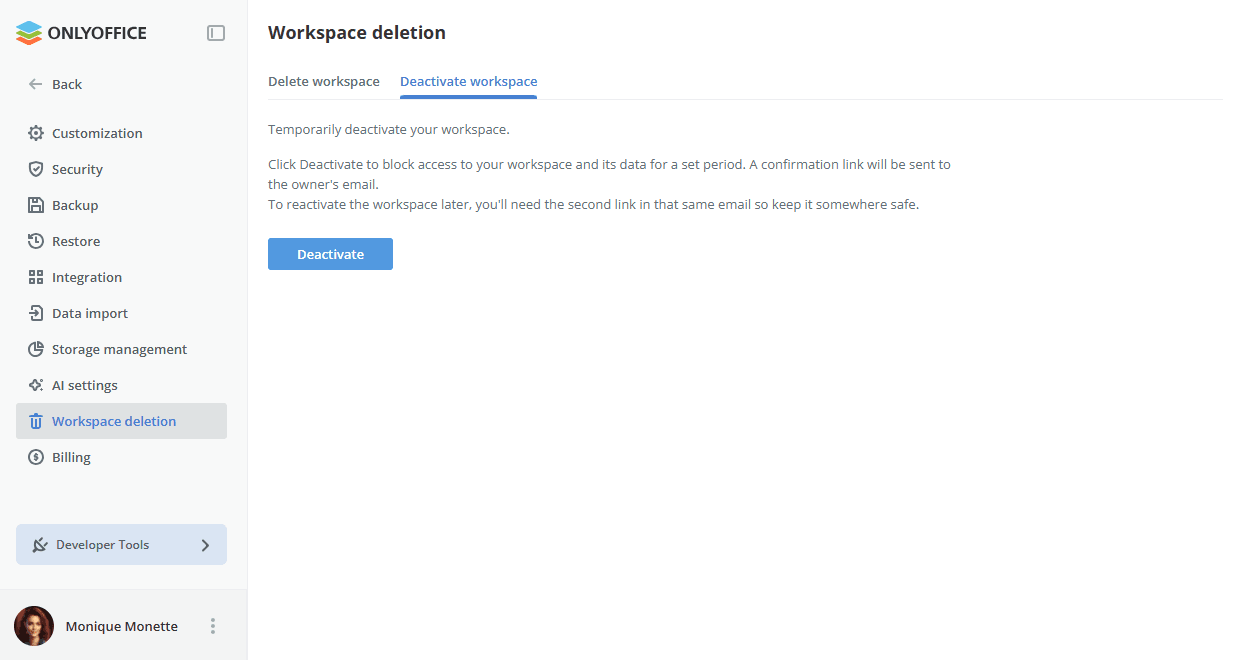
If you decide not to use the workspace for some temporary reasons, deactivate it. To do that,
-
switch to the Deactivate workspace tab.
-
click the Deactivate button.
-
a link to confirm the operation will be sent to the email address of the workspace owner. Follow the link to confirm the operation.
This link is valid for 7 days only. Please complete the workspace deactivation process within that period.
After that, your workspace and all information associated with it will be blocked so that no one has access to it during a particular period.
You will be able to reactivate your workspace at any moment. To come back to the workspace and start using it again, use the second link provided in the confirmation email. So, please, keep this email in a safe place.
Workspace deletion
If you do not think you will use your workspace and would like to delete it permanently,
-
switch to the Delete workspace tab.
-
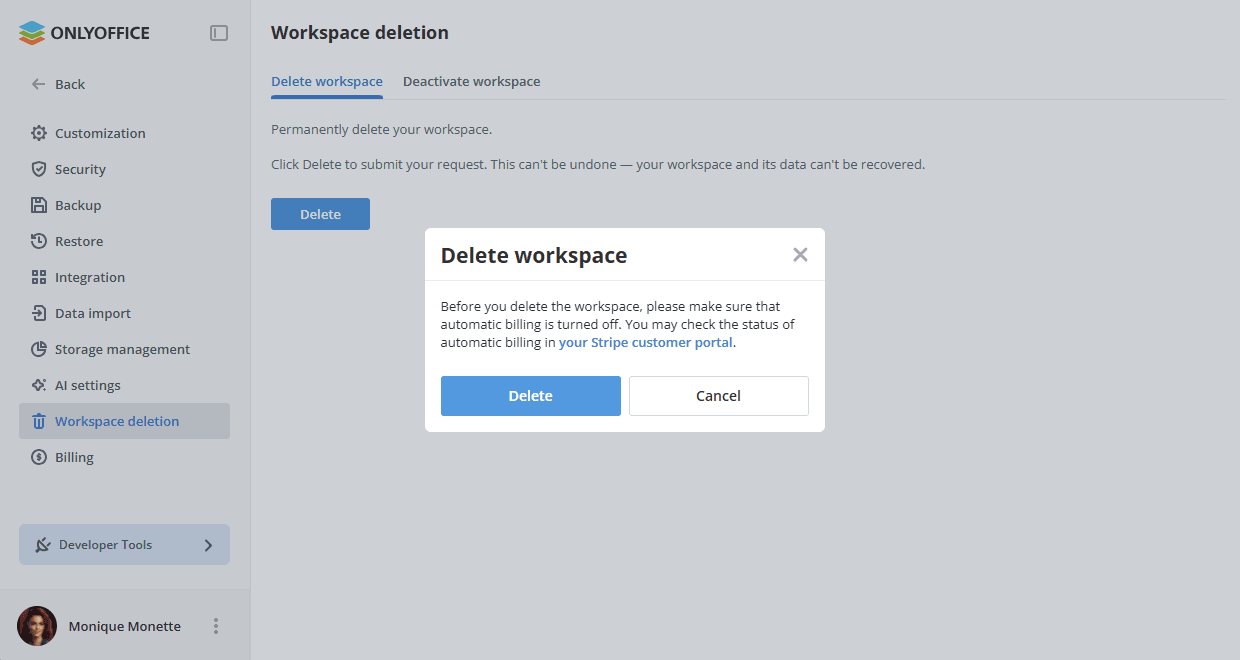
click the Delete button to submit your request.
-
in the Delete workspace window that opens, make sure that automatic billing is turned off, as it is not stopped by the deletion request itself. Use the link in this window to check the automatic billing status in your Stripe customer portal. Click the Delete button to confirm your request, or the Cancel button to close the window without submitting it.
-
a link to confirm the operation will be sent to the email address of the workspace owner. Follow the link to confirm the operation.
This link is valid for 7 days only. Please complete the workspace deletion process within that period.
All the data stored in your workspace, as well as your registration details will be deleted. You will not be able to reactivate your workspace or recover any information associated with it.