Embedding rooms
You can embed a public or custom room available via a shared link to your website so that the room will be accessible to anyone without authorization.
For public rooms, the shared link is enabled by default. If you want to embed a custom room, you should create a shared link first.
By default, a public or custom room will be available with View Only permissions. The permissions are applied to all the files in the room, for all non-authorized users. You can additionally change the default Viewer permissions by selecting a different permission level for the link: Editor, Reviewer, or Commentator. This can be done on the room Info -> Contacts screen by clicking the  icon next to the Shared link.
-
In the room menu, use the
 Info item.
-
Switch to the Contacts screen.
-
For a public room, proceed to the next step. For a custom room, use the Create and copy option in the Shared links section.
-
Click the
 icon next to the Shared link.
-
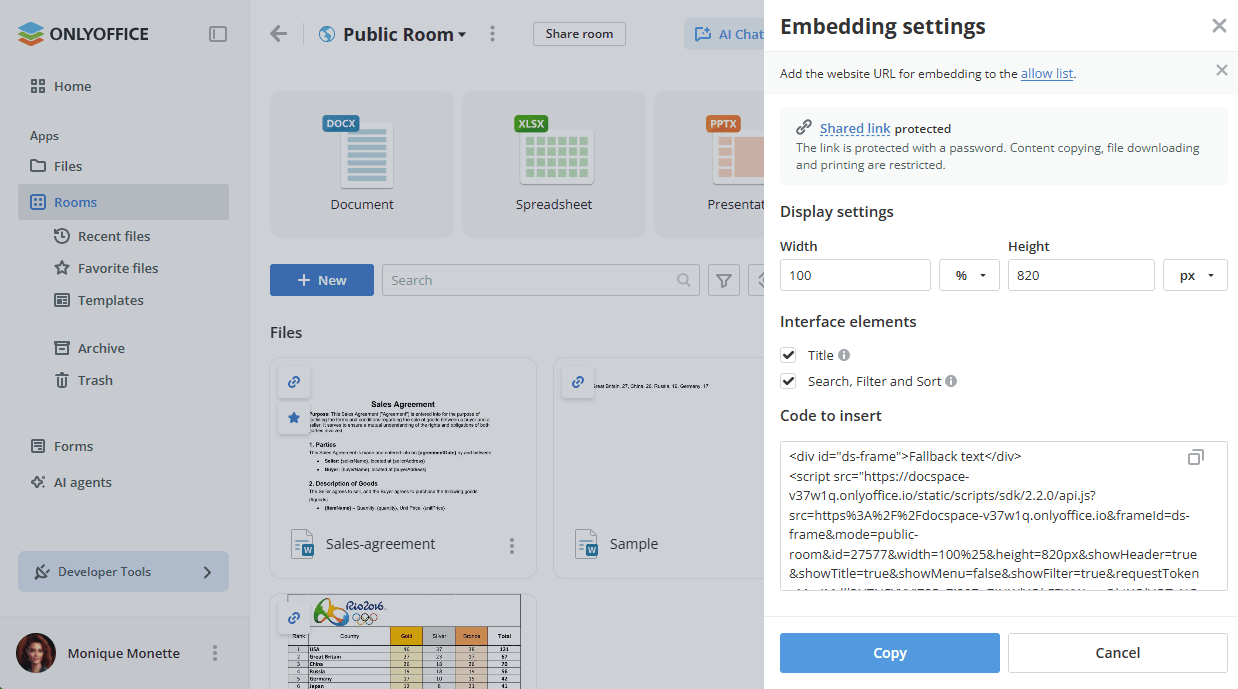
Choose the Embed option. The Embedding settings panel will open. If the shared link is protected with a password or has restrictions applied, a notice at the top of the panel states which actions are restricted for the embedded room.
-
Add the website URL for embedding to the allow list: click the allow list link to switch to the Developer Tools -> Embed SDK -> Add the allowed domains for this workspace section, paste the link to your website and press the + icon.
-
Adjust Display settings: customize the size in the Width and Height fields by entering the required values measured in % or px.
-
Select Interface elements: clear the Title and/or Search, Filter and Sort checkboxes if you want to disable these elements.
-
Copy the code generated in the Code to insert field by clicking the Copy button, or click Cancel to close the panel without copying.
-
Insert the copied code into your website's index.html file.
The room will be available to all visitors of your web page with the specified access rights.
If you want to embed the whole workspace into your application or find more embedding options to customize them manually (for example, select interface elements to display or embed a room of a different type), please use the Developer Tools -> Embed SDK section. Read the instructions.