Speech-to-text: Converting speech from audio and video files
ONLYOFFICE Apps provides you with a speech-to-text plugin that can convert speech from audio and video files into text.
Configuring speech-to-text
In ONLYOFFICE Apps, system plugins can be enabled by the owner and administrators. Once enabled, the plugins are available to all users of the current workspace.
- Go to the workspace Settings -> Integration -> Plugins.
- Click the switcher next to the speech-to-text plugin to activate it.
To start working with the plugin, it is necessary to enter the API token which you can generate on www.assemblyai.com. Once you have it, perform the following actions:
- Go to the workspace Settings -> Integration -> Plugins.
- Click on the gear symbol next to the speech-to-text plugin. The Settings (speech-to-text) panel opens.
- Enter the API token into the API token field.
- Click Save to apply the settings or Cancel to discard them.
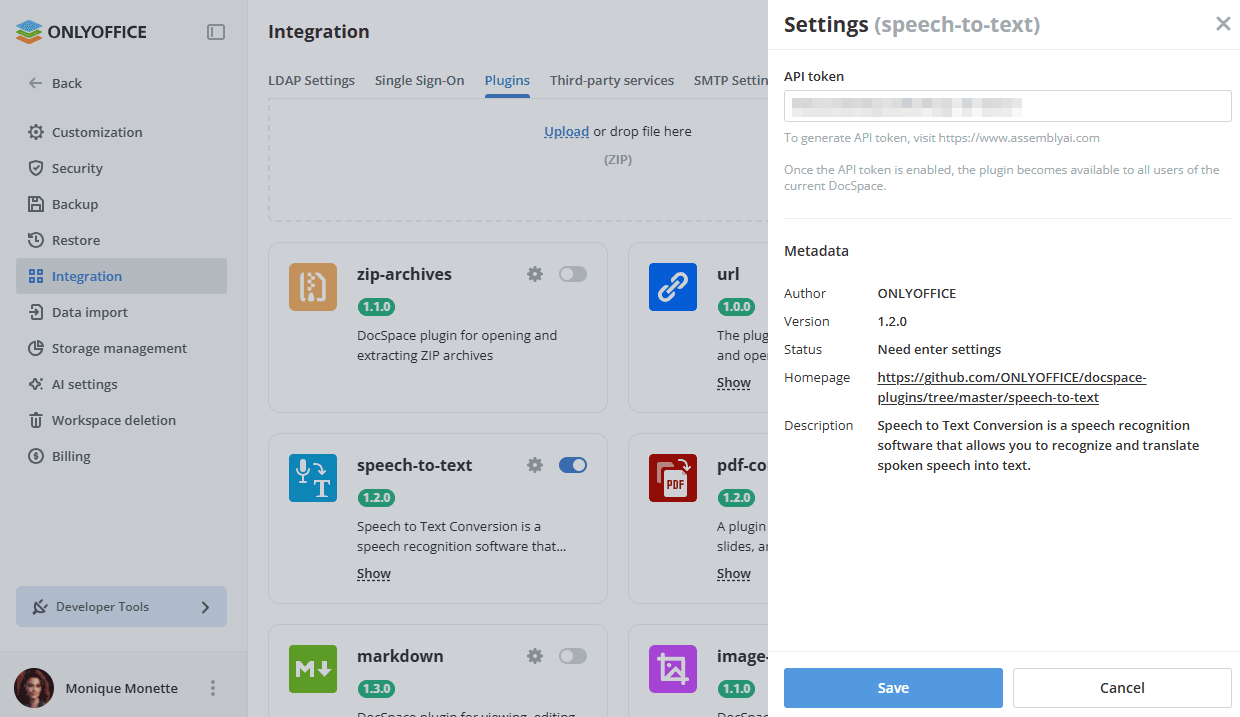
The Metadata block of the same panel displays the plugin author, version, status, homepage, and description. The plugin card in the list also provides the Show link that displays this information.
Using speech-to-text
Converting speech to text
- The plugin is available via the context menu of audio and video files in the Files app or in the selected room.
- Click on the Convert to text action to start the plugin. If speech is detected in the audio/video file, a new
.txtfile called "Filename + text" will be created.