Markdown: Editing markdown files
ONLYOFFICE Apps provides you with a markdown plugin that can view, create, and edit .md files.
Configuring markdown
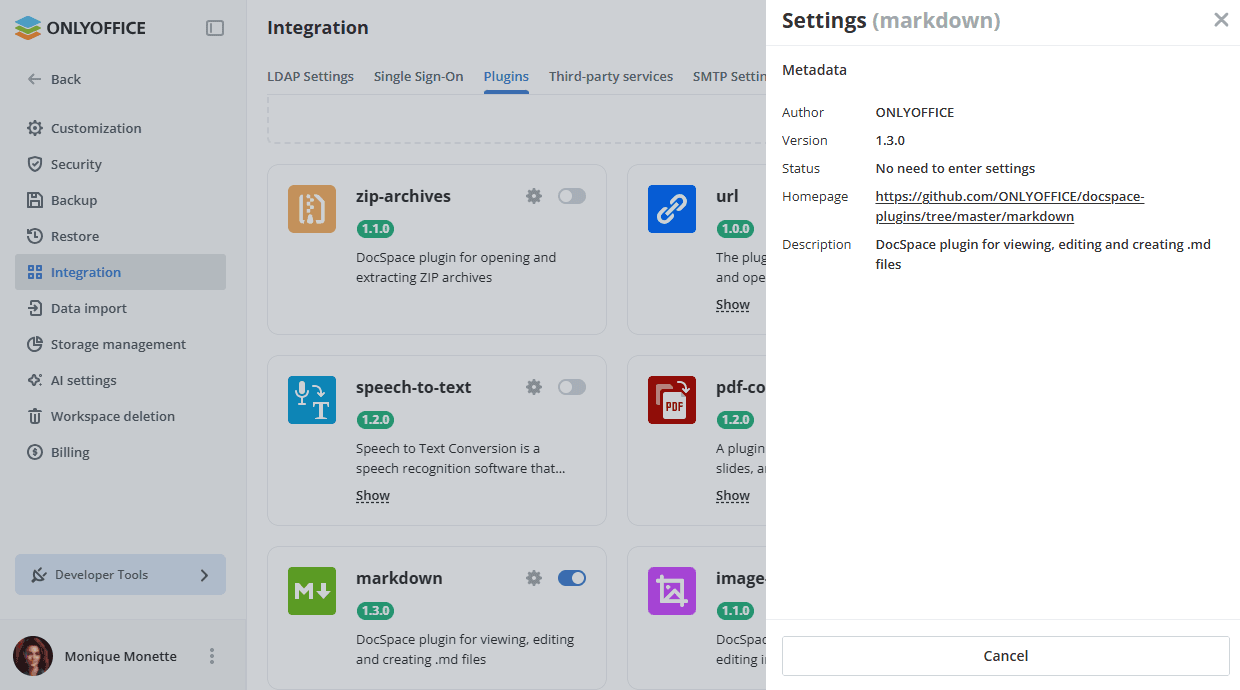
System plugins are enabled in the workspace settings by the owner and administrators. Once enabled, they are available to all users across the apps that support them.
- Go to Settings -> Integration -> Plugins.
- Click the toggle next to the markdown plugin to activate it.
To start working with the plugin, you do not need to change the default settings.
Using markdown
Creating a new .md file
- The plugin is available via the New button -> More in the Files or Rooms app.
- When you click Markdown, a pop-up window appears where you can change or enter the file name.
- A new
.mdfile appears in the file list.
To open the created .md file, click the file name or use the file context menu -> More options -> Edit markdown / Preview markdown. The file will open in the same tab.
To get back to the file list:
- If the file is open for editing: click Save and close or click the cross to the right of the editing window. If you try to close a file with unsaved changes, a warning will appear.
- If the file is open for viewing: click the cross to the right of the view window.
Editing .md files
To edit the file, add markup text to the Markdown section. The entered text will appear in the right Preview section.
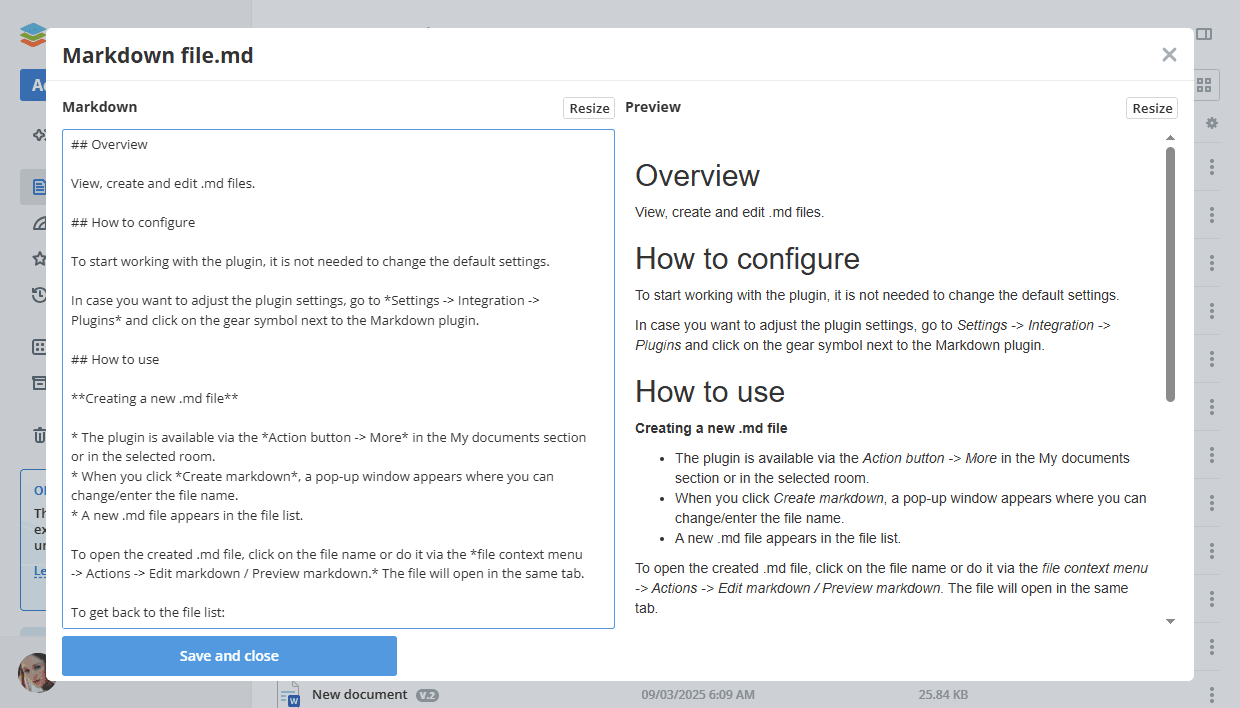
To expand the Markdown/Preview section, you can use the corresponding Resize buttons.
When opening a file for viewing, there is no option to expand the Preview section, since it immediately opens in an expanded form.