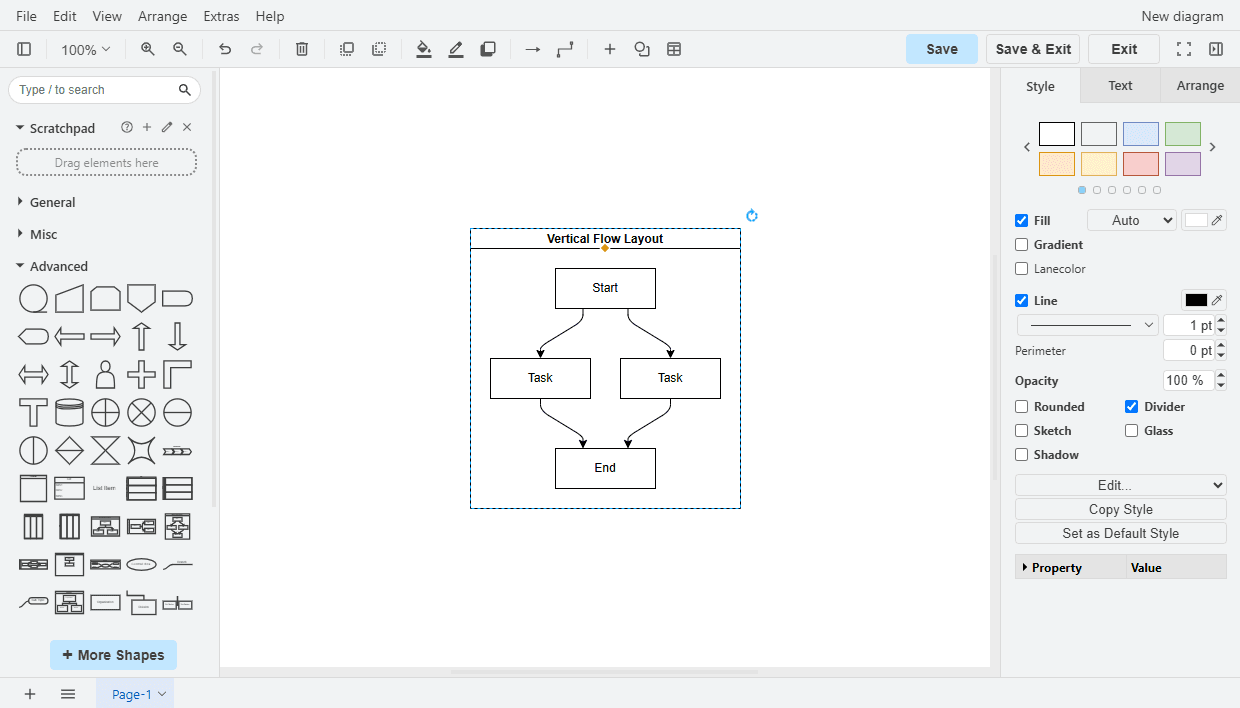
Draw.io: Creating diagrams
ONLYOFFICE Apps provides you with a draw.io plugin that can create and configure diagrams, flowcharts, intelligence maps, business layouts, entity relationships, program blocks, and more.
Configuring draw.io
In ONLYOFFICE Apps, system plugins can be enabled by the owner and administrators. Once enabled, the plugins are available to all users.
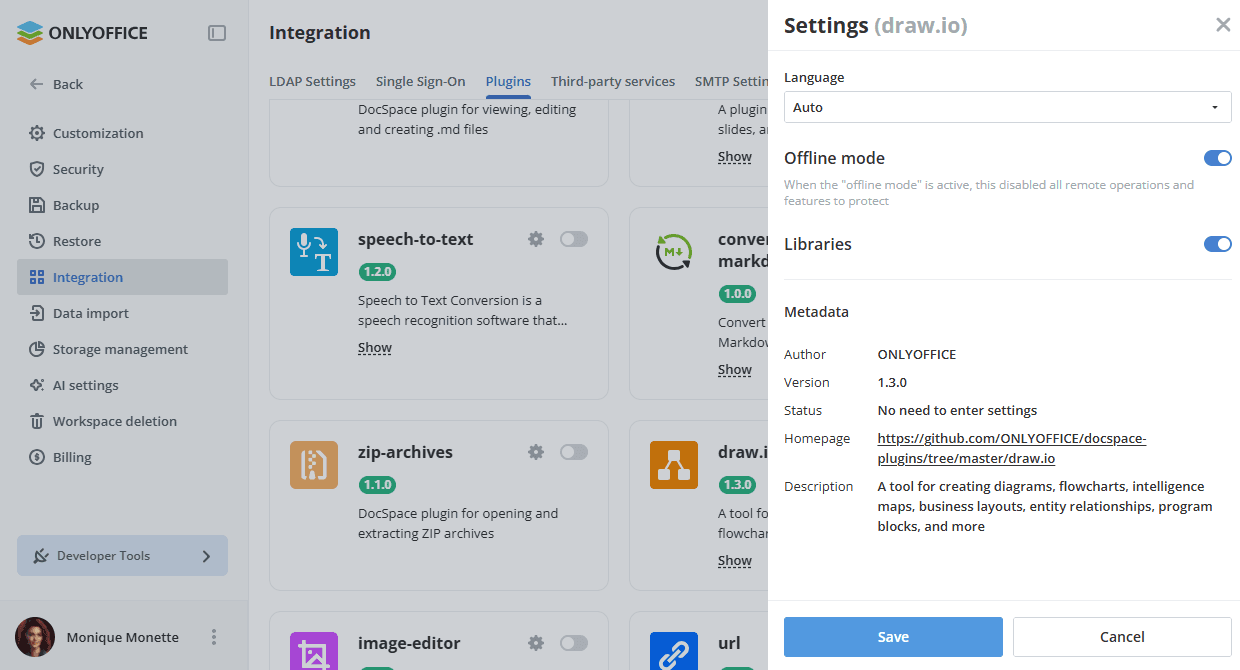
- Go to Settings -> Integration -> Add-ons.
- Click the toggle next to the draw.io plugin to activate it.
To start working with the plugin, you do not need to change the default settings, but you can adjust some plugin parameters:
- Go to Settings -> Integration -> Add-ons.
- Click the gear icon next to the draw.io plugin.
- You can adjust the following plugin parameters:
- Language - choose the necessary language from the list. The Auto option corresponds to the workspace language.
- Offline mode - when this setting is active, all remote operations and features are disabled for security reasons.
- Libraries - turn on the toggle to be able to load custom shape libraries (File -> New Library / Open Library from in the draw.io menu).
- Click Save to apply the settings.
Using draw.io
Creating a new diagram
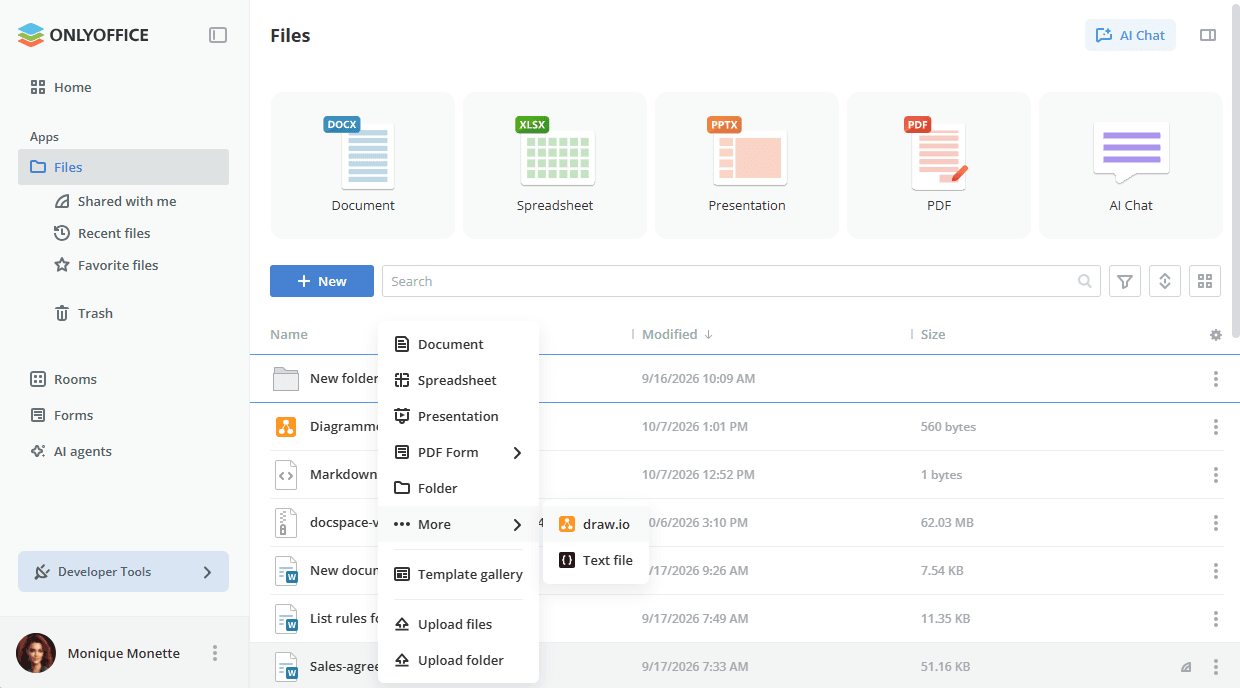
- The plugin is available via the New button -> More in the Files section or in the selected room.
- When you click the draw.io icon, a pop-up window appears where you can change or enter the file name.
- A new
.drawiofile appears in the file list.
To open the created diagram, click the file name, or use the file context menu -> More options -> Open diagram. The file opens in the same tab. To get back to the file list, open the File menu and click Save & Exit or Exit.
If a diagram is opened by a user with view rights, only the Exit menu item is available. Any changes made by this user will not be saved.
Editing an exported diagram
draw.io diagrams can be exported as images (File -> Export as -> PNG, JPEG, WEBP, SVG in the draw.io menu) and downloaded to your computer. Such images can be uploaded to the workspace, re-opened, and edited using the plugin.