Codemirror: viewing and editing code files
ONLYOFFICE Apps provides you with a codemirror plugin that can view and edit files with various programming code formats.
Configuring codemirror
System plugins are enabled in the workspace settings by the owner and administrators. Once enabled, they are available to all users across the apps that support them.
- Go to Settings -> Integration -> Plugins.
- Click the switcher next to the codemirror plugin to activate it.
To start working with the plugin, it is not needed to change the default settings, but you can enable or disable some plugin parameters:
-
Go to Settings -> Integration -> Plugins.
-
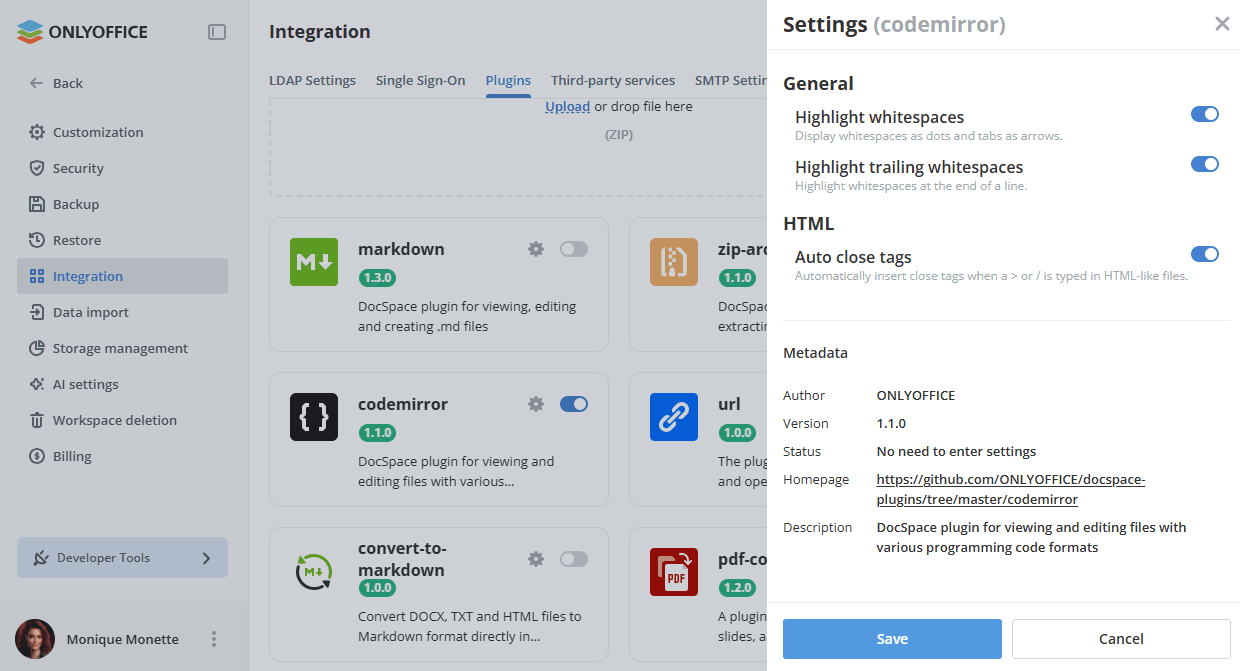
Click the gear icon next to the codemirror plugin.
-
You can enable or disable the following plugin parameters:
- Highlight whitespaces - display whitespaces as dots and tabs as arrows.
- Highlight trailing whitespaces - highlight whitespaces at the end of a line.
- Auto close tags - automatically insert closing tags when a > or / character is typed in HTML-like files.
-
Click Save to apply the settings.
Using codemirror
Creating a new file
-
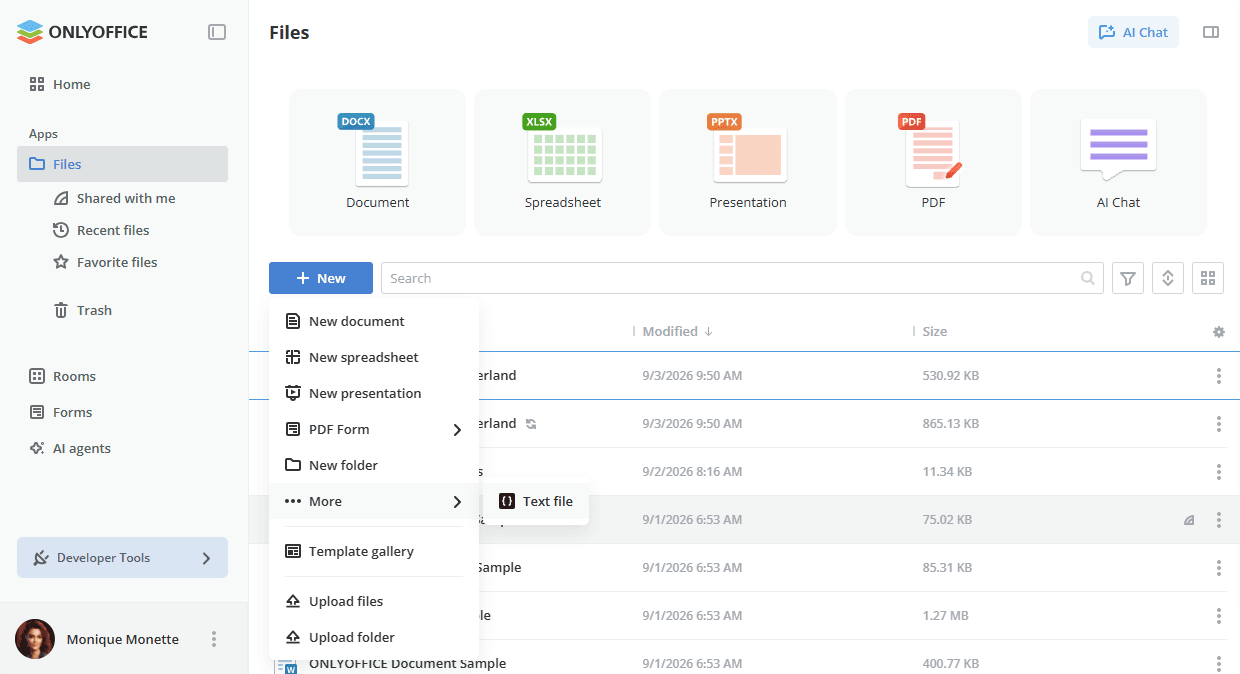
The plugin is available via the New button -> More in the Files or Rooms app.
-
When you click Text file, a pop-up window appears where you can change or enter the file name. Make sure to include the appropriate file extension, such as
style.css,script.js, etc.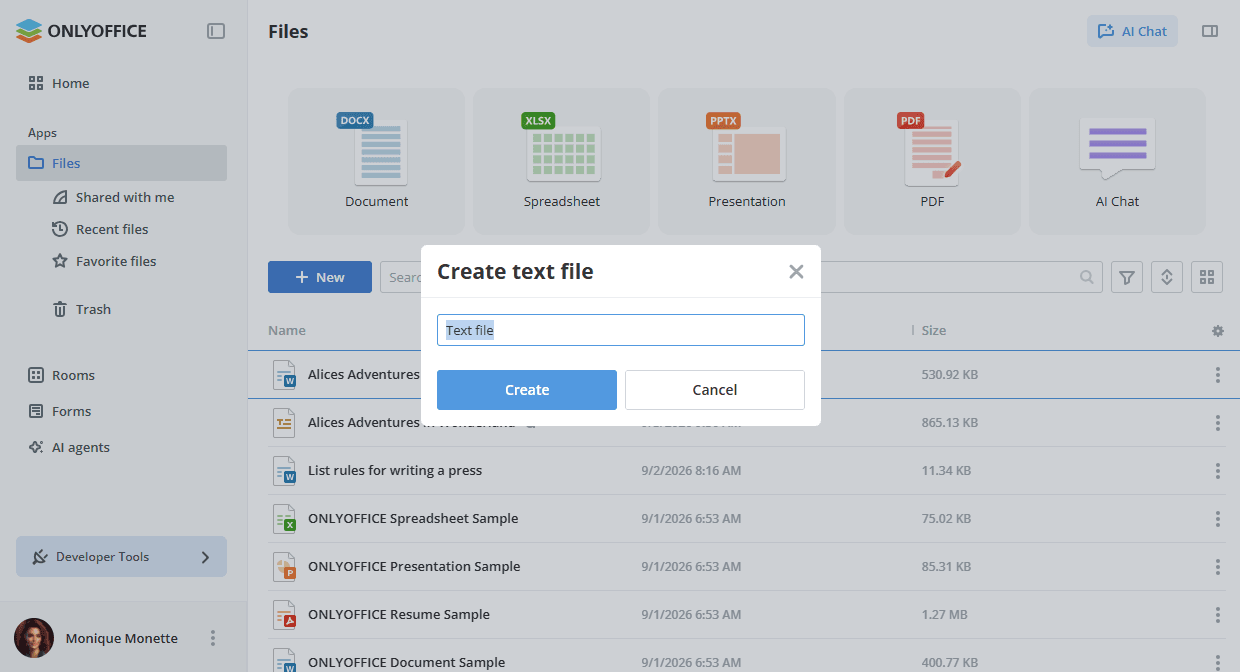
-
Click Create to open the Codemirror code editor in a new pop-up window where you can edit the file content. The list of available keyboard shortcuts is displayed to the right of the editing area.
-
To save the changes, click Save. To close the editor, click the cross in the upper right corner of the pop-up window.
-
The newly created file appears in the file list.
Editing files
You can open previously created or uploaded files using the Codemirror plugin. Click the file name with the Codemirror icon, or open the file context menu, navigate to More options, and select Edit file with Codemirror.
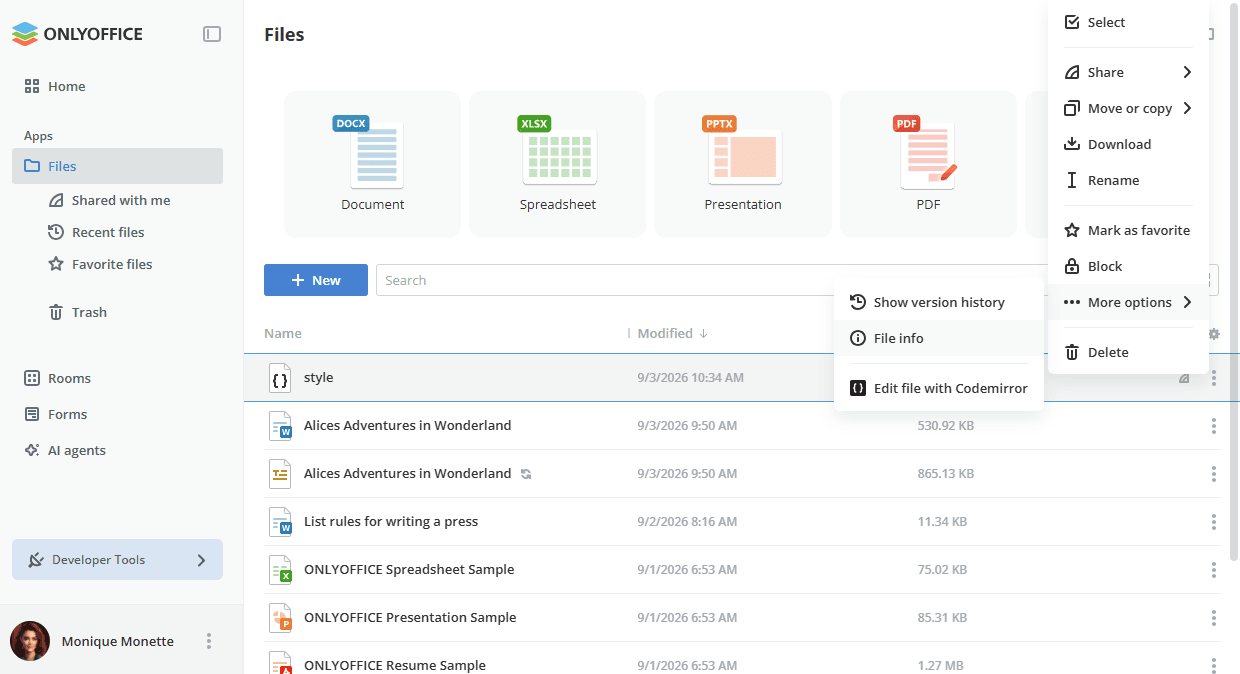
Codemirror interface
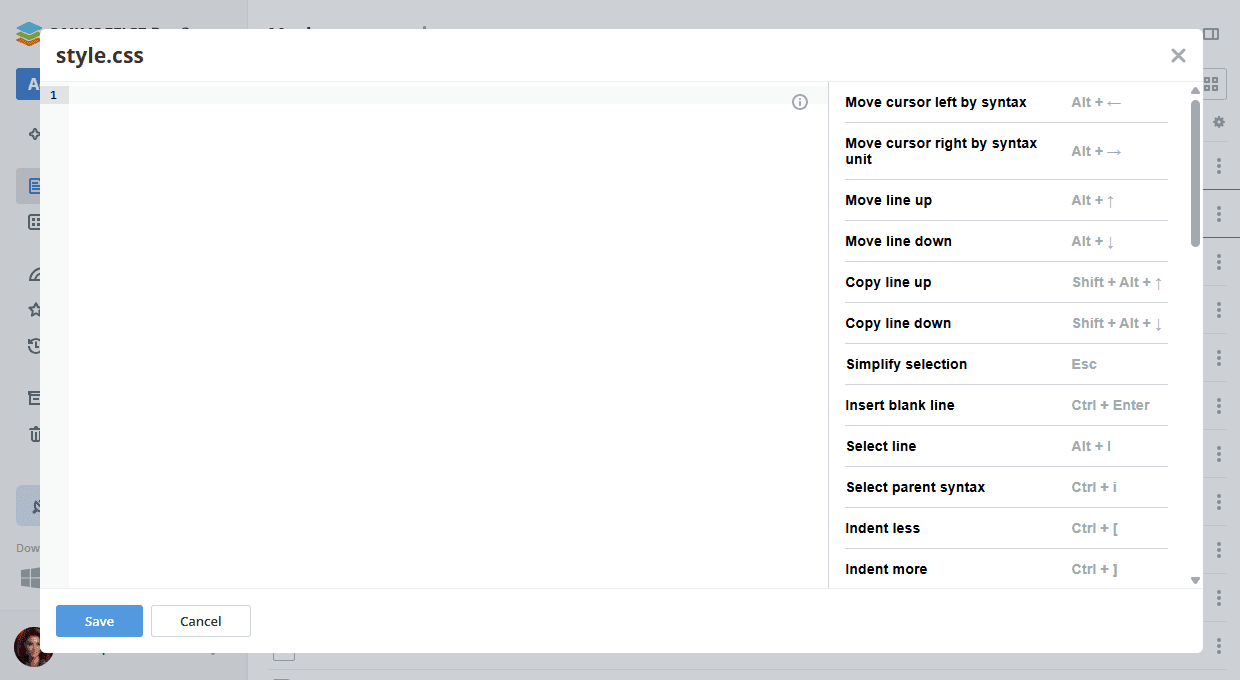
Supported languages
- C / C++ (
cpp,cc,h,hpp) - CSS
- Go
- HTML / HTM
- Java (
java,class) - JavaScript / TypeScript (
js,jsx,ts,tsx) - JSON
- Liquid
- PHP
- Python
- Rust
- SCSS (
sass,scss) - SQL (
sql,mysql,pgsql,postgresql,sqlite,db,mssql,cql,plsql,mariadb) - WAST
- YAML