Sharing forms
In the Forms app, a form is shared via the Link to fill out. The link always grants the filling rights, so the Forms app offers fewer link parameters than the Files and Rooms apps.
The link to fill out
To open the sharing settings of a form, select it and open the Info panel, then switch to the Share tab. The Info panel also contains the History and Details tabs.
The Shared links section displays the Link to fill out created for the form. The link is marked as No time limit: in a Form space, the main link is valid for an unlimited time period.
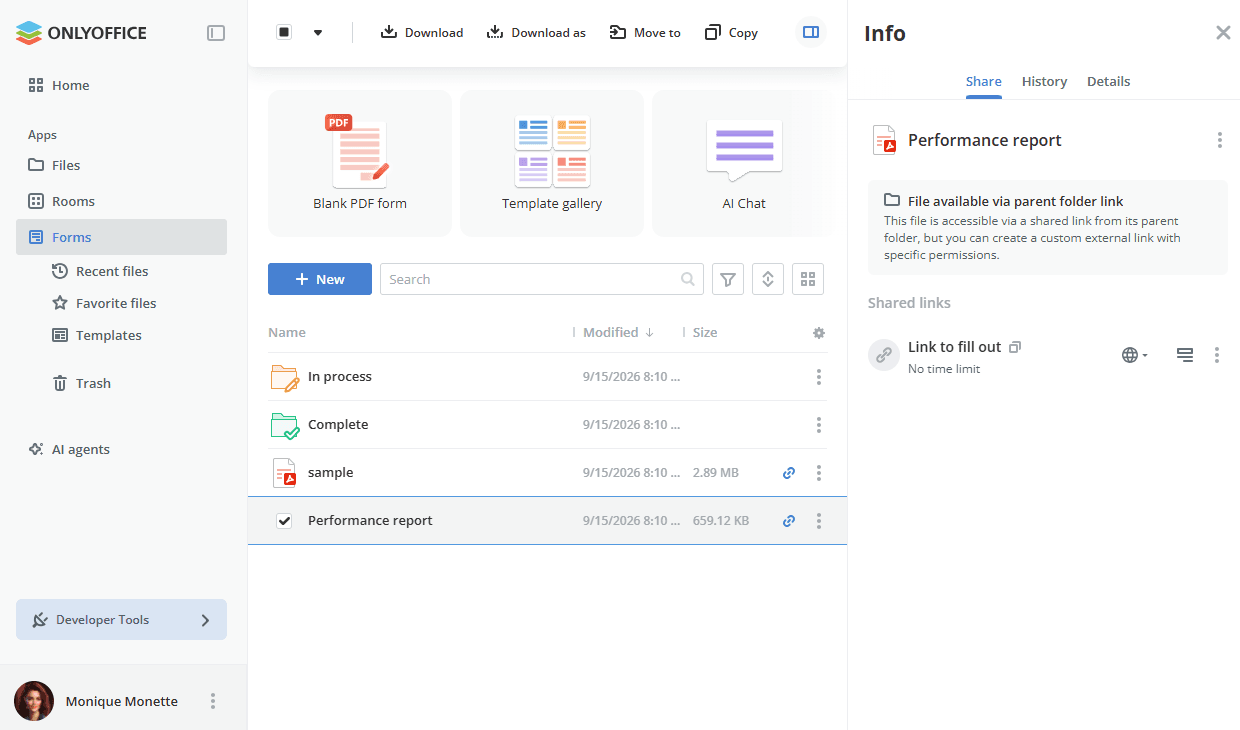
If a form inherits access from the folder it is stored in, the Share panel displays the File available via parent folder link notice: the file is accessible via a shared link from its parent folder.
Link settings
Click the  Show link actions icon to open the link settings, copy or delete the link. The Edit shared link panel allows you to change basic link parameters if necessary or set additional ones.
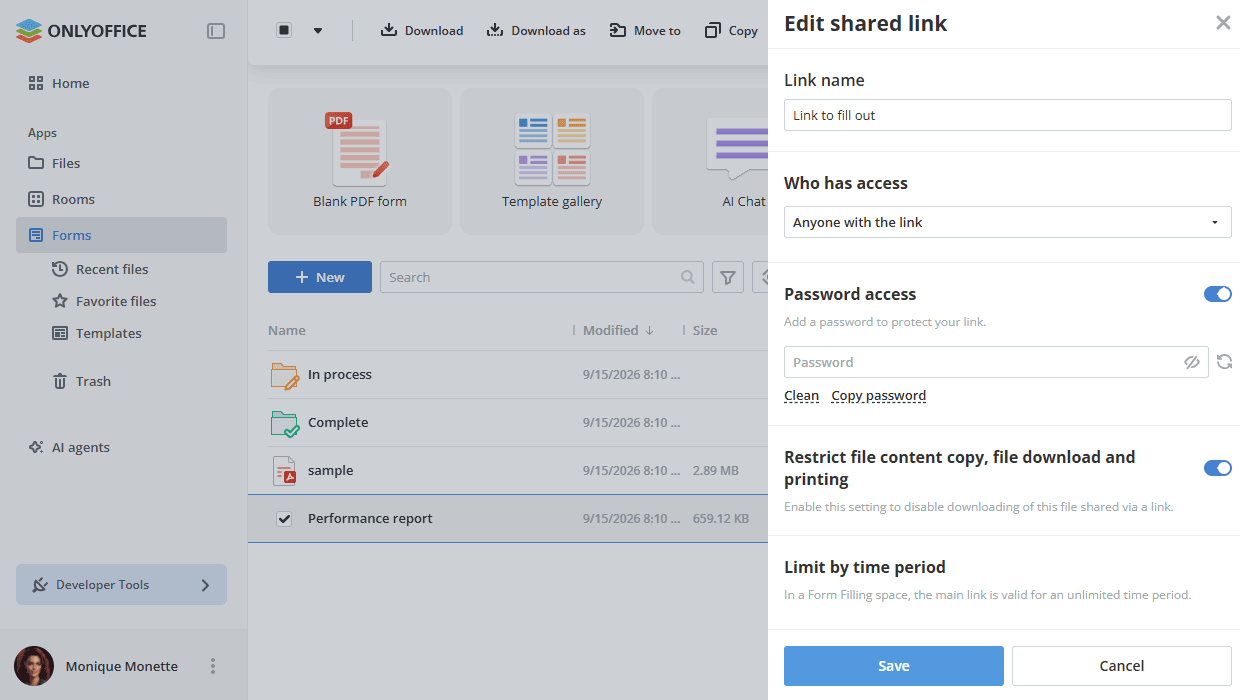
- Use the Link name to distinguish various links. By default, the link is named Link to fill out.
- Who has access – select who will have public access to your form: Anyone with the link or workspace users only.
- Set a password to protect the link.
-
Turn on the Password access switch.
-
Click the
 icon to generate a password or enter it manually into the corresponding field.note
The password must be at least 8 characters long. The following characters are allowed: a-z, A-Z, 0-9,
!"#%&'()*+,-./:;<=>?@[]^_`{|} -
To clean the password field, click the Clean button.
-
To copy the password to your clipboard for future sharing, click the Copy password button.
-
- Enable the Restrict file content copy, file download and printing switch to disable downloads of the form shared via a link.
- To save the changes made to the shared link parameters, click the Save button.
The Edit shared link panel of a form contains no Role for link option, because the link always grants the filling rights. The Limit by time period section cannot be changed either: it states that in a Form space, the main link is valid for an unlimited time period.
Sharing a form stored in the Files app
If the PDF form is stored in the Files app rather than in a room or space, sharing it opens the Share to fill out panel with three options: Quick sharing, Form data collection, and Recipient role-based filling. See Sharing files and folders in Files for details.
Learn more about form filling rooms and Virtual Data Rooms.