Managing document versions
While using ONLYOFFICE Apps, you might have already noticed that there is a number next to the file title that shows the number of file versions. Want to learn more about file versions? Read this tip!
Version indicators
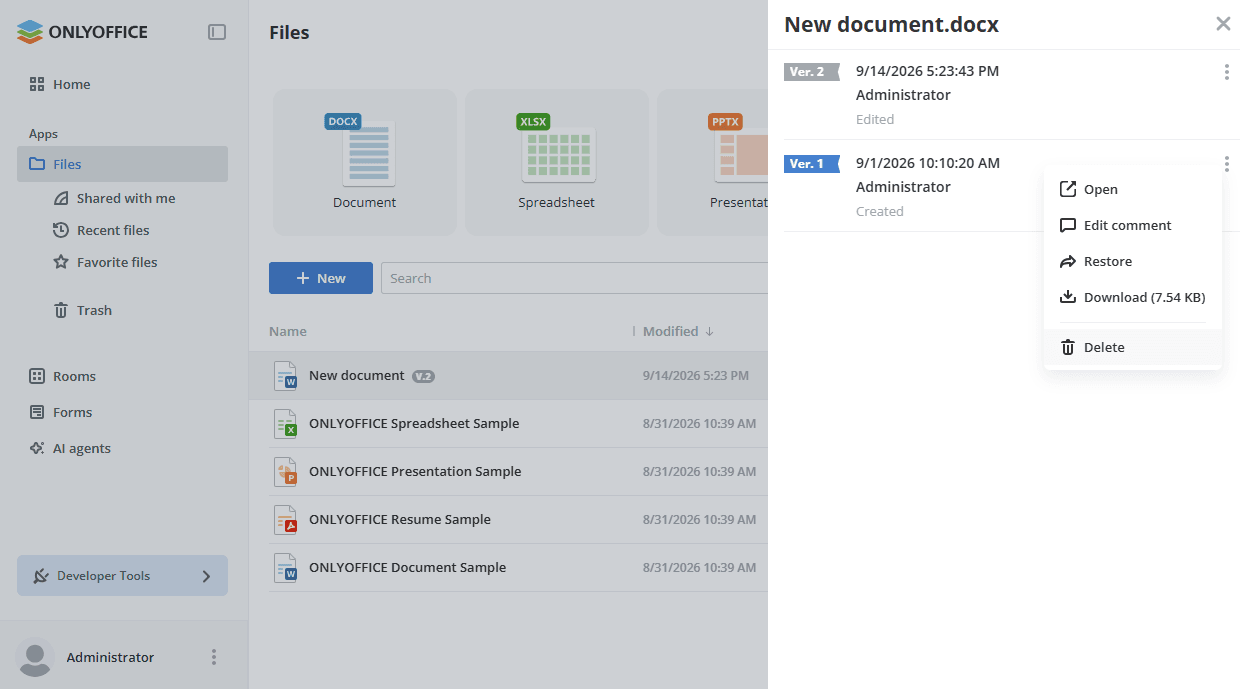
When you edit and save a document for the first time, the file gets the version number  . If you click the version number, you will see the list of the file versions. The same list opens if you click the
 icon next to the file and select the More options -> Show version history option. The panel that opens is titled with the file name and can be closed using the cross icon in its upper right corner:

Versions are marked with flags  . Every editing session is considered a new file version, that is, a new file version is automatically created and displayed in the version history when the editing session ends. An editing session ends when a user closes the file (or all users who are editing the file simultaneously close the file) and the delay time passes (the delay time is about 10 seconds).
Manage versions
The version history panel also provides various functions that make working on documents easier:
- View basic info: date and time, name of the user who made the changes. Click this line to preview the version. A new tab of the document editor will open in the preview mode.
- Manage versions by clicking the icon next to the required version and choosing the option you need:
- Open - open the version for viewing.
- Edit comment - leave a comment for each version, for example, with a brief summary of the applied changes. A short comment to the document is compiled automatically depending on the actions performed (for example, Created, Edited, Restored from the revision of, The file is unlocked, etc.).
- Restore - restore any version. Clicking the Restore option will create a new, completely identical version. This option might come in handy when too many changes have already been applied to the document to edit them manually.
- Download - download any version. The size of the version file is displayed next to the option name.
- Delete - delete any version except the final one.
You can also manage versions directly from the editors. For more information, see the Version history section of the Document, Spreadsheet, and Presentation editor manuals.