Creating AI agents
ONLYOFFICE DocSpace allows you to create AI agents to make your work with documents even more efficient.
For example, you can add files to the knowledge base so that AI can analyze them, generate texts on specified topics, perform web search directly in the AI chat and save each result in a new document.
By using the MCP server in the AI Agent, you can perform many tasks within your DocSpace, for example, move a file, show a list of users, or create a new room simply by writing a prompt in the chat.
To use web search, add a provider in the Web Search settings.
To add files to the knowledge base, add a provider in the Knowledge settings.
To create a new AI agent:
- Go to the AI agents section on the left.
- Use the New agent button in the upper left corner or the
 Plus icon above the list of AI agents.
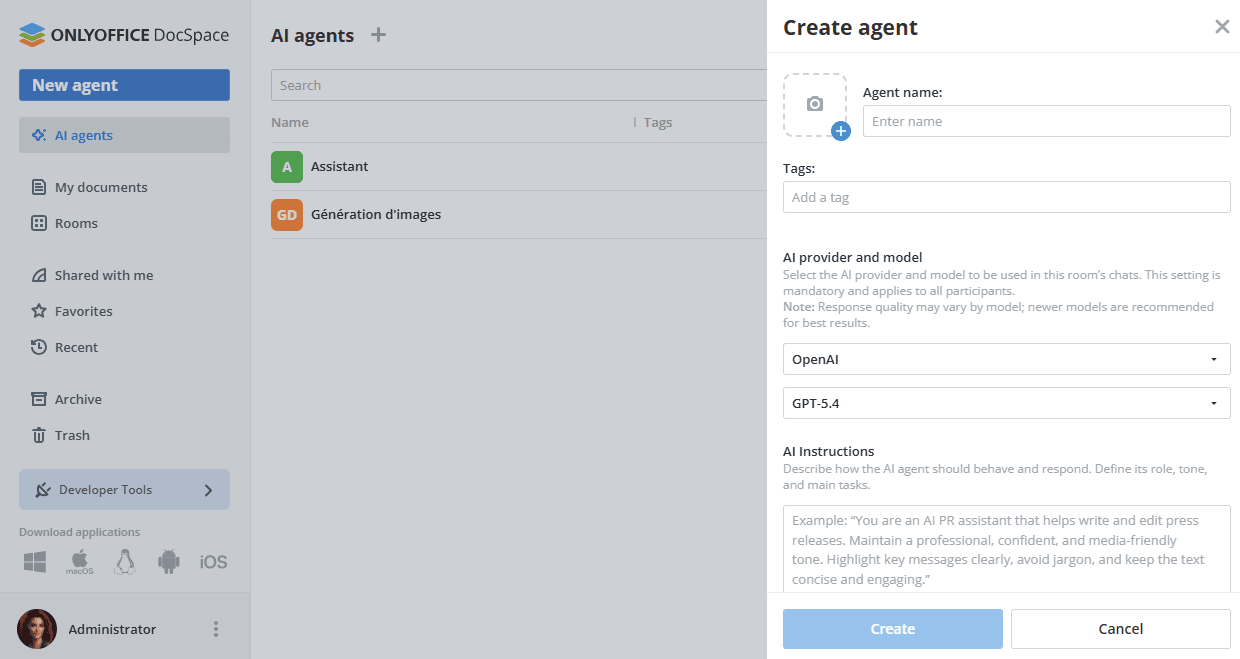
 - Enter the AI agent name.
-
Click the plus icon and choose one of the options to personalize the AI agent cover:
- Upload picture - to select an image stored on your computer.
- Customize cover - to select a color and an icon from the predefined set. You can also choose a custom color using the palette. If you apply the Without icon option, the first letter of the first word and the first letter of the last word of the AI agent name will be displayed on the cover.
- Add new tags or select the existing ones to classify the AI agents by purpose, task, etc.
- In the AI provider and model section, select the provider previously connected in the DocSpace settings -> AI settings and choose a model that will be used in chats. Available providers include OpenAI, Anthropic, Together AI, OpenRouter, DeepSeek, Google, and xAI.
A recommended model hint is always displayed in this section to help you pick the best option for your use case. Response quality may vary by model; newer models are recommended for best results.
- Optionally, you can add AI instructions to define the purpose and behavior of the AI chats, describe tasks, set some restrictions, etc.
- In the MCP tools for this room section, use MCP servers previously connected in the AI settings.
ONLYOFFICE DocSpace MCP Server is used by default. To add another server, use the '+' button.
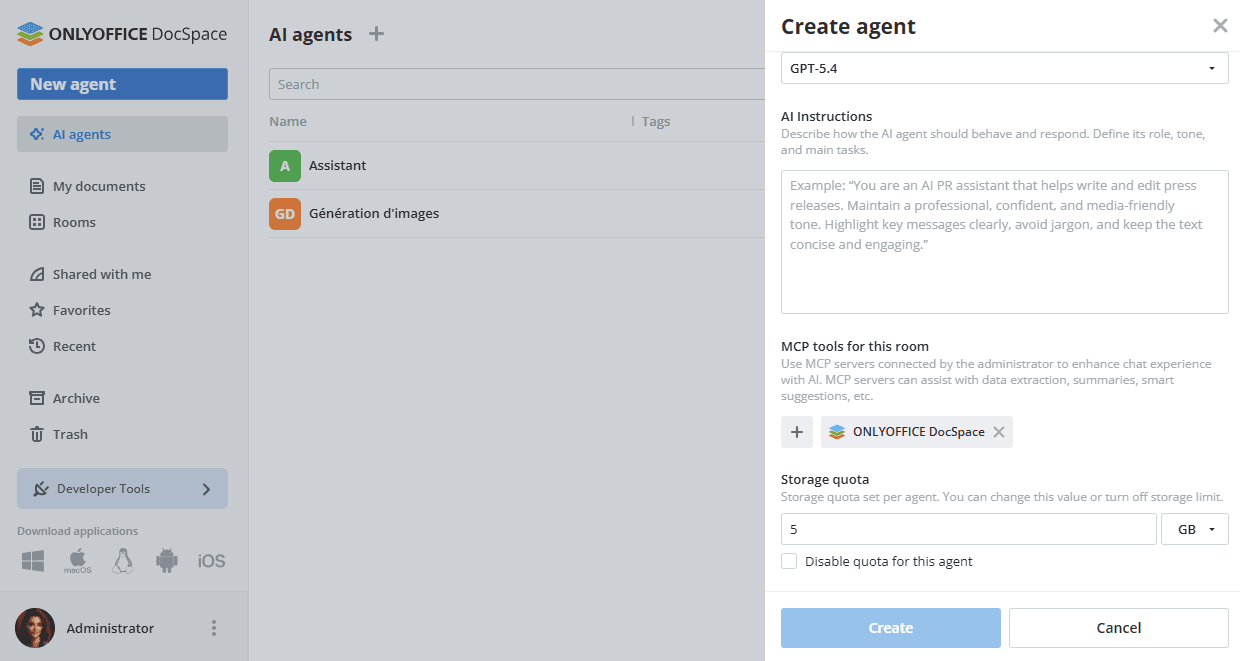
- If the storage quota is enabled in the DocSpace settings, you can change the quota or disable the quota for this AI agent.
- Click Create.
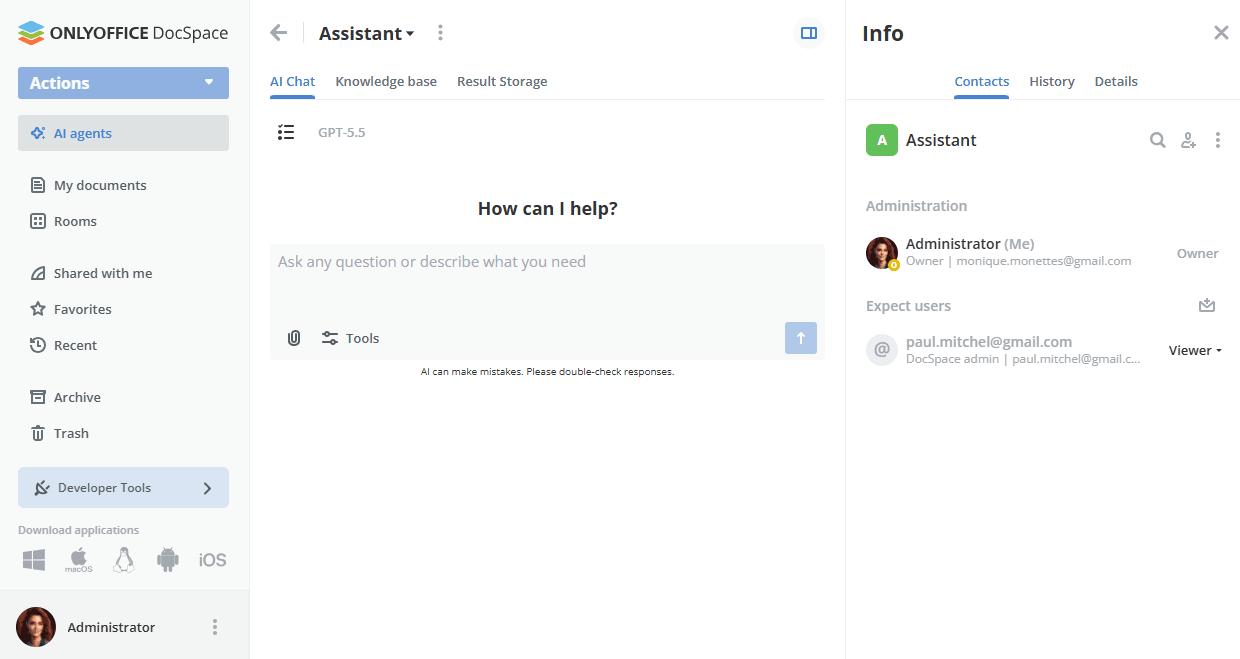
- Once the AI agent is created, the AI Chat tab will open where you can perform multiple tasks:
- Document generation — generate DOCX files, PDF forms, and PPTX directly from the chat. The generated file is displayed inline within the message and saved to the agent's Result Storage folder. You can open the generated file for editing in a new tab
Document generation requires the Automation API to be enabled for ONLYOFFICE editors. This feature is available in SaaS and DocSpace Enterprise standalone deployments only.
- Image upload — attach images to your chat messages to provide visual context for the AI.
- Extended thinking — for complex requests, the AI may display a Thinking block showing its reasoning process before presenting the final answer. This block appears automatically depending on the complexity of the request and is not available for all queries.
- Recommended model hint — when a form file is attached to a message, a hint suggesting the recommended model for that task is displayed in the chat.
For more details on using AI agents, please refer to this article.
- Document generation — generate DOCX files, PDF forms, and PPTX directly from the chat. The generated file is displayed inline within the message and saved to the agent's Result Storage folder. You can open the generated file for editing in a new tab