Keyboard shortcuts
Keyboard shortcuts for key tips
Use keyboard shortcuts for a faster and easier access to the features of the Presentation Editor without using a mouse.
-
Press Alt (Option for macOS) key to turn on all key tips for the editor header, the top toolbar, the right and left sidebars and the status bar.
-
Press the letter that corresponds to the item you wish to use. The additional key tips may appear depending on the key you press. The first key tips hide when additional key tips appear.
For example, to access the Insert tab, press Alt (Option for macOS) to see all primary key tips.
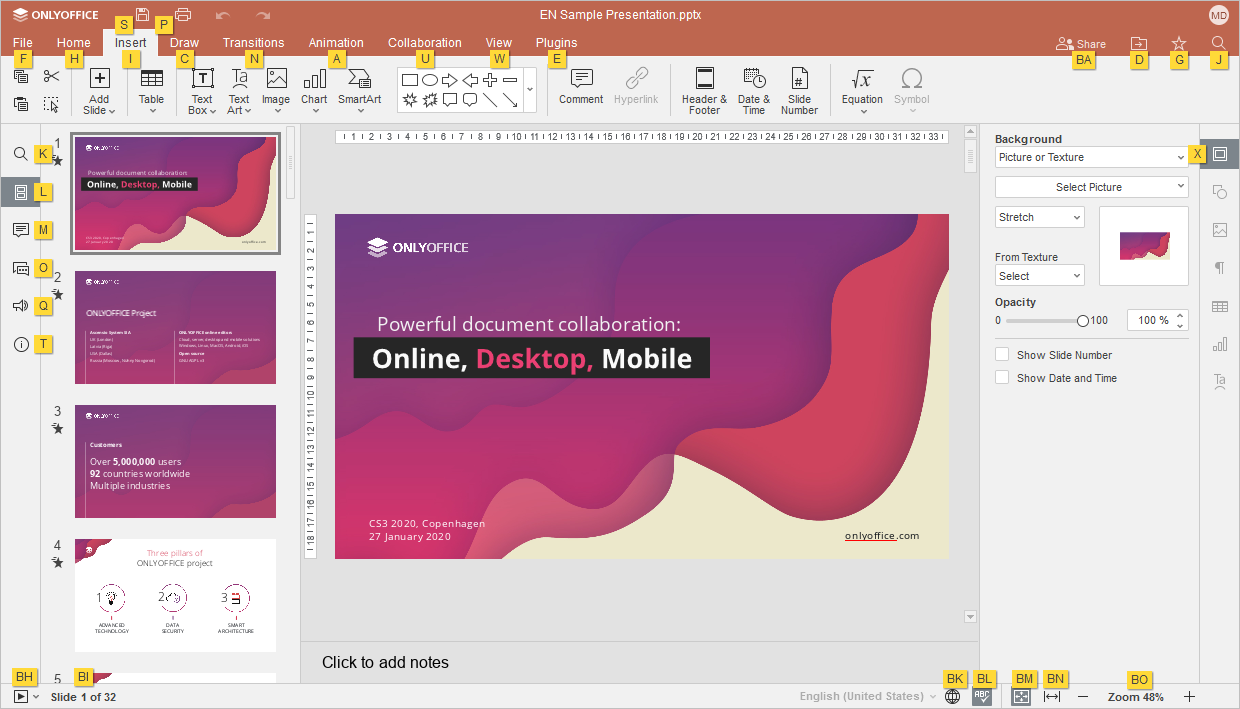
Press letter I to access the Insert tab, and you will see all the available shortcuts for this tab.
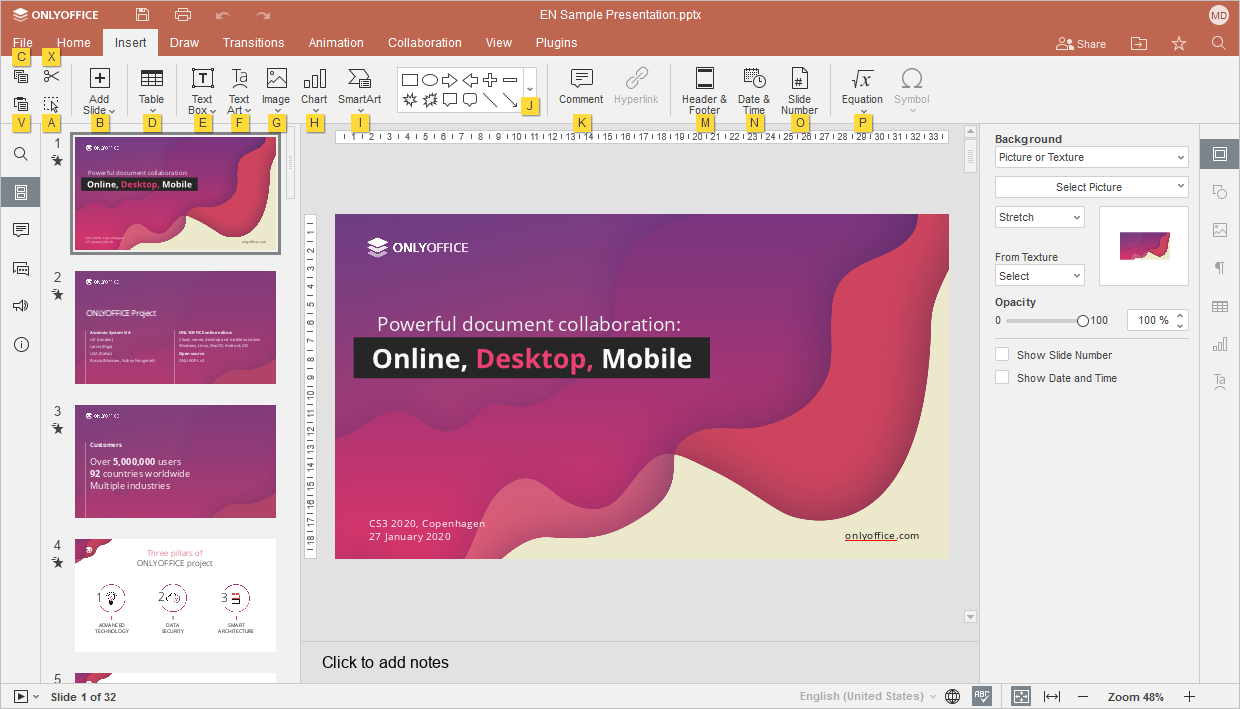
Then press the letter that corresponds to the item you wish to configure.
-
Press Alt (Option for macOS) to hide all key tips, or press Escape to go back to the previous group of key tips.
Find the most common keyboard shortcuts in the list below. If there is no shortcut for the action you require, please refer to the Using macros article to learn how to create a macro for that. Choose your operating system in any group: the choice applies to the whole page.
For macOS, some shortcuts contain the Home, End, Page Up and Page Down keys which are only available on the extended keyboard. If you don't have these keys, use the keyboard shortcuts specified above (i.e. use ^ Ctrl/⌘ Cmd+← or Fn+← instead of Home, ^ Ctrl/⌘ Cmd+→ or Fn+→ instead of End, Fn+↑ instead of Page Up, Fn+↓ instead of Page Down).
Working with Presentation
- Windows/Linux
- macOS
| Action | Shortcut | Description |
|---|---|---|
| Open 'File' panel | Alt+F | Open the File panel to save, download, print the current presentation, view its info, create a new presentation or open an existing one, access the Presentation Editor help or advanced settings. |
| Open 'Find' dialog window | Ctrl+F | Open the Find dialog window to start searching for a character/word/phrase in the currently edited presentation. |
| Open 'Find and Replace' menu (panel) with replacement field | Ctrl+H | Open the Find and Replace menu (panel) with the replacement field to replace one or more occurrences of the found characters. |
| Open 'Comments' panel | Ctrl+⇧ Shift+H | Open the Comments panel to add your own comment or reply to comments from other users. |
| Open comment field | Alt+H | Open a data entry field where you can add the text of your comment. |
| Open 'Chat' panel (Online Editors) | Alt+Q | Open the Chat panel in the Online Editors and send a message. |
| Save presentation | Ctrl+S | Save all the changes to the presentation currently edited with the Presentation Editor. The active file will be saved under its current name, in the same location and file format. |
| Print presentation | Ctrl+P | Print the presentation with one of the available printers or save it to a file. |
| Download As... | Ctrl+⇧ Shift+S | Open the Download as... panel to save the currently edited presentation to the hard disk drive of your computer in one of the supported formats: PPTX, PPSX, PDF, ODP, POTX, PDF/A, OTP, PNG, JPG. |
| Full screen (Online Editors) | F11 | Switch to the full screen view in the Online Editors to fit the Presentation Editor into your screen. |
| Help menu | F1 | Open the Presentation Editor Help menu. |
| Open existing file | Ctrl+O | Open the standard dialog box that allows selecting an existing file. If you select the file in this dialog box and click Open, the file will be opened in a new tab or window of Desktop Editors. |
| Switch to the next tab | Ctrl+↹ Tab | Switch to the next file tab in Desktop Editors or browser tab in Online Editors. |
| Switch to the previous tab | Ctrl+⇧ Shift+↹ Tab | Switch to the previous file tab in Desktop Editors or browser tab in Online Editors. |
| Close file | Ctrl+W, Ctrl+F4 | Close the current presentation window. |
| Element contextual menu | ⇧ Shift+F10 | Open the selected element contextual menu. |
| Close menu or modal window, reset modes, etc. | Esc | Close a menu or modal window. Reset adding shapes mode. Remove the cursor from the shape content. Remove selection step by step (e.g., if the content of a shape within a group is selected, the cursor will be removed from the content first, then from the shape, then from the group). Deselect the copied format. Reset text drag-n-drop. Reset marker selection mode. |
| Reset the ‘Zoom’ parameter | Ctrl+0 | Reset the ‘Zoom’ parameter of the current presentation to the default 'Fit to slide' value. |
| Enable screen reader transmission | Ctrl+Alt+Z | Enables/disables the transmission of actions performed in the application for screen readers. |
| Action | Shortcut | Description |
|---|---|---|
| Open 'File' panel | ^ Ctrl+⌥ Option+F | Open the File panel to save, download, print the current presentation, view its info, create a new presentation or open an existing one, access the Presentation Editor help or advanced settings. |
| Open 'Find' dialog window | ^ Ctrl+F, ⌘ Cmd+F | Open the Find dialog window to start searching for a character/word/phrase in the currently edited presentation. |
| Open 'Find and Replace' menu (panel) with replacement field | ^ Ctrl+H | Open the Find and Replace menu (panel) with the replacement field to replace one or more occurrences of the found characters. |
| Open 'Comments' panel | ^ Ctrl+⇧ Shift+H, ⌘ Cmd+⇧ Shift+H | Open the Comments panel to add your own comment or reply to comments from other users. |
| Open comment field | ⌘ Cmd+⌥ Option+A | Open a data entry field where you can add the text of your comment. |
| Open 'Chat' panel (Online Editors) | ^ Ctrl+⌥ Option+Q | Open the Chat panel in the Online Editors and send a message. |
| Save presentation | ^ Ctrl+S, ⌘ Cmd+S | Save all the changes to the presentation currently edited with the Presentation Editor. The active file will be saved under its current name, in the same location and file format. |
| Print presentation | ^ Ctrl+P, ⌘ Cmd+P | Print the presentation with one of the available printers or save it to a file. |
| Download As... | ^ Ctrl+⇧ Shift+S, ⌘ Cmd+⇧ Shift+S | Open the Download as... panel to save the currently edited presentation to the hard disk drive of your computer in one of the supported formats: PPTX, PPSX, PDF, ODP, POTX, PDF/A, OTP, PNG, JPG. |
| Help menu | Fn+F1 | Open the Presentation Editor Help menu. |
| Open existing file | ⌘ Cmd+O | Open the standard dialog box that allows selecting an existing file. If you select the file in this dialog box and click Open, the file will be opened in a new tab or window of Desktop Editors. |
| Switch to the next tab | ^ Ctrl+↹ Tab | Switch to the next file tab in Desktop Editors or browser tab in Online Editors. |
| Switch to the previous tab | ^ Ctrl+⇧ Shift+↹ Tab | Switch to the previous file tab in Desktop Editors or browser tab in Online Editors. |
| Close file | ⌘ Cmd+W | Close the current presentation window. |
| Element contextual menu | ⇧ Shift+Fn+F10 | Open the selected element contextual menu. |
| Close menu or modal window, reset modes, etc. | Esc | Close a menu or modal window. Reset adding shapes mode. Remove the cursor from the shape content. Remove selection step by step (e.g., if the content of a shape within a group is selected, the cursor will be removed from the content first, then from the shape, then from the group). Deselect the copied format. Reset text drag-n-drop. Reset marker selection mode. |
| Reset the ‘Zoom’ parameter | ^ Ctrl+0 or ⌘ Cmd+0 | Reset the ‘Zoom’ parameter of the current presentation to the default 'Fit to slide' value. |
| Enable screen reader transmission | ^ Ctrl+Alt+Z, ⌘ Cmd+Alt+Z | Enables/disables the transmission of actions performed in the application for screen readers. |
Navigation
- Windows/Linux
- macOS
| Action | Shortcut | Description |
|---|---|---|
| The first slide | Home | Go to the first slide of the currently edited presentation/first thumbnail in the thumbnails list. |
| The last slide | End | Go to the last slide of the currently edited presentation/last thumbnail in the thumbnails list. |
| Next slide | Page Down, ↓, → | Go to the next slide of the currently edited presentation/next thumbnail in the thumbnails list. |
| Previous slide | Page Up, ↑, ← | Go to the previous slide of the currently edited presentation/previous thumbnail in the thumbnails list. |
| Zoom In | Ctrl++ | Zoom in the currently edited presentation. |
| Zoom Out | Ctrl+- | Zoom out the currently edited presentation. |
| Navigate between controls in modal dialogues | ↹ Tab/⇧ Shift+↹ Tab | Navigate between controls to give focus to the next or previous control in modal dialogues. |
| Action | Shortcut | Description |
|---|---|---|
| The first slide | Fn+←, Home | Go to the first slide of the currently edited presentation/first thumbnail in the thumbnails list. |
| The last slide | Fn+→, End | Go to the last slide of the currently edited presentation/last thumbnail in the thumbnails list. |
| Next slide | ↓, Fn+↓, ↓, Page Down | Go to the next slide of the currently edited presentation/next thumbnail in the thumbnails list. |
| Previous slide | ↑, Fn+↑, ↑, Page Up | Go to the previous slide of the currently edited presentation/previous thumbnail in the thumbnails list. |
| Zoom In | ^ Ctrl+=, ⌘ Cmd+= | Zoom in the currently edited presentation. |
| Zoom Out | ^ Ctrl+-, ⌘ Cmd+- | Zoom out the currently edited presentation. |
| Navigate between controls in modal dialogues | ↹ Tab/⇧ Shift+↹ Tab | Navigate between controls to give focus to the next or previous control in modal dialogues. |
Performing Actions on Slides
- Windows/Linux
- macOS
| Action | Shortcut | Description |
|---|---|---|
| New slide | Ctrl+M, ↵ Enter | Create a new slide and add it after the selected one in the list. The Ctrl+M shortcut is also used to create the first slide in the presentation, which does not contain any slides. |
| Remove slide | Delete, ← Backspace | Remove the currently selected slide in the list, or several selected slides. |
| Duplicate slide | Ctrl+D | Duplicate the selected slide in the list. |
| Move slide up | Ctrl+↑ | Move the selected slide or several selected slides above the previous one in the list (when the focus is on thumbnails). |
| Move slide down | Ctrl+↓ | Move the selected slide or several selected slides below the following one in the list (when the focus is on thumbnails). |
| Move slide to beginning | Ctrl+⇧ Shift+↑, Ctrl+⇧ Shift+Page Up | Move the selected slide or several slides to the very first position in the list (when the focus is on thumbnails). |
| Move slide to end | Ctrl+⇧ Shift+↓, Ctrl+⇧ Shift+Page Down | Move the selected slide or several slides to the very last position in the list (when the focus is on thumbnails). |
| Action | Shortcut | Description |
|---|---|---|
| New slide | ^ Ctrl+M, ⌘ Cmd+M, ↵ Return | Create a new slide and add it after the selected one in the list. The Ctrl+M shortcut is also used to create the first slide in the presentation, which does not contain any slides. |
| Remove slide | Delete, Fn+Delete | Remove the currently selected slide in the list, or several selected slides. |
| Duplicate slide | ⌘ Cmd+D, ^ Ctrl+D | Duplicate the selected slide in the list. |
| Move slide up | ⌘ Cmd+↑ | Move the selected slide or several selected slides above the previous one in the list (when the focus is on thumbnails). |
| Move slide down | ⌘ Cmd+↓ | Move the selected slide or several selected slides below the following one in the list (when the focus is on thumbnails). |
| Move slide to beginning | ⌘ Cmd+⇧ Shift+↑, ^ Ctrl+⇧ Shift+↑, ⌘ Cmd+⇧ Shift+Page Up, ^ Ctrl+⇧ Shift+Page Up | Move the selected slide or several slides to the very first position in the list (when the focus is on thumbnails). |
| Move slide to end | ⌘ Cmd+⇧ Shift+↓, ^ Ctrl+⇧ Shift+↓, ⌘ Cmd+⇧ Shift+Page Down, ^ Ctrl+⇧ Shift+Page Down | Move the selected slide or several slides to the very last position in the list (when the focus is on thumbnails). |
Performing Actions on Objects
- Windows/Linux
- macOS
| Action | Shortcut | Description |
|---|---|---|
| Working with shapes | ↵ Enter | When the shape is selected, if it does not contain content, create content and move the cursor to the beginning of the line. If the content is empty, move the cursor to it, otherwise select the entire content. |
| Working with charts | ↵ Enter | When the chart title is selected, if the title is empty, move the cursor to the beginning of the line, otherwise select the text. |
| Create a copy when dragging | Ctrl | Select an object and hold down the specified key when dragging the object to create the copy of the object in the location where it was moved. |
| Create a copy | Ctrl+D | Select an object and press the specified keyboard shortcut to create the copy of the object next to the selected object. |
| Group | Ctrl+G | Group the selected objects. |
| Ungroup | Ctrl+⇧ Shift+G | Ungroup the selected group of objects. |
| Move focus to the next object | ↹ Tab | Move focus to the next object after the currently selected one. |
| Move focus to the previous object | ⇧ Shift+↹ Tab | Move focus to the previous object before the currently selected one. |
| Change angle of line/arrow when drawing | ⇧ Shift + drag (when drawing lines/arrows) | Hold down the Shift key while drawing the line/arrow and rotate the spout of the arrow/end of the line to change the angle of the line/arrow when drawing it. The line/arrow will be rotated exactly 45 degrees. |
| Movement pixel by pixel | Ctrl+← → ↑ ↓ | Hold down the specified key and use the keyboard arrows to move the selected object to the left, right, up, or down by one pixel at a time. |
| Move shape by a big step | ← → ↑ ↓ | Use the keyboard arrows to move the selected object by a big step to the left, right, up, or down. |
| Action | Shortcut | Description |
|---|---|---|
| Working with shapes | ↵ Return | When the shape is selected, if it does not contain content, create content and move the cursor to the beginning of the line. If the content is empty, move the cursor to it, otherwise select the entire content. |
| Working with charts | ↵ Return | When the chart title is selected, if the title is empty, move the cursor to the beginning of the line, otherwise select the text. |
| Create a copy when dragging | ^ Ctrl | Select an object and hold down the specified key when dragging the object to create the copy of the object in the location where it was moved. |
| Create a copy | ^ Ctrl+D, ⌘ Cmd+D | Select an object and press the specified keyboard shortcut to create the copy of the object next to the selected object. |
| Group | ⌘ Cmd+G, ^ Ctrl+G | Group the selected objects. |
| Ungroup | ⌘ Cmd+⇧ Shift+G, ^ Ctrl+⇧ Shift+G | Ungroup the selected group of objects. |
| Move focus to the next object | ↹ Tab | Move focus to the next object after the currently selected one. |
| Move focus to the previous object | ⇧ Shift+↹ Tab | Move focus to the previous object before the currently selected one. |
| Change angle of line/arrow when drawing | ⇧ Shift + drag (when drawing lines/arrows) | Hold down the Shift key while drawing the line/arrow and rotate the spout of the arrow/end of the line to change the angle of the line/arrow when drawing it. The line/arrow will be rotated exactly 45 degrees. |
| Movement pixel by pixel | ⌘ Cmd+← → ↑ ↓ | Hold down the specified key and use the keyboard arrows to move the selected object to the left, right, up, or down by one pixel at a time. |
| Move shape by a big step | ← → ↑ ↓ | Use the keyboard arrows to move the selected object by a big step to the left, right, up, or down. |
Modifying Objects
- Windows/Linux
- macOS
| Action | Shortcut | Description |
|---|---|---|
| Constrain movement | ⇧ Shift + drag | Constrain the movement of the selected object horizontally or vertically. |
| Set 15-degree-rotation | ⇧ Shift + drag (when rotating) | Constrain the rotation angle to 15 degree increments. |
| Maintain proportions | ⇧ Shift + drag (when resizing) | Maintain the proportions of the selected object when resizing. |
| Action | Shortcut | Description |
|---|---|---|
| Constrain movement | ⇧ Shift + drag | Constrain the movement of the selected object horizontally or vertically. |
| Set 15-degree-rotation | ⇧ Shift + drag (when rotating) | Constrain the rotation angle to 15 degree increments. |
| Maintain proportions | ⇧ Shift + drag (when resizing) | Maintain the proportions of the selected object when resizing. |
Working with Tables
- Windows/Linux
- macOS
| Action | Shortcut | Description |
|---|---|---|
| Move to the next cell in a row | ↹ Tab | Go to the next cell in a table row. |
| Move to the previous cell in a row | ⇧ Shift+↹ Tab | Go to the previous cell in a table row. |
| Move to the next row | ↓ | Go to the next row in a table. |
| Move to the previous row | ↑ | Go to the previous row in a table. |
| Start new paragraph | ↵ Enter | Start a new paragraph within a cell. If cells are selected, delete their contents. If the table is selected, move the cursor to the first cell. If it is empty, move the cursor to the beginning, otherwise select the contents of the cell. |
| Add new row | ↹ Tab in the lower right table cell. | Add a new row at the bottom of the table. |
| Action | Shortcut | Description |
|---|---|---|
| Move to the next cell in a row | ↹ Tab | Go to the next cell in a table row. |
| Move to the previous cell in a row | ⇧ Shift+↹ Tab | Go to the previous cell in a table row. |
| Move to the next row | ↓ | Go to the next row in a table. |
| Move to the previous row | ↑ | Go to the previous row in a table. |
| Start new paragraph | ↵ Return | Start a new paragraph within a cell. If cells are selected, delete their contents. If the table is selected, move the cursor to the first cell. If it is empty, move the cursor to the beginning, otherwise select the contents of the cell. |
| Add new row | ↹ Tab in the lower right table cell. | Add a new row at the bottom of the table. |
Previewing Presentation
- Windows/Linux
- macOS
| Action | Shortcut | Description |
|---|---|---|
| Start a presentation | Ctrl+F5 | Start a presentation from the beginning. |
| Navigate forward | ↵ Enter, Page Down, →, ↓, ␣ Spacebar | Display the next transition effect or advance to the next slide. |
| Navigate backward | Page Up, ←, ↑ | Display the previous transition effect or return to the previous slide. |
| Navigate to the first slide | Home | Navigate to the first slide. |
| Navigate to the last slide | End | Navigate to the last slide. |
| Navigate to the specified slide | Slide number+↵ Enter | Navigate to the specified slide. |
| Close preview | Esc | End a presentation. For the web version, the first pressing of Esc is an exit from the full-screen mode of a browser, the second one is an exit from the demonstration mode. |
| Action | Shortcut | Description |
|---|---|---|
| Start a presentation | ⌘ Cmd+⇧ Shift+↵ Return | Start a presentation from the beginning. |
| Navigate forward | ↵ Return, Fn+↓, →, ↓, ␣ Spacebar, ↵ Return, Page Down, →, ↓, ␣ Spacebar | Display the next transition effect or advance to the next slide. |
| Navigate backward | Fn+↑, ←, ↑, Page Up, ←, ↑ | Display the previous transition effect or return to the previous slide. |
| Navigate to the first slide | Fn+←, Home | Navigate to the first slide. |
| Navigate to the last slide | Fn+→, End | Navigate to the last slide. |
| Navigate to the specified slide | Slide number+↵ Return | Navigate to the specified slide. |
| Close preview | Esc | End a presentation. For the web version, the first pressing of Esc is an exit from the full-screen mode of a browser, the second one is an exit from the demonstration mode. |
Undo and Redo
- Windows/Linux
- macOS
| Action | Shortcut | Description |
|---|---|---|
| Undo | Ctrl+Z | Reverse the latest performed action. |
| Redo | Ctrl+Y | Repeat the latest undone action. |
| Action | Shortcut | Description |
|---|---|---|
| Undo | ^ Ctrl+Z, ⌘ Cmd+Z | Reverse the latest performed action. |
| Redo | ^ Ctrl+Y, ⌘ Cmd+⇧ Shift+Z | Repeat the latest undone action. |
Cut, Copy, and Paste
- Windows/Linux
- macOS
| Action | Shortcut | Description |
|---|---|---|
| Cut | Ctrl+X, ⇧ Shift+Delete | Cut the selected object/text/slide in the slide list and send it to the computer clipboard memory. The cut object can be later inserted to another place in the same presentation. |
| Copy | Ctrl+C, Ctrl+Insert | Send the selected object/text/slide in the slide list to the computer clipboard memory. The copied object can be later inserted to another place in the same presentation. |
| Paste | Ctrl+V, ⇧ Shift+Insert | Insert the previously copied object/text/slide in the slide list from the computer clipboard memory to the current cursor position. The object can be previously copied from the same presentation, from another presentation, from another editor, or from some other program. |
| Paste text without style formatting | Ctrl+⇧ Shift+V | Insert the previously copied text fragment from the computer clipboard memory to the current cursor position without preserving its original formatting. The text can be previously copied from the same document, from another document, or from some other program. |
| Copy style | Ctrl+Alt+C | Copy the formatting from the selected fragment of the currently edited text. The copied formatting can be later applied to another text fragment in the same presentation. |
| Apply style | Ctrl+Alt+V | Apply the previously copied formatting to the text in the currently edited text box. |
| Action | Shortcut | Description |
|---|---|---|
| Cut | ⌘ Cmd+X | Cut the selected object/text/slide in the slide list and send it to the computer clipboard memory. The cut object can be later inserted to another place in the same presentation. |
| Copy | ⌘ Cmd+C | Send the selected object/text/slide in the slide list to the computer clipboard memory. The copied object can be later inserted to another place in the same presentation. |
| Paste | ⌘ Cmd+V | Insert the previously copied object/text/slide in the slide list from the computer clipboard memory to the current cursor position. The object can be previously copied from the same presentation, from another presentation, from another editor, or from some other program. |
| Paste text without style formatting | ⌘ Cmd+⇧ Shift+V | Insert the previously copied text fragment from the computer clipboard memory to the current cursor position without preserving its original formatting. The text can be previously copied from the same document, from another document, or from some other program. |
| Copy style | ⌘ Cmd+⌥ Option+C, ^ Ctrl+⌥ Option+C | Copy the formatting from the selected fragment of the currently edited text. The copied formatting can be later applied to another text fragment in the same presentation. |
| Apply style | ⌘ Cmd+⌥ Option+V, ^ Ctrl+⌥ Option+V | Apply the previously copied formatting to the text in the currently edited text box. |
Paste Special options
- Windows/Linux
- macOS
| Action | Shortcut | Description |
|---|---|---|
| Use destination theme | Ctrl then H | Apply the formatting specified by the theme of the current presentation. |
| Keep source formatting | Ctrl then K | Keep the source formatting of the copied text. |
| Paste as picture | Ctrl then U | Paste the text as an image so that it cannot be edited. |
| Keep text only | Ctrl then T | Paste the text without its original formatting. |
| Action | Shortcut | Description |
|---|---|---|
| Use destination theme | ^ Ctrl then H | Apply the formatting specified by the theme of the current presentation. |
| Keep source formatting | ^ Ctrl then K | Keep the source formatting of the copied text. |
| Paste as picture | ^ Ctrl then U | Paste the text as an image so that it cannot be edited. |
| Keep text only | ^ Ctrl then T | Paste the text without its original formatting. |
Paste the copied data using Ctrl+V on Windows or Cmd+V on macOS. After pasting the copied data, use the Ctrl key to open the Paste Special menu, then press the letter key which corresponds to the necessary option.
Working with Hyperlinks
- Windows/Linux
- macOS
| Action | Shortcut | Description |
|---|---|---|
| Insert hyperlink | Ctrl+K | Insert a hyperlink which can be used to go to a web address or to a certain slide in the presentation. |
| Visit hyperlink | ↵ Enter | Visit a hyperlink (with the cursor in the hyperlink). |
| Action | Shortcut | Description |
|---|---|---|
| Insert hyperlink | ^ Ctrl+K, ⌘ Cmd+K | Insert a hyperlink which can be used to go to a web address or to a certain slide in the presentation. |
| Visit hyperlink | ↵ Return | Visit a hyperlink (with the cursor in the hyperlink). |
Selecting with the Mouse
- Windows/Linux
- macOS
| Action | Shortcut | Description |
|---|---|---|
| Add to the selected fragment | ⇧ Shift | Start the selection, hold down the Shift key and click where you need to end the selection. |
| Action | Shortcut | Description |
|---|---|---|
| Add to the selected fragment | ⇧ Shift | Start the selection, hold down the Shift key and click where you need to end the selection. |
Selecting using the Keyboard
- Windows/Linux
- macOS
| Action | Shortcut | Description |
|---|---|---|
| Select all | Ctrl+A | Select all the slides (in the slides list) or all the objects within the slide (in the slide editing area) or all the text (within the text box) - depending on where the mouse cursor is located. |
| Add the next slide in the slide list to the selection | ⇧ Shift+Page Down, ⇧ Shift+↓ | Add the next slide in the slide list to the selection (when the focus is on thumbnails). |
| Add the previous slide in the slide list to the selection | ⇧ Shift+Page Up, ⇧ Shift+↑ | Add the previous slide in the slide list to the selection (when the focus is on thumbnails). |
| Select to the first slide | ⇧ Shift+Home | Select slides to the first slide starting from the current slide where the focus is located in the thumbnails list. |
| Select to the last slide | ⇧ Shift+End | Select slides to the last slide starting from the current slide where the focus is located in the thumbnails list. |
| Select text from cursor to beginning of line | ⇧ Shift+Home | Select a text fragment from the cursor to the beginning of the current line. |
| Select text from cursor to end of line | ⇧ Shift+End | Select a text fragment from the cursor to the end of the current line. |
| Select one character to the right | ⇧ Shift+→ | Select one character to the right of the cursor position. |
| Select one character to the left | ⇧ Shift+← | Select one character to the left of the cursor position. |
| Select to the end of a word | Ctrl+⇧ Shift+→ | Select a text fragment from the cursor to the end of a word. |
| Select to the beginning of a word | Ctrl+⇧ Shift+← | Select a text fragment from the cursor to the beginning of a word. |
| Select one line up | ⇧ Shift+↑ | Move the cursor one line up, selecting all symbols between the previous and current cursor position. |
| Select one line down | ⇧ Shift+↓ | Move the cursor one line down, selecting all symbols between the previous and current cursor position. |
| Deselect all | ⇧ Shift+Esc | Deselect all the selection. |
| Action | Shortcut | Description |
|---|---|---|
| Select all | ^ Ctrl+A, ⌘ Cmd+A | Select all the slides (in the slides list) or all the objects within the slide (in the slide editing area) or all the text (within the text box) - depending on where the mouse cursor is located. |
| Add the next slide in the slide list to the selection | ⇧ Shift+↓, ⇧ Shift+Fn+↓, ⇧ Shift+↓, ⇧ Shift+Page Down | Add the next slide in the slide list to the selection (when the focus is on thumbnails). |
| Add the previous slide in the slide list to the selection | ⇧ Shift+↑, ⇧ Shift+Fn+↑, ⇧ Shift+↑, ⇧ Shift+Page Up | Add the previous slide in the slide list to the selection (when the focus is on thumbnails). |
| Select to the first slide | ⇧ Shift+Fn+←, ⇧ Shift+Home | Select slides to the first slide starting from the current slide where the focus is located in the thumbnails list. |
| Select to the last slide | ⇧ Shift+Fn+→, ⇧ Shift+End | Select slides to the last slide starting from the current slide where the focus is located in the thumbnails list. |
| Select text from cursor to beginning of line | ⇧ Shift+Fn+←, ⇧ Shift+Home | Select a text fragment from the cursor to the beginning of the current line. |
| Select text from cursor to end of line | ⇧ Shift+Fn+→, ⇧ Shift+End | Select a text fragment from the cursor to the end of the current line. |
| Select one character to the right | ⇧ Shift+→ | Select one character to the right of the cursor position. |
| Select one character to the left | ⇧ Shift+← | Select one character to the left of the cursor position. |
| Select to the end of a word | ⇧ Shift+⌥ Option+→ | Select a text fragment from the cursor to the end of a word. |
| Select to the beginning of a word | ⇧ Shift+⌥ Option+← | Select a text fragment from the cursor to the beginning of a word. |
| Select one line up | ⇧ Shift+↑ | Move the cursor one line up, selecting all symbols between the previous and current cursor position. |
| Select one line down | ⇧ Shift+↓ | Move the cursor one line down, selecting all symbols between the previous and current cursor position. |
| Deselect all | Esc, ⇧ Shift+Esc | Deselect all the selection. |
Text Styling
- Windows/Linux
- macOS
| Action | Shortcut | Description |
|---|---|---|
| Nonprinting characters | Ctrl+⇧ Shift+8 | Show or hide the display of nonprinting characters. |
| Bold | Ctrl+B | Make the font of the selected text fragment bold, giving it a heavier appearance. |
| Italic | Ctrl+I | Make the font of the selected text fragment slightly slanted to the right. |
| Underline | Ctrl+U | Make the selected text fragment underlined with a line going under the letters. |
| Strikeout | Ctrl+5 | Make the selected text fragment struck out with a line going through the letters. |
| Subscript | Ctrl+. | Make the selected text fragment smaller, placing it to the lower part of the text line, e.g. as in chemical formulas. |
| Superscript | Ctrl+, | Make the selected text fragment smaller, placing it to the upper part of the text line, e.g. as in fractions. |
| Bulleted list | Ctrl+⇧ Shift+L | Create an unordered bulleted list from the selected text fragment, or start a new one. |
| Clear formatting | Ctrl+␣ Spacebar | Clear formatting of the selected text fragment. |
| Increase font | Ctrl+] | Increase the size of the font for the selected text fragment 1 point. |
| Decrease font | Ctrl+[ | Decrease the size of the font for the selected text fragment 1 point. |
| Align center | Ctrl+E | Center the text between the left and the right edges. |
| Align justified | Ctrl+J | Justify the text in the paragraph, adding additional space between words so that the left and the right text edges will be aligned with the paragraph margins. |
| Align right | Ctrl+R | Align right with the text lined up on the right side of the text box, the left side remains unaligned. |
| Align left | Ctrl+L | Align left with the text lined up on the left side of the text box, the right side remains unaligned. |
| Increase left indent | Ctrl+M | Increase the paragraph left indent by one tabulation position. |
| Decrease left indent | Ctrl+⇧ Shift+M | Decrease the paragraph left indent by one tabulation position. |
| Delete one character to the left | ← Backspace | Delete one character/selection/graphical object to the left of the cursor. |
| Delete one character to the right | Delete | Delete one character/selection/graphical object to the right of the cursor. |
| Delete word/selection/graphical object to the left of cursor | Ctrl+← Backspace | Delete one word/selection/graphical object to the left of the cursor. |
| Delete word/selection/graphical object to the right of cursor | Ctrl+Delete | Delete one word/selection/graphical object to the right of the cursor. |
| Increase list item level | ↹ Tab | Add a level to the numbering of a paragraph (with the cursor at the beginning of a line). |
| Decrease list item level | ⇧ Shift+↹ Tab | Remove a level from the numbering of a paragraph (with the cursor at the beginning of a line). |
| Add tab character to paragraph | ↹ Tab | Add the tab character to a paragraph. |
| Add new placeholder to equation argument | ⇧ Shift+↵ Enter, ↵ Enter | Add a new placeholder to the equation argument. |
| Add line break to text | ⇧ Shift+↵ Enter | Add a line break to the text. |
| Add paragraph | ↵ Enter | Add a new paragraph or add a new line to the Title/Subtitle placeholder. |
| Action | Shortcut | Description |
|---|---|---|
| Nonprinting characters | ^ Ctrl+⇧ Shift+8, ⌘ Cmd+⇧ Shift+8 | Show or hide the display of nonprinting characters. |
| Bold | ^ Ctrl+B, ⌘ Cmd+B | Make the font of the selected text fragment bold, giving it a heavier appearance. |
| Italic | ⌘ Cmd+I | Make the font of the selected text fragment slightly slanted to the right. |
| Underline | ^ Ctrl+U, ⌘ Cmd+U | Make the selected text fragment underlined with a line going under the letters. |
| Strikeout | ^ Ctrl+5, ⌘ Cmd+5 | Make the selected text fragment struck out with a line going through the letters. |
| Subscript | ^ Ctrl+., ⌘ Cmd+. | Make the selected text fragment smaller, placing it to the lower part of the text line, e.g. as in chemical formulas. |
| Superscript | ^ Ctrl+,, ⌘ Cmd+, | Make the selected text fragment smaller, placing it to the upper part of the text line, e.g. as in fractions. |
| Bulleted list | ^ Ctrl+⇧ Shift+L, ⌘ Cmd+⇧ Shift+L | Create an unordered bulleted list from the selected text fragment, or start a new one. |
| Clear formatting | ^ Ctrl+Fn+␣ Spacebar, ⌘ Cmd+Fn+␣ Spacebar | Clear formatting of the selected text fragment. |
| Increase font | ^ Ctrl+], ⌘ Cmd+] | Increase the size of the font for the selected text fragment 1 point. |
| Decrease font | ^ Ctrl+[, ⌘ Cmd+[ | Decrease the size of the font for the selected text fragment 1 point. |
| Align center | ^ Ctrl+E, ⌘ Cmd+E | Center the text between the left and the right edges. |
| Align justified | ^ Ctrl+J, ⌘ Cmd+J | Justify the text in the paragraph, adding additional space between words so that the left and the right text edges will be aligned with the paragraph margins. |
| Align right | ^ Ctrl+R, ⌘ Cmd+R | Align right with the text lined up on the right side of the text box, the left side remains unaligned. |
| Align left | ^ Ctrl+L, ⌘ Cmd+L | Align left with the text lined up on the left side of the text box, the right side remains unaligned. |
| Increase left indent | ^ Ctrl+M, ⌘ Cmd+M | Increase the paragraph left indent by one tabulation position. |
| Decrease left indent | ^ Ctrl+⇧ Shift+M, ⌘ Cmd+⇧ Shift+M | Decrease the paragraph left indent by one tabulation position. |
| Delete one character to the left | Delete | Delete one character/selection/graphical object to the left of the cursor. |
| Delete one character to the right | Fn+Delete | Delete one character/selection/graphical object to the right of the cursor. |
| Delete word/selection/graphical object to the left of cursor | ⌥ Option+Delete | Delete one word/selection/graphical object to the left of the cursor. |
| Delete word/selection/graphical object to the right of cursor | Fn+⌥ Option+Delete | Delete one word/selection/graphical object to the right of the cursor. |
| Increase list item level | ↹ Tab | Add a level to the numbering of a paragraph (with the cursor at the beginning of a line). |
| Decrease list item level | ⇧ Shift+↹ Tab | Remove a level from the numbering of a paragraph (with the cursor at the beginning of a line). |
| Add tab character to paragraph | ↹ Tab | Add the tab character to a paragraph. |
| Add new placeholder to equation argument | ⇧ Shift+↵ Return, ↵ Return | Add a new placeholder to the equation argument. |
| Add line break to text | ⇧ Shift+↵ Return | Add a line break to the text. |
| Add paragraph | ↵ Return | Add a new paragraph or add a new line to the Title/Subtitle placeholder. |
Inserting special characters
- Windows/Linux
- macOS
| Action | Shortcut | Description |
|---|---|---|
| Insert the Euro sign | Ctrl+Alt+E | Insert the Euro sign (€) at the current cursor position. |
| Insert an en dash | Ctrl+⇧ Shift+- | Insert an en dash ‘-’ at the current cursor position. |
| Create nonbreaking space | Ctrl+⇧ Shift+␣ Spacebar | Create a space between characters which cannot be used to start a new line. |
| Action | Shortcut | Description |
|---|---|---|
| Insert the Euro sign | ^ Ctrl+⌥ Option+E, ⌘ Cmd+⌥ Option+E | Insert the Euro sign (€) at the current cursor position. |
| Insert an em dash | ⌥ Option+⇧ Shift+- | Insert an em dash ‘—’ at the current cursor position. |
| Insert an en dash | ⌥ Option+⇧ Shift+- | Insert an en dash ‘-’ at the current cursor position. |
| Create nonbreaking space | ^ Ctrl+⇧ Shift+Fn+␣ Spacebar, ⌘ Cmd+⇧ Shift+Fn+␣ Spacebar | Create a space between characters which cannot be used to start a new line. |
| Work with keyboard supporting the ability to insert Unicode symbols | ⌥ Option+Q, ⌥ Option+F, ⇧ Shift+⌥ Option+7, and others | When using the ⌥ Option+keyboard symbol shortcuts, for the keyboards supporting the ability to insert Unicode symbols, the keyboard symbols are added. The examples are listed below. With the English ABC layout, the ⌥ Option+Q shortcut inserts the "œ" symbol, the ⌥ Option+F shortcut inserts the “ƒ” function symbol. With the US International w/o deadkeys layout, the ⌥ Option+Q shortcut inserts the “ä” symbol. With the Swiss-german layout, the ⇧ Shift+⌥ Option+7 shortcut inserts the "\” symbol. |
Moving around in text
- Windows/Linux
- macOS
| Action | Shortcut | Description |
|---|---|---|
| Move one character to the left/right or one line up/down | ← → ↑ ↓ | Move the cursor one character to the left/right or one line up/down. |
| Move to the beginning of a word or one word to the left | Ctrl+← | Move the cursor to the beginning of a word or one word to the left. |
| Move one word to the right | Ctrl+→ | Move the cursor one word to the right. |
| Move to next placeholder or create new slide | Ctrl+↵ Enter | Move to the next title or body text placeholder. If it is the last placeholder on a slide, this will insert a new slide with the same slide layout as the original slide |
| Jump to the beginning of the line | Home | Put the cursor to the beginning of the currently edited line. |
| Jump to the end of the line | End | Put the cursor to the end of the currently edited line. |
| Jump to the beginning of the content | Ctrl+Home | Put the cursor to the beginning of the currently edited text box or to the upper left cell of a table. |
| Jump to the end of the content | Ctrl+End | Put the cursor to the end of the currently edited text box or to the lower right cell of a table. |
| Action | Shortcut | Description |
|---|---|---|
| Move one character to the left/right or one line up/down | ← → ↑ ↓ | Move the cursor one character to the left/right or one line up/down. |
| Move to the beginning of a word or one word to the left | ⌥ Option+← | Move the cursor to the beginning of a word or one word to the left. |
| Move one word to the right | ⌥ Option+→ | Move the cursor one word to the right. |
| Move to next placeholder or create new slide | ^ Ctrl+↵ Return, ⌘ Cmd+↵ Return | Move to the next title or body text placeholder. If it is the last placeholder on a slide, this will insert a new slide with the same slide layout as the original slide |
| Jump to the beginning of the line | ⌘ Cmd+←, Home | Put the cursor to the beginning of the currently edited line. |
| Jump to the end of the line | ⌘ Cmd+→, End | Put the cursor to the end of the currently edited line. |
| Jump to the beginning of the content | ^ Ctrl+Fn+←, ^ Ctrl+Home | Put the cursor to the beginning of the currently edited text box or to the upper left cell of a table. |
| Jump to the end of the content | ^ Ctrl+Fn+→, ^ Ctrl+End | Put the cursor to the end of the currently edited text box or to the lower right cell of a table. |