Navigating, viewing and saving forms
Enabling the Preview
Once you have entered the Preview mode, all editing options will become unavailable.
Click the  Preview button on the Forms tab of the top toolbar to see how all the inserted forms will be displayed in your document.
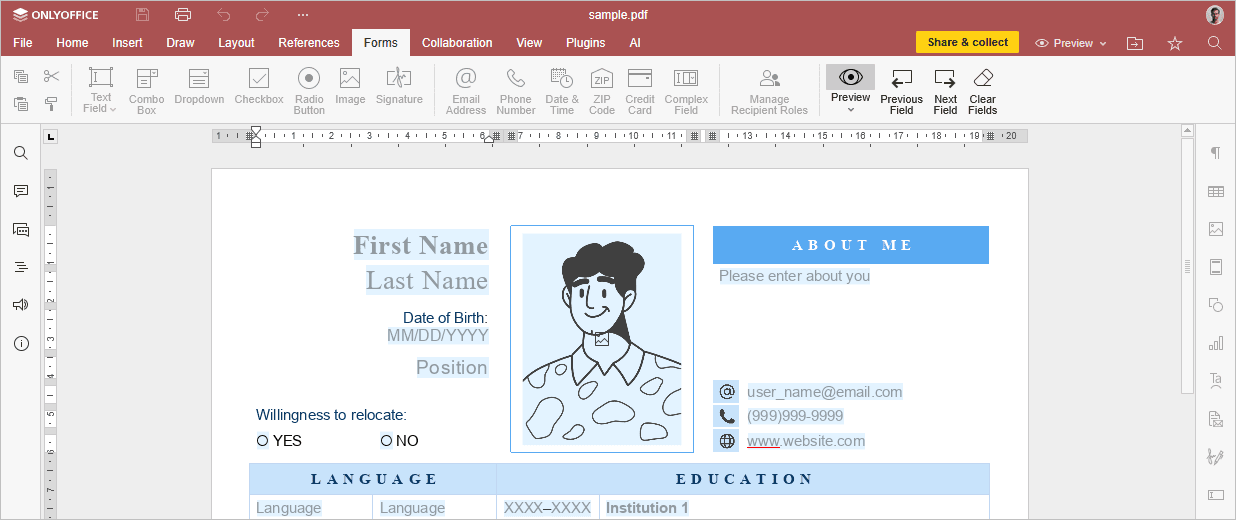
You can view the form from the point of view of each created recipient. To do that, click the arrow under the Preview button and choose the required recipient.

Navigate through the form fields using the  Previous field and
 Next field buttons at the top toolbar.

To clear all fields and reset the form, click the  Clear fields button at the top toolbar.
To exit the viewing mode, click the same icon again.
Saving a form
When you are finished, click the  Save as PDF button at the top toolbar to save the form as a PDF file ready to be filled out. You can save as many PDF files as you need.