Inserting a video
Type 1. Hyperlink
To insert a hyperlink with the required video,
-
Pick a place for your future video in the body of current text by positioning your text cursor in the needed location.
-
Copy the link of the page with the needed video using one of the two options listed below:
- Right Mouse Button Click on the link itself and choose option Copy
- click on the link → press Ctrl+A keys → press Ctrl+C keys
-
Go back to your text document and open the hyperlink dialog window by pressing Ctrl+K keys.
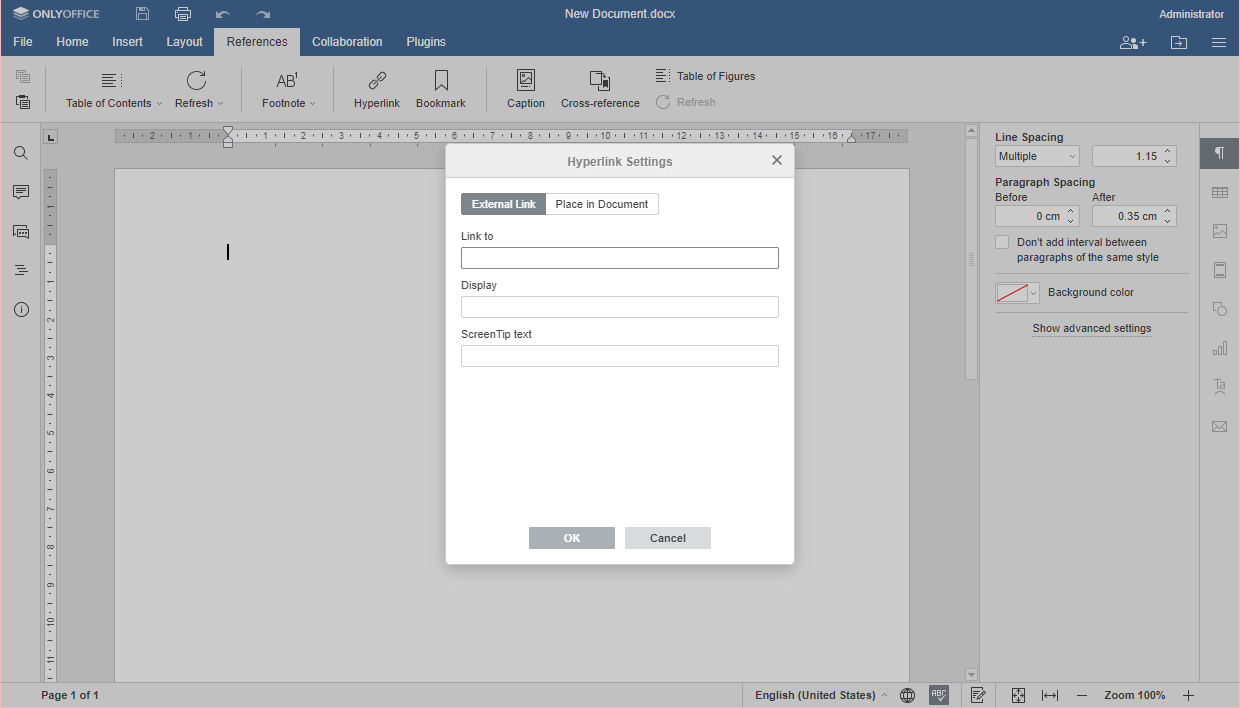
- paste your link into the Link to* field
- type in the text you need your viewers to see instead of the link into the Display field
- type in the text you need your viewers to see in case your video object displays incorrectly into the ScreenTip text field
- click OK
After that, the hyperlink will be inserted in the text.
Type 2. YouTube-Plugin
To insert a video using YouTube-plugin,
-
Pick a place for your future video in the body of current text by positioning your text cursor in the needed location.
-
Copy the link of the page with the needed video using one of the two options listed below:
- Right Mouse Button Click on the link itself and choose option Copy
- click on the link → press Ctrl+A keys → press Ctrl+C keys
-
Go to the Plugins tab in the ONLYOFFICE Document Editor.
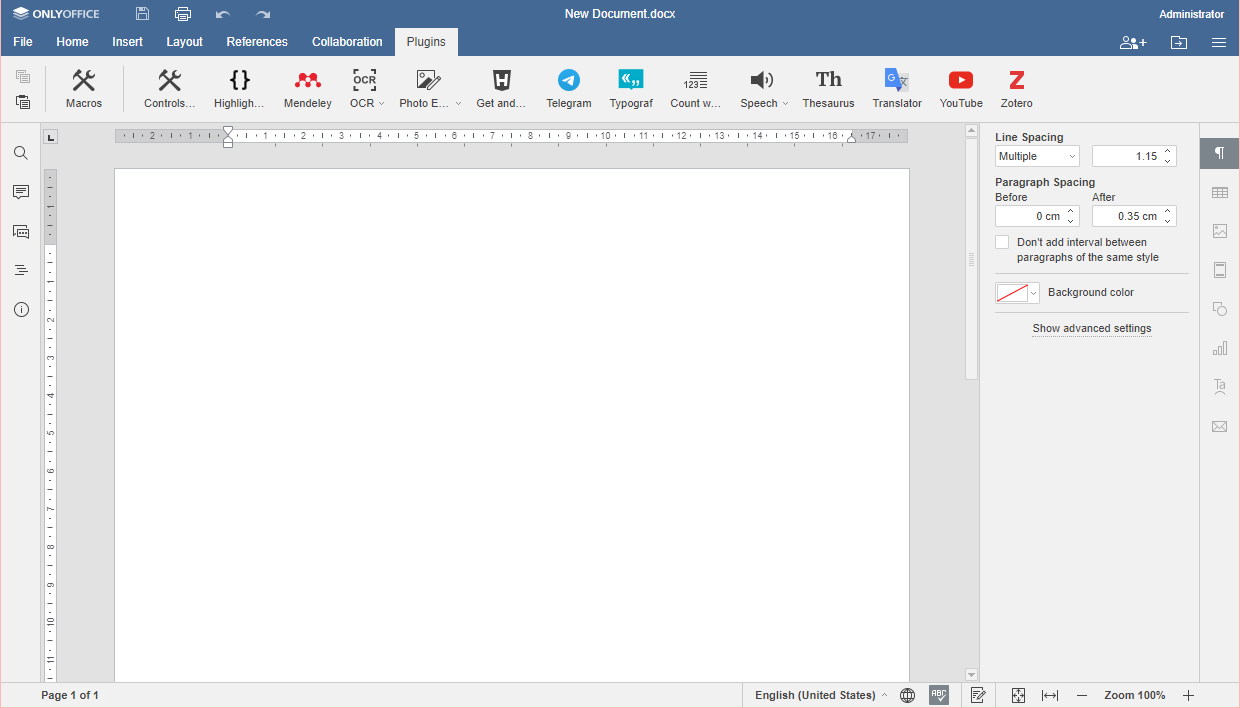
-
Click on the YouTube icon.
-
Insert the link in the field of the dialog window using one of the two options listed below:
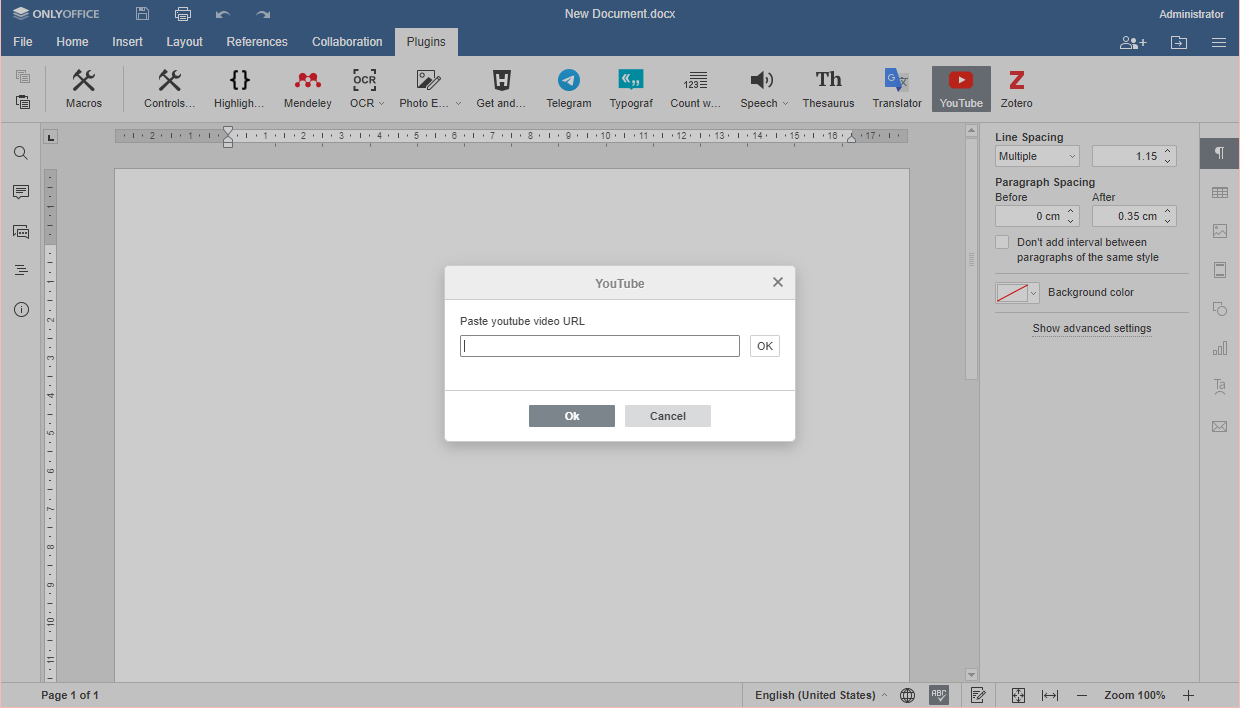
- Right Mouse Button Click and choose option Paste
- put your cursor within the field and press Ctrl+V keys
-
Click OK next to the field with the link to enable the video preview and then click OK in the dialog window, or
click OK in the dialog window to insert the video without a preview.
-
Click on the video and choose needed parameters in the window to the right of the page (see the Insert images page for further information on object parameters).
-
Click on the video twice to play it in the opened preview window.