Deploying ONLYOFFICE Docs in Cloudron
Introduction
You can easily deploy ONLYOFFICE Docs in Cloudron — a complete solution for running applications on your server with just a few clicks via the provided application in the Cloudron App Store.
Once your ONLYOFFICE Docs app is launched, you can integrate it with one of the cloud storage platforms, such as Alfresco, Confluence, Chamilo, Liferay, Nextcloud, ownCloud, SharePoint, HumHub, Plone, Nuxeo, etc. Visit the Integration section to find all the available connectors.
Step 1. Install the ONLYOFFICE Docs application on your Cloudron
Log in to your Cloudron account and go to the Cloudron App Store.
Find ONLYOFFICE Docs in the Documents category and open it.
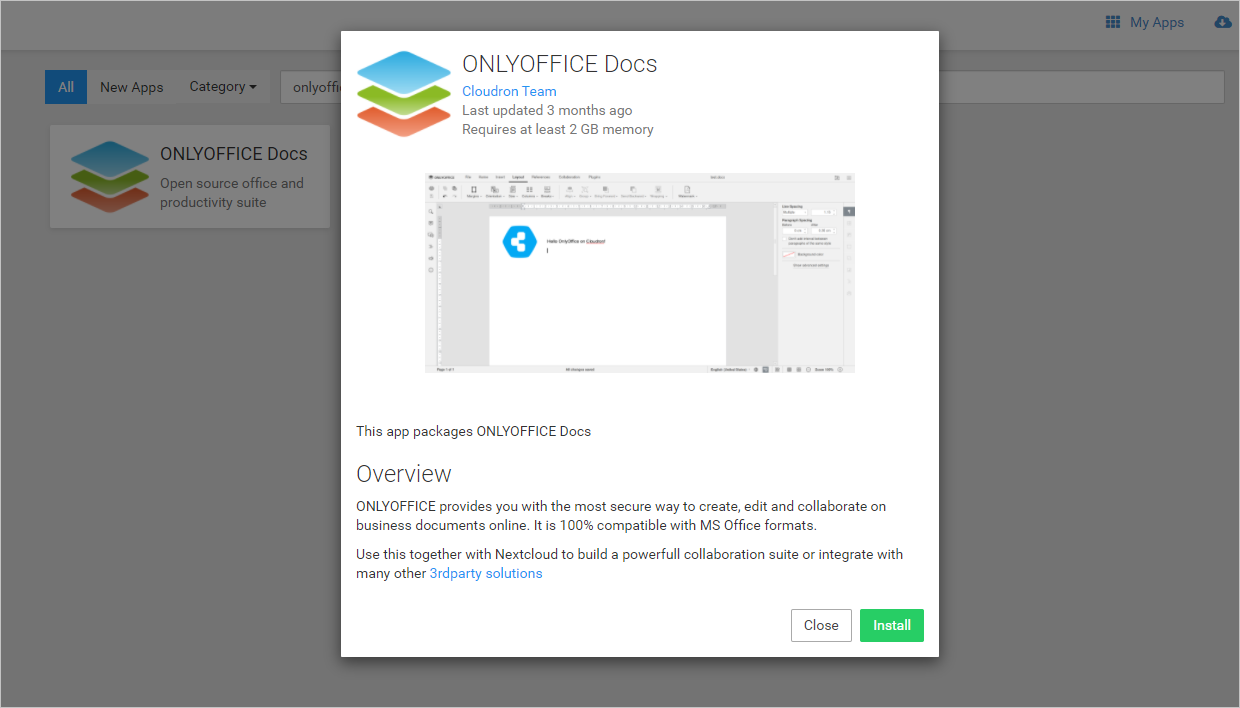
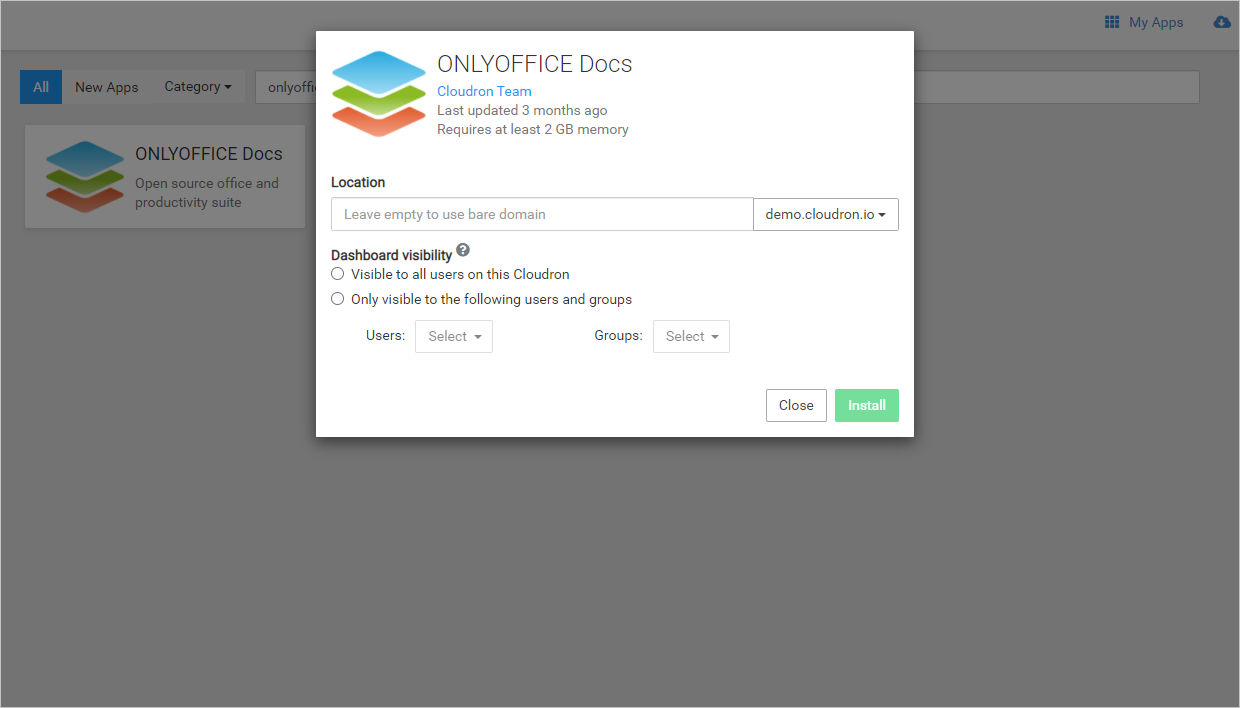
In the window that opens, click the Install button and configure the following parameters:
- Location — add a subdomain or leave the field empty to use the bare domain. This will be the address used to access ONLYOFFICE Docs.
- Dashboard visibility — specify what group of users will be able to use the application:
- Visible to all users on this Cloudron, or
- Only visible to the following users and groups.
Wait for ONLYOFFICE Docs to install and start automatically in a few minutes.
Step 2. Configure ONLYOFFICE Docs app
Find the recently installed ONLYOFFICE Docs in My Apps and click the  button to enter the app settings section.
Then open File Manager to access the app's file system, edit the /app/data/config/production-linux.json file and change the default secret to your own unique secret key.
"secret": {
    "inbox": {
        "string": "mysecret"
    },
    "outbox": {
        "string": "mysecret"
    }
}
Where mysecret is your new secret key used to sign the data. It is the secret to validate the JSON web token in the request to ONLYOFFICE Docs.
Be sure to change the two secrets above to the same unique password.
Restart the ONLYOFFICE Docs app.
Step 3. Integrate with third-party solutions
ONLYOFFICE Docs can be integrated with various platforms. For example, you can install Confluence, Moodle, Nextcloud, and Redmine right within Cloudron and connect them with ONLYOFFICE Docs via corresponding connectors and plugins.
To find more information on how to connect ONLYOFFICE Docs with other services, visit our Integration section for Confluence, Moodle, Nextcloud, and Redmine.