Installing
The desktop version of online editors does not require constant connection to the internet and can work with offline files on your computer. So if you prefer this, you can download and install the desktop editors from our website.
Download the latest version
The latest version of Desktop Editors can be always downloaded using the links on our website here. You will need to choose the installation application depending on the Windows version installed on your computer:
-
Windows 32-bit - in case you have a 32-bit version of Microsoft Windows XP, Vista, 7, 8, 8.1, or 10 installed;
-
Windows 64-bit - in case you have a 64-bit version of Microsoft Windows Vista, 7, 8, 8.1, 10, or 11 installed.
notePlease note that in case you have a 64-bit version of Microsoft Windows XP installed, you can use the 32-bit application version with it.
Starting from version 9.2, ONLYOFFICE Desktop can be installed for the 64-bit ARM architecture from the ARM64 executable file. After you press the selected download button, some of the browsers will suggest you to select the download folder. Select it and the download process will start.
Once the download is finished, you can proceed with the installation.
Alternatively, you can use the online installer as an easier way to install Desktop Editors.
Installing Desktop Editors using the .exe file
Run the downloaded .exe file. The installation wizard will start and guide you through the installation steps.
You might need administrator permissions or extended user permissions to install applications on your computer. If these permissions are controlled by your system administrator, contact him/her to be able to continue the installation.

Select the language and click OK.
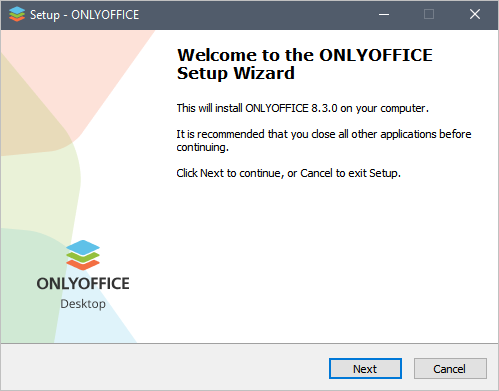
Click Next.
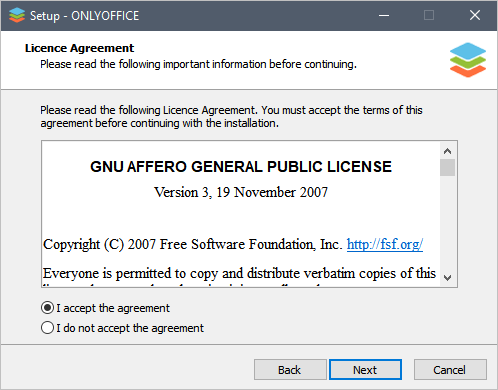
Accept the license agreement and click Next.

Uncheck the box if you do not want to create the shortcut on your desktop and click Next.

Choose one of the available options to associate the application with the selected file types:
- Do not associate - if you don't want to associate the application with any file type,
- Associate all - the default option that associates the application with all the available file types,
- Associate selected - if you want to associate the application with certain file types of your choice.
Then click Next
Learn how to manage file associations manually here.

Click Install and wait while the installation process is completed. It might take some time.

The Launch ONLYOFFICE Desktop Editors box is checked by default to launch the application after closing the wizard window.
Click the Finish button.
Running Desktop Editors
Once the installation is over, you can choose to run the editors right from the installation wizard.
In case you prefer to launch them later, you can always find the editors in your computer Start menu - All, or type ONLYOFFICE into the search field.
Uninstalling Desktop Editors
Uninstalling Desktop Editors will permanently delete associated local data, including application configuration and preference files, cached data and temporary files, local service files and user-generated data used for application startup, and other files and records created by the application during its use. This action is irreversible. Once uninstalled, the data listed above cannot be recovered unless you have created a backup prior to uninstallation. If you wish to preserve any of this data, please back it up manually before proceeding with the uninstallation.
-
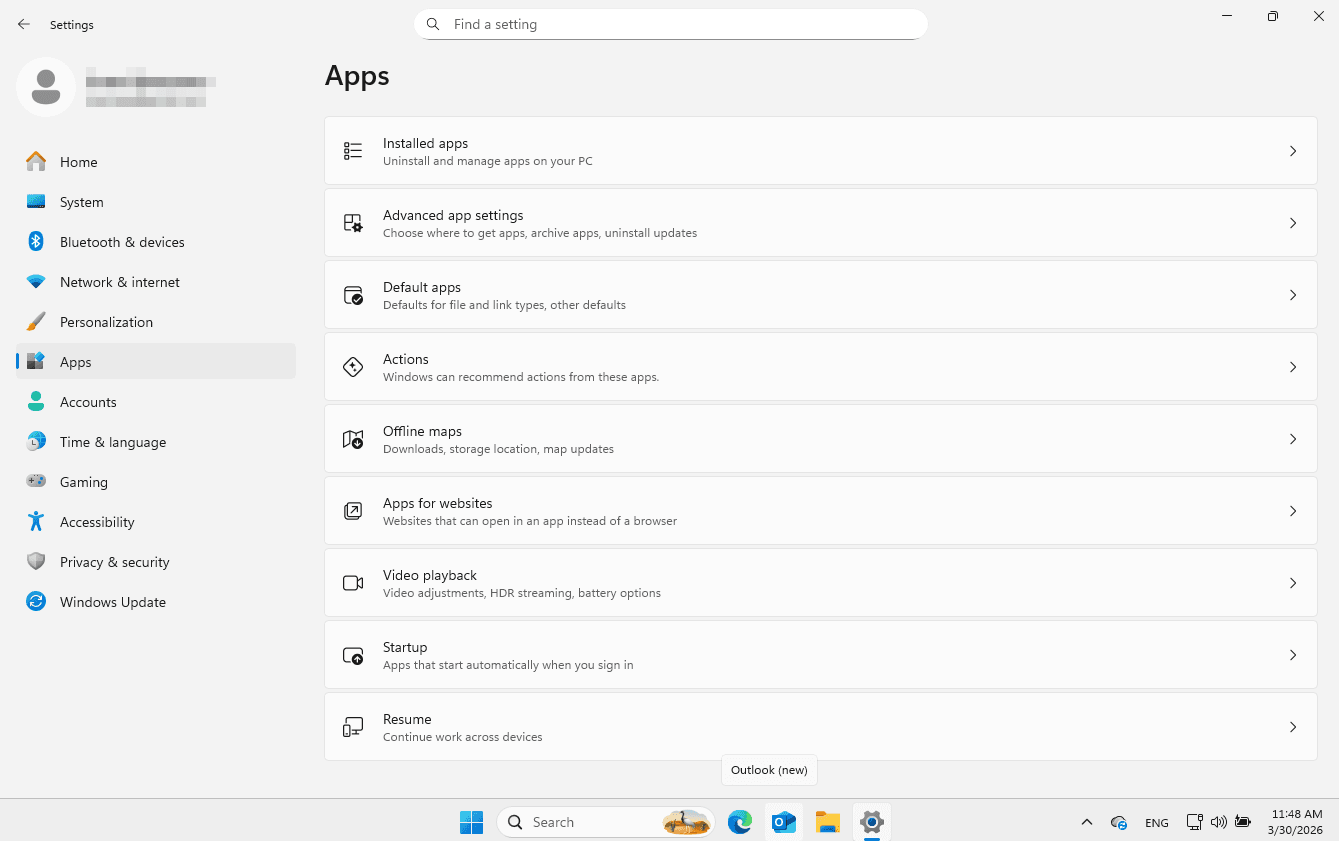
To uninstall ONLYOFFICE Desktop Editors, open the Start menu, select Settings, then Apps from the left menu
-
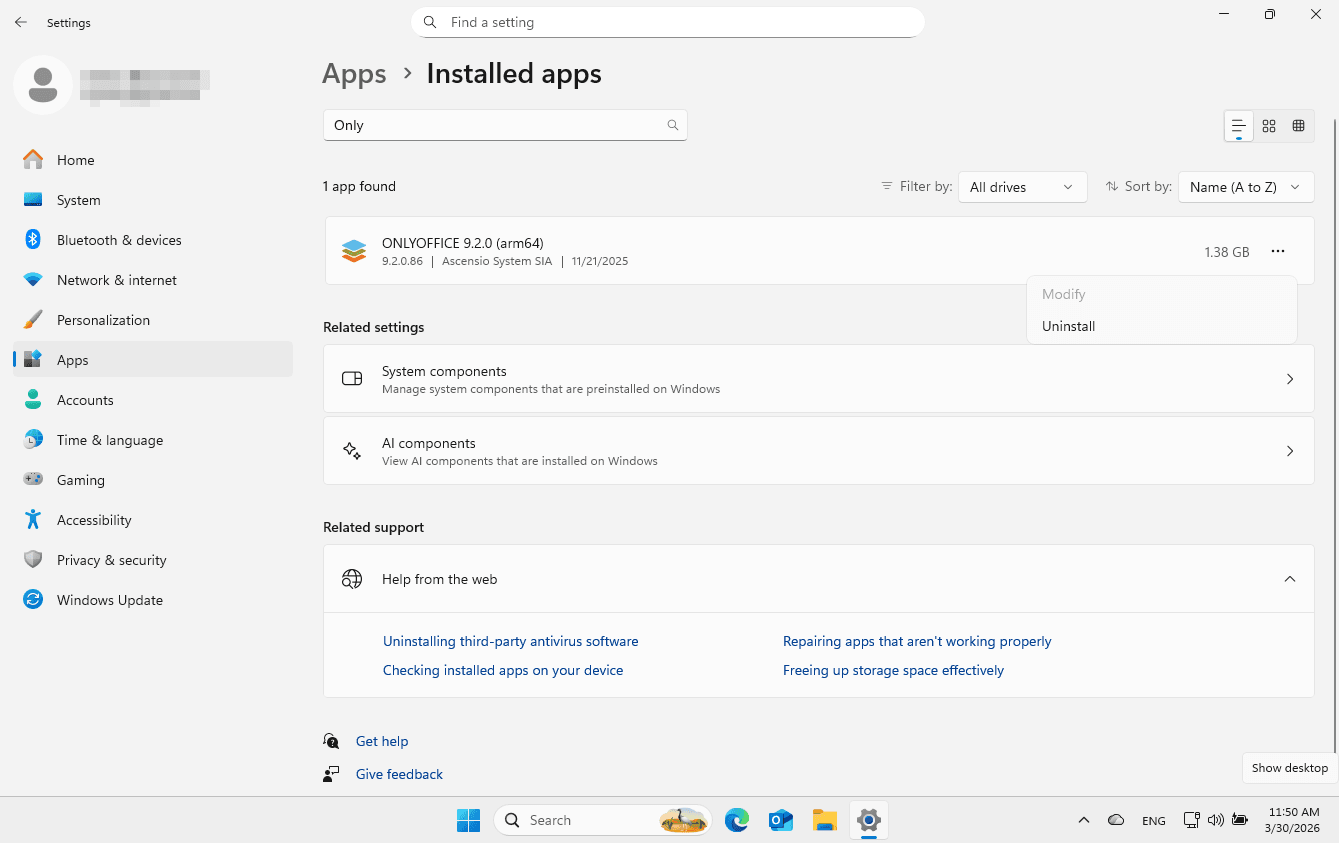
Go to the Installed Apps, and scroll down until ONLYOFFICE is visible, or type ONLYOFFICE into the search field. Click the three dots on the left, and choose Uninstall.
-
Follow the Uninstall Wizard instructions.
-
To uninstall ONLYOFFICE Desktop Editors completely, go to
%LOCALAPPDATA%\ONLYOFFICEon your computer and delete theDesktopEditorsfolder.