Installing on Red Hat, CentOS and derivatives
The desktop version of online editors does not require constant connection to the internet and can work with local files.
To install Desktop Editors, you can use one of the following options:
- download an .rpm package from our website,
Only 64-bit versions of Linux are supported.
After you press the download button for the required package, some browsers may suggest choosing a target directory. Select it, and the download process will start. When it is complete, run the downloaded package file to install the Desktop Editors on your computer.
- use AppImage, Flatpak, Snap,
- add the repository to your Linux OS and update it afterwards. just like any other Linux application.
This guide describes installing ONLYOFFICE Desktop Editors from the repository.
Installing ONLYOFFICE Desktop Editors from the repository
A better option to install desktop editors is to add their repository to your Linux OS. To do that:
- Add the yum repository with the following command:
sudo yum install https://download.onlyoffice.com/repo/centos/main/noarch/onlyoffice-repo.noarch.rpm - Add the EPEL repository with the following command:
sudo yum install epel-releaseTo install EPEL on RHEL, use the following commands:
sudo subscription-manager repos --enable codeready-builder-for-rhel-$REV-$(arch)-rpms
sudo yum -y install https://dl.fedoraproject.org/pub/epel/epel-release-latest-$REV.noarch.rpm
Change $REV to your OS version manually (7 for versions 7.x, 8 for versions 8.x, 9 for versions 9.x and so on).
- Now the editors can be easily installed using the following command:
sudo yum install onlyoffice-desktopeditors -y
Running ONLYOFFICE Desktop Editors
Once the installation is over, you can run the editors using the terminal command:
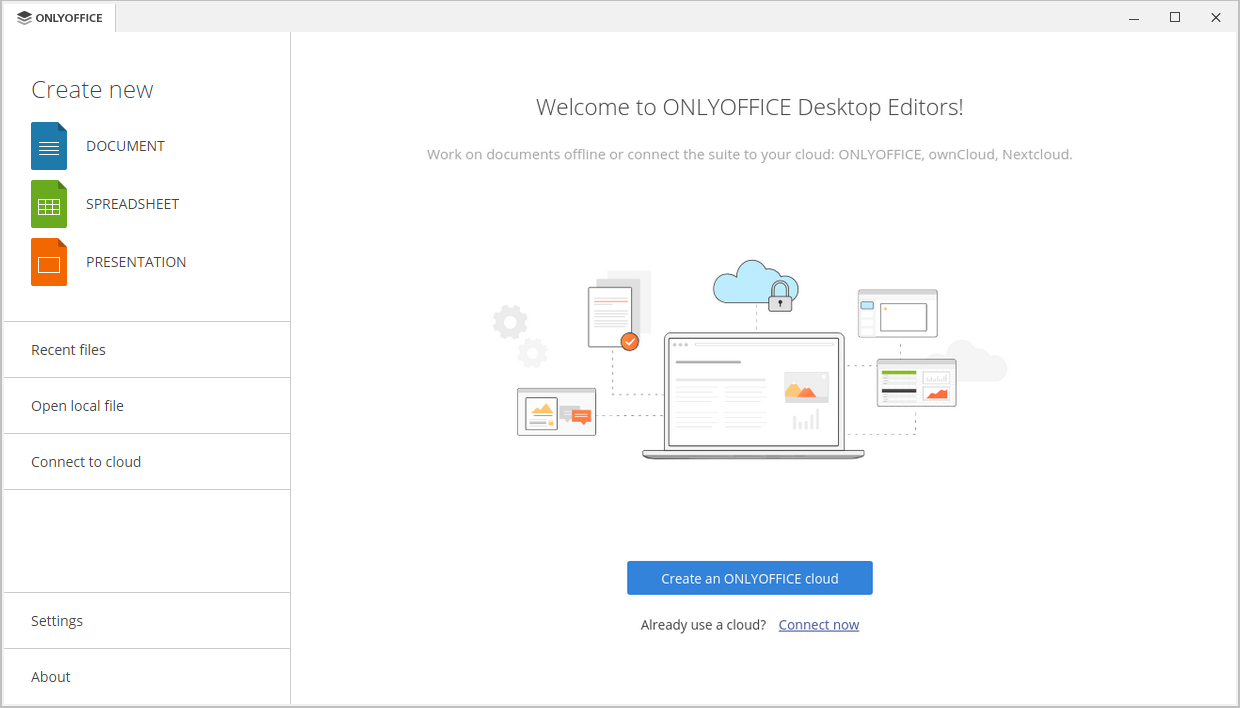
desktopeditorsIn case you prefer to use a graphical user interface, you can always find the editors in your computer's Application menu - Office - ONLYOFFICE.

Uninstalling ONLYOFFICE Desktop Editors
To uninstall ONLYOFFICE Desktop Editors, enter the following command:
sudo yum remove onlyoffice-desktopeditorsRegularly, there shall remain no residual files after removal using common system methods. However, if any, run the following command to remove anything that may still remain:
sudo rm -rf /opt/onlyofficesudo rm -rf /opt/onlyofficesudo rm -f /usr/share/applications/onlyoffice-desktopeditors.desktopsudo rm -f /usr/local/share/applications/onlyoffice-desktopeditors.desktopsudo rm -f /usr/bin/desktopeditorssudo rm -f /usr/local/bin/desktopeditorssudo rm -rf ~/.config/onlyofficesudo rm -rf ~/.local/share/onlyofficesudo rm -rf ~/.cache/onlyofficeWatch video
How to download ONLYOFFICE to Windows, Mac, and Linux?
Ready to experience powerful, private, and completely free office editing? This straightforward guide shows you exactly how to download and install ONLYOFFICE Desktop Editors on Windows, macOS, and Linux.