Running Desktop Editors with parameters
Introduction
Sometimes you might want to run Desktop Editors for performing a specific task, e.g., creating a new file when running the app, opening an existing file for viewing only, or running the application in debug mode, etc. This can be done using command line flags.
List of available flags
Here you can find the flags that can be used when running Desktop Editors and their short descriptions.
Running Desktop Editors in debug mode
This option can be used on all operating systems.
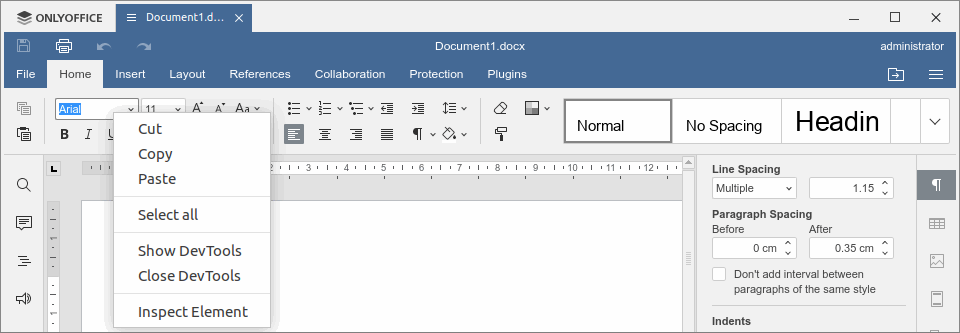
--ascdesktop-support-debug-info - is used to run Desktop Editors in debug mode with the ability to open the console. To start working in debug mode, right-click any editable field on the top toolbar (for example, font list combo) and click Inspect Element. You can also press the F1 key to open the DevTools window.
Starting from version 7.1, you can also use the --ascdesktop-support-debug-info-keep flag, specifying the necessary value:
--ascdesktop-support-debug-info-keep=1 - enables debug mode permanently and does not require a separate parameter for activating (the parameter is stored in the application settings file).
--ascdesktop-support-debug-info-keep=0 - disables debug mode permanently and requires a separate parameter for activating (the parameter is stored in the application settings file).
--ascdesktop-support-debug-info-keep=default - resets the default setting (removes the parameter from the application settings file).
Customizing Desktop Editors window
These options can be used on Linux OS.
--system-title-bar - is used to run Desktop Editors in a system window.

The launch command depends on the installation type of the application. For details, see the Using flags on different operating systems section below.
--custom-title-bar - is used to run Desktop Editors in a standard window (not a system one). This flag is used to cancel the effect of the --system-title-bar flag.

Once you run the application with one of these flags, the selected title bar mode is saved in the application settings and applied to all subsequent launches, even without the flag. To switch back, either run the application with the opposite flag once, or remove the titlebar parameter from the DesktopEditors.conf file. The settings file is located in the ~/.config/onlyoffice/ folder, or in ~/.var/app/org.onlyoffice.desktopeditors/config/onlyoffice/ for the Flatpak version.
Running Desktop Editors along with opening a file in a certain mode
These options can be used on Windows and Linux OS.
--review=path/to/file - is used to open an existing DOCX file in the Track Changes mode without the ability to disable this mode. The XLSX and PPTX files will be opened in the viewing mode, as the track changes mode is not currently supported in spreadsheets and presentations.
--view=path/to/file - is used to open an existing DOCX, XLSX, or PPTX file in the viewing mode without the ability to switch to the editing mode.
Replace path/to/file with an actual full path to an existing file. The file path must be enclosed in double quotes. E.g.:
--review="C:\Users\username\Documents\Document1.docx" for Windows
--review="/home/username/Documents/Document1.docx" for Linux
--force-use-tab - is used together with the --review=path/to/file or --view=path/to/file flags to open an existing DOCX file in a new tab of the main window. Otherwise, the document opens in a separate window.
Examples of using two flags together:
--review="C:\Users\username\Documents\Document1.docx" --force-use-tab or --view="C:\Users\username\Documents\Document1.docx" --force-use-tab - for Windows
--review="/home/username/Documents/Document1.docx" --force-use-tab or --view="/home/username/Documents/Document1.docx" --force-use-tab - for Linux
Connecting Desktop Editors to the ONLYOFFICE cloud
This option can be used on all operating systems.
--ignore-certificate-errors - is used to disable the certificate validity check so that you can connect desktop editors to the ONLYOFFICE cloud in case you use a self-signed SSL certificate on your ONLYOFFICE portal.
Creating new files when opening Desktop Editors
These options can be used on all operating systems.
--new:word - is used to run the desktop editors and create a new local DOCX file.
--new:cell - is used to run the desktop editors and create a new local XLSX file.
--new:slide - is used to run the desktop editors and create a new local PPTX file.
--new:form - is used to run the desktop editors and create a new local PDF form file.
Using flags on different operating systems
This process differs depending on the operating system - Windows, Linux, or macOS. Please choose the corresponding tab to read detailed instructions for your OS:
- Windows
- Linux
- macOS
On Windows, there are two ways to launch the application: through the shortcut or the terminal.
Option 1. Run the app through the shortcut:
-
Right-click the application shortcut on the desktop screen.
-
Choose Properties.
-
Open the Shortcut tab.
-
In the Target field, after the path to the application, enter a space and then type the necessary flag.
-
Click the Apply button.

-
You will need to provide administrator permissions to change these settings. Click Continue.
-
Launch the application by clicking the shortcut.
Option 2. Run the app through the Run window:
-
Press Win+R.
-
In the appeared Run window, enter the path to the application, add a space and then type the necessary flag, for example:
"%ProgramFiles%\ONLYOFFICE\DesktopEditors\DesktopEditors" --ascdesktop-support-debug-info
-
Click the OK button.
On Linux, use the terminal to run Desktop Editors using flags:
- Press Ctrl+Alt+T. The terminal will be opened.
- In the command line, enter the launch command that corresponds to your installation type, add a space and then type the necessary flag.
- Press Enter.
The launch command depends on the installation type of the application - the DEB/RPM package, Snap, Flatpak, or AppImage:
-
If the application is installed as a DEB or RPM package, enter
onlyoffice-desktopeditors, for example:onlyoffice-desktopeditors --ascdesktop-support-debug-info -
If the application is installed as a Snap package, for example:
snap run onlyoffice-desktopeditors --ascdesktop-support-debug-info -
If the application is installed via Flatpak, for example:
flatpak run org.onlyoffice.desktopeditors --ascdesktop-support-debug-info -
If you use the AppImage version, switch to the folder where the downloaded AppImage file is stored (e.g.,
cd ~/Downloads) and run this file, for example:./DesktopEditors-x86_64.AppImage --ascdesktop-support-debug-infoIf the AppImage file is not executable yet, make it executable first by running the
chmod +x DesktopEditors-x86_64.AppImagecommand.
Snap and Flatpak applications run in a sandboxed environment. When using the flags that open a file (e.g., --review or --view), make sure that the specified file is stored in a location the application is allowed to access (for example, your home directory).
On macOS, use the terminal to run Desktop Editors using flags:
-
Press Command+Space.
-
In the appeared Spotlight window, type Terminal in the search line.
-
Choose the Terminal option. The terminal will be opened.
-
In the command line, enter the path to the application, add a space and then type the necessary flag, for example:
"/Applications/ONLYOFFICE.app/Contents/MacOS/ONLYOFFICE" --ascdesktop-support-debug-info -
Press Enter.