Associating files on Windows
After you install Desktop Editors on Windows, you may want to associate files with the application so that always use this program to open the selected file types. To associate office documents with Desktop Editors on Windows, you should perform the steps described below.
Open Default Apps
Access the Default apps settings in the following way:
-
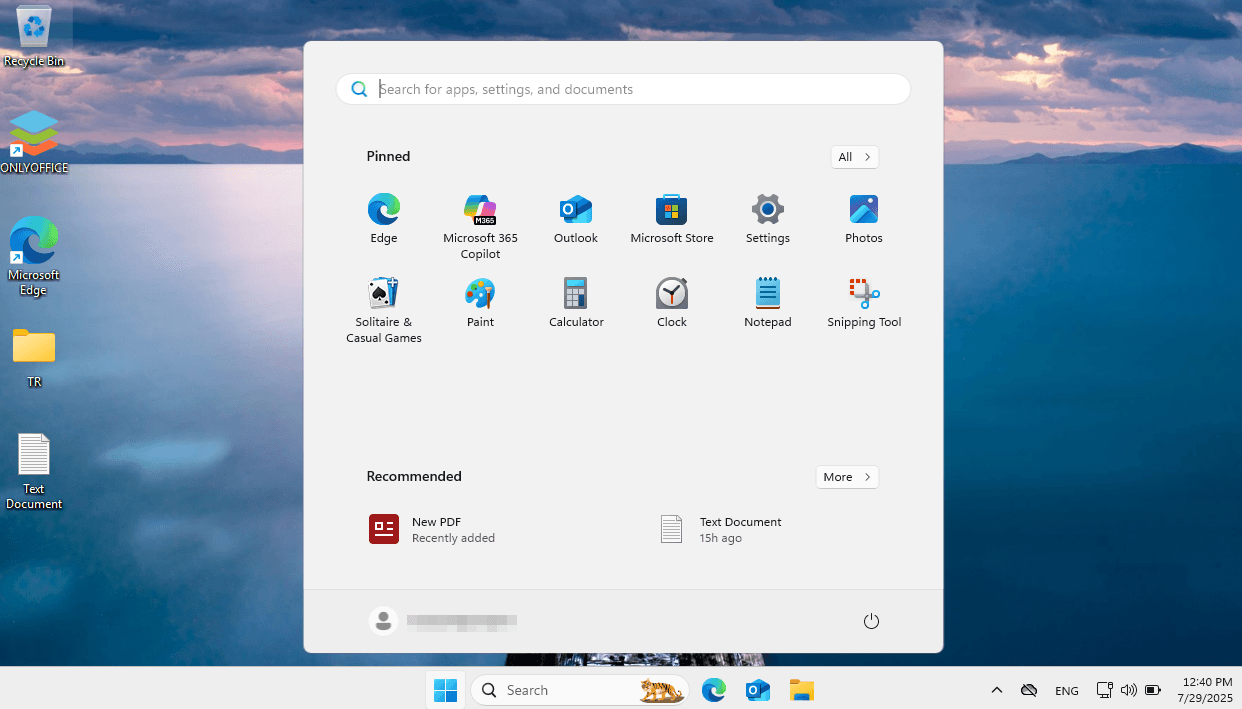
Open the Start menu using the
 button on the taskbar.
-
Press Settings in the Pinned section of the Start menu.
-
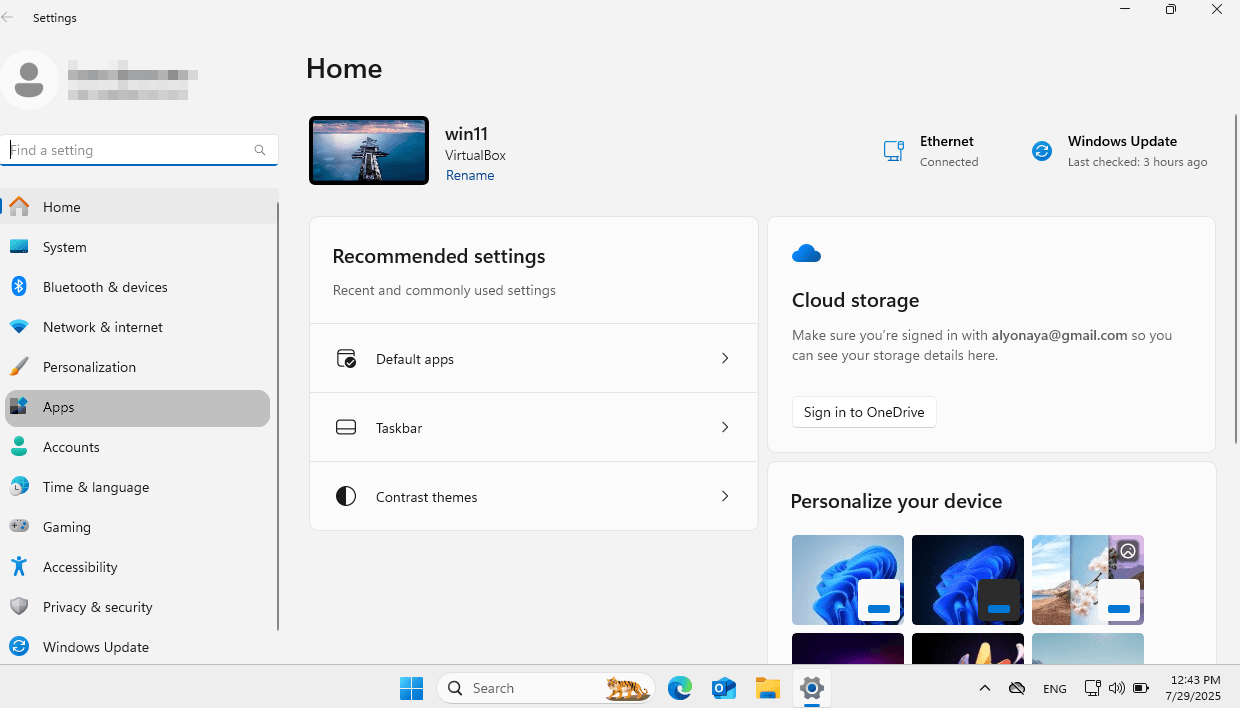
Press Apps on the left-side navigation menu.
-
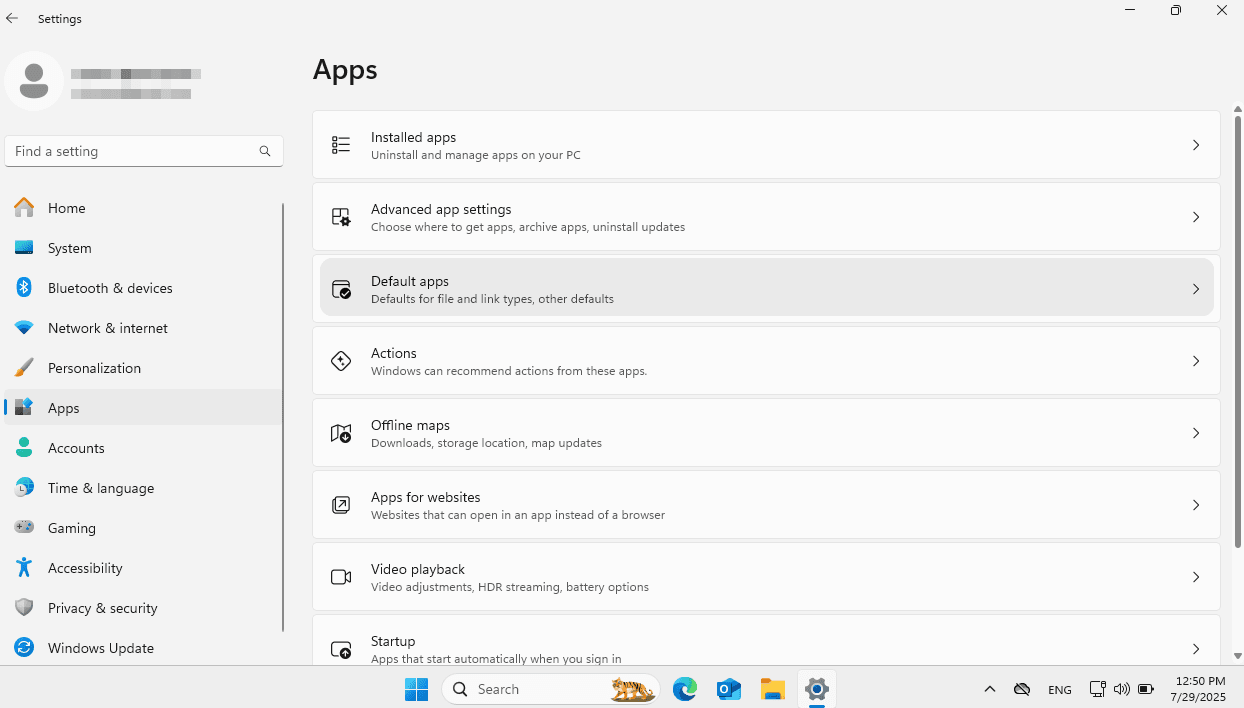
In the Apps section, click the Default apps.
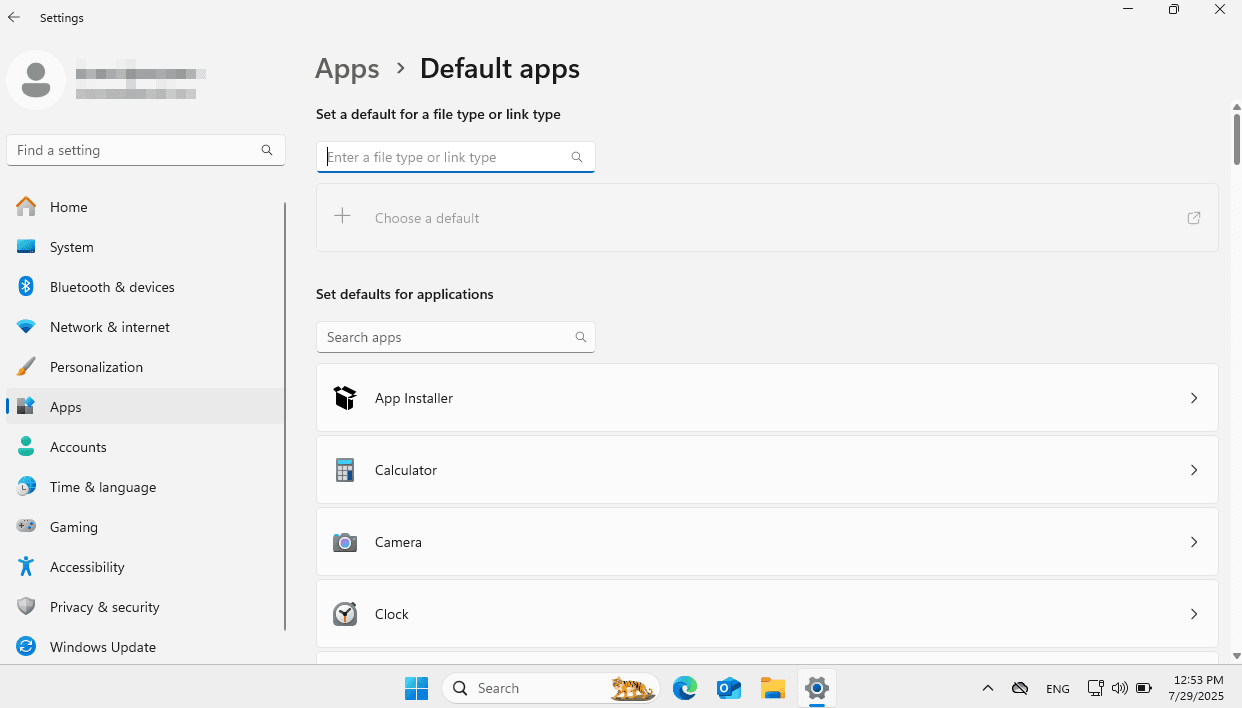
On the Default apps page, use the Set a default for a file type or link search bar to search by file type or link and to set up the deafault app.
Use the Set defaults for application search box to find a particular application, and to display the file types or link types it supports, or scroll down the list of the installed applications.
Option 1: Choose defaults by file type
This option allows you to select a default application that should open files with a certain file extension. This setting is applied to each file type individually.
-
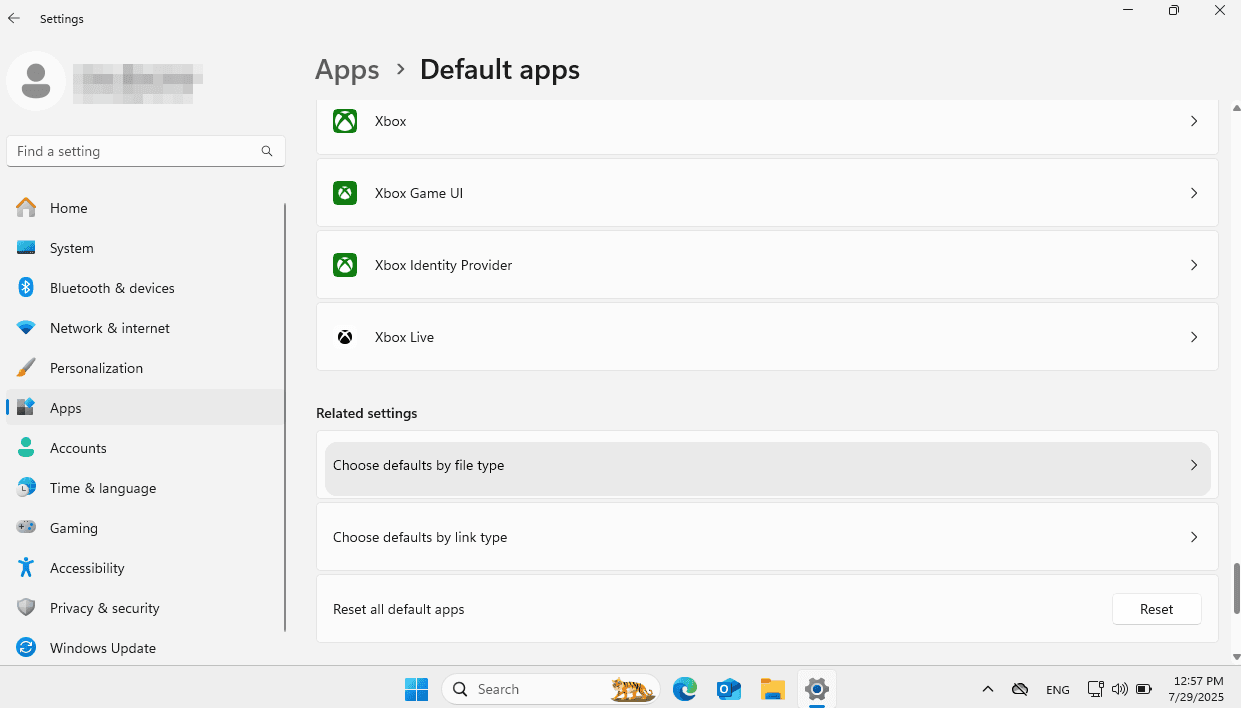
Find the necessary file extension using the Set a default for a file type or link search bar on the Default apps page. To access the complete list of files or links, on the Default apps page, scroll down to the Related settings section, and choose Choose defaults by file type or Choose defaults by link type.
-
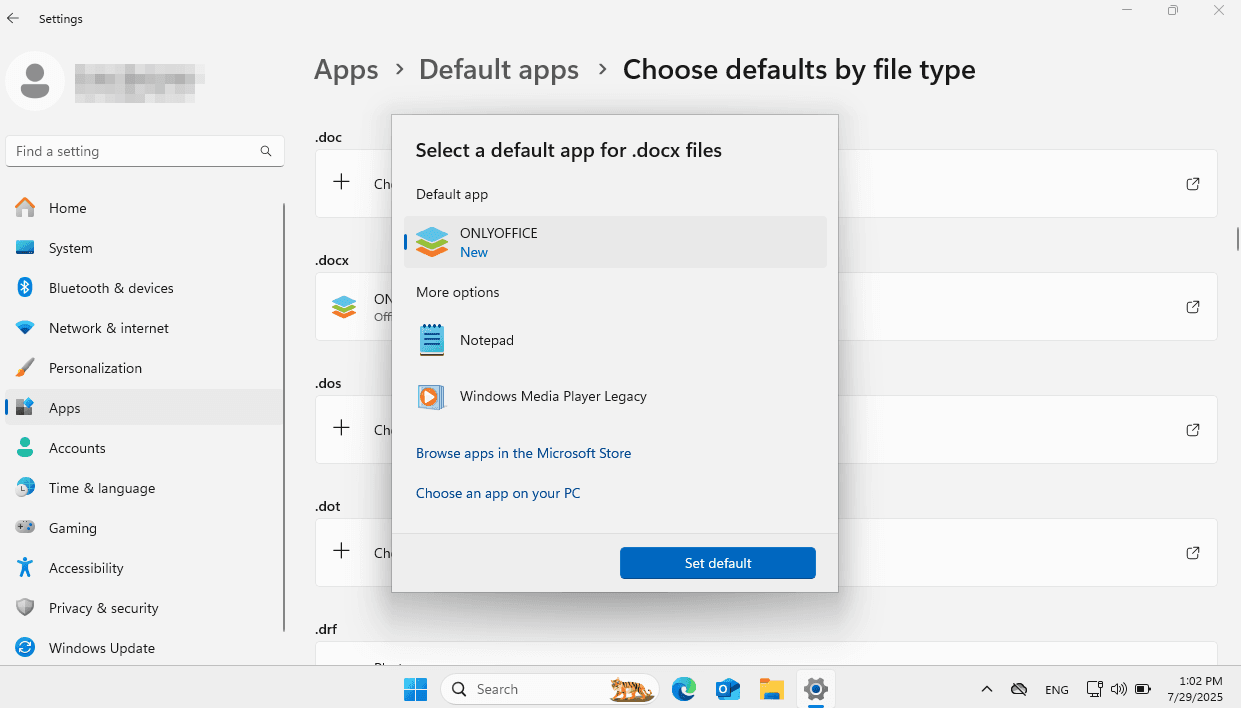
Click the Choose a default below the file type.
-
In the Select a default app pop-up window, choose ONLYOFFICE application and click the Set default button.
Repeat the steps for other file types you want to associate with Desktop Editors.
Option 2: Set defaults by app
This option allows you to associate different supported file types with the selected application.
-
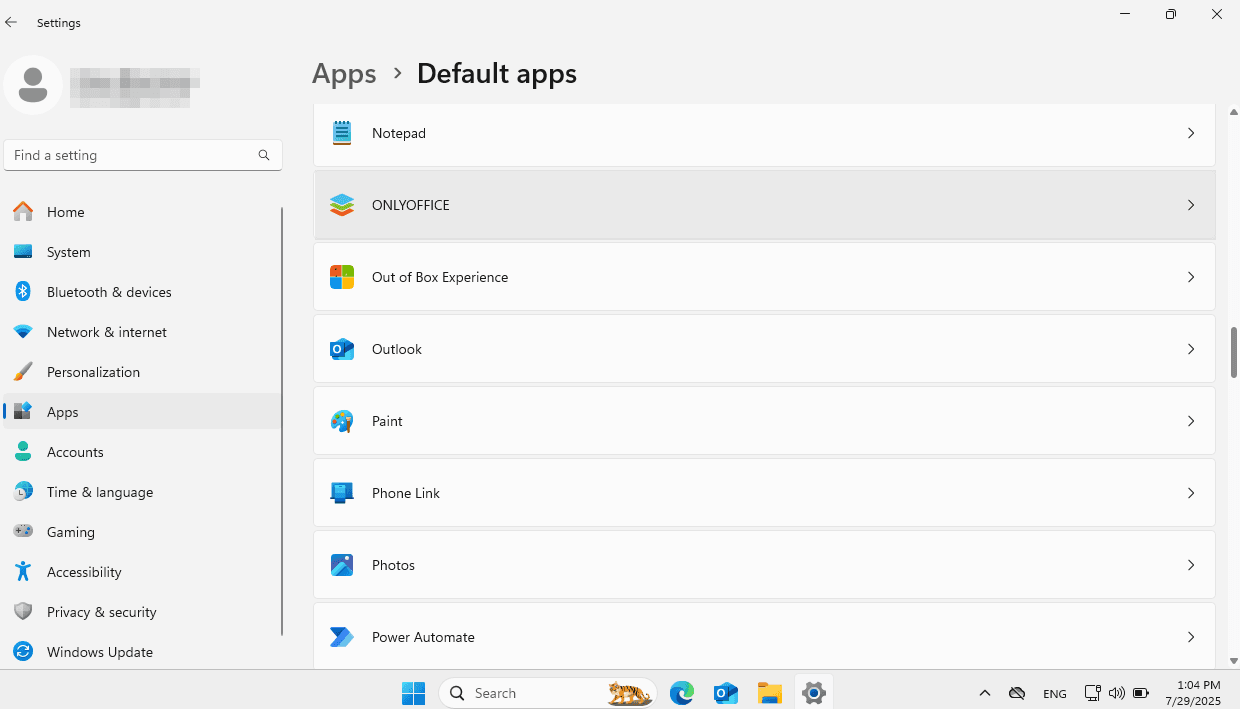
Click ONLYOFFICE in the application list.
-
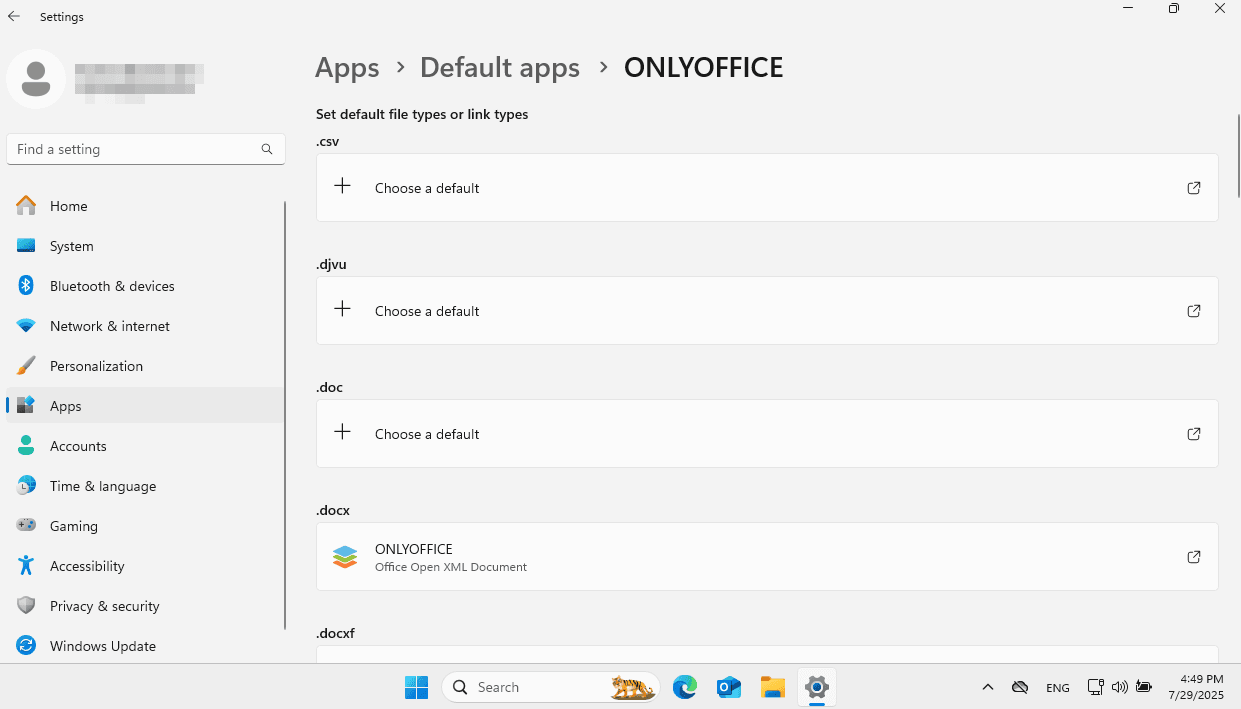
Click the Choose a default below the necessary file type.
-
In the Select a default app pop-up window, choose the ONLYOFFICE application and click the Set default button.
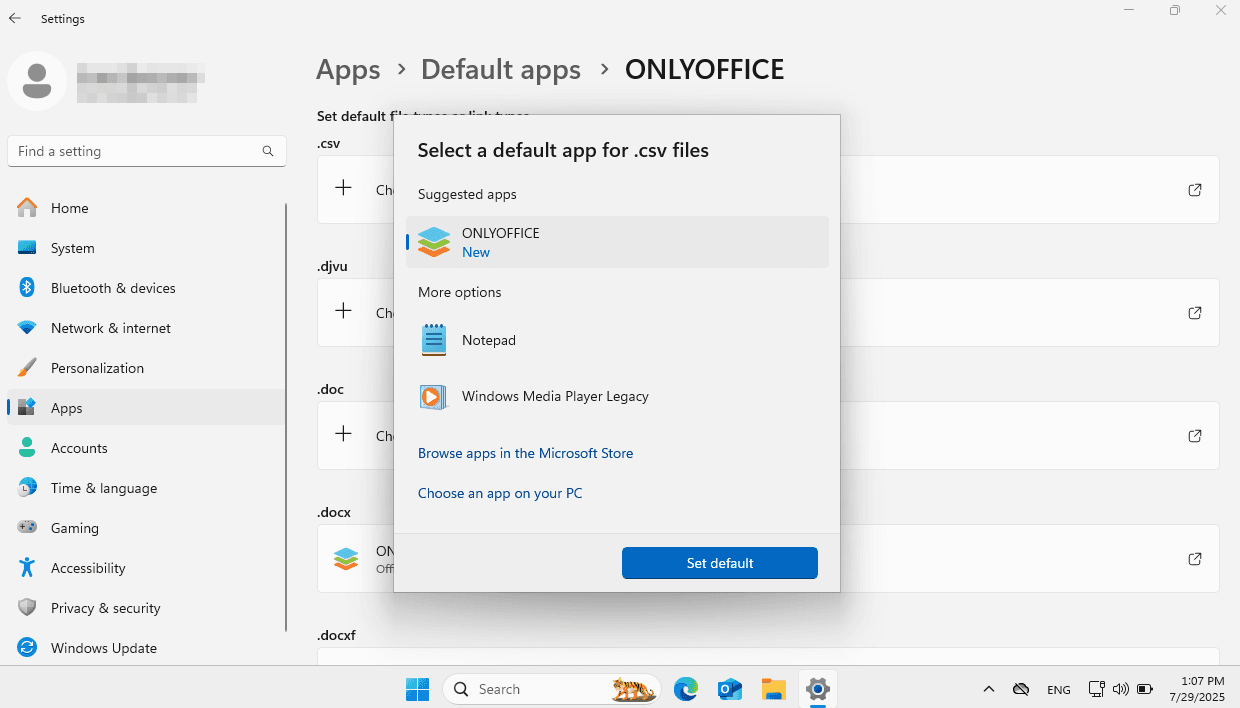
Repeat the steps for other file types you want to associate with Desktop Editors.