Using AI in the Document Editor
The ONLYOFFICE Document Editor allows you to use AI assistants to summarize lengthy text passages into concise, digestible content; translate your text; analyze it in various ways, as well as generate images based on your documents and prompts.
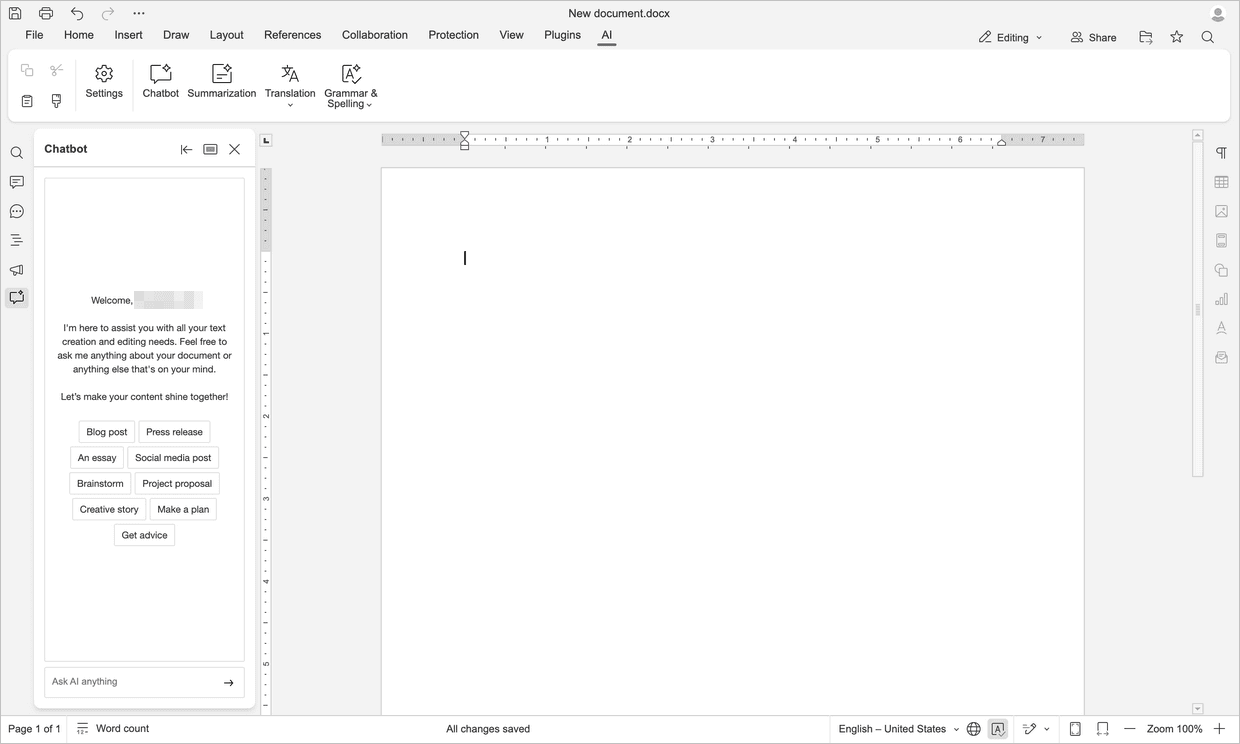
Accessing AI Chat
- Go to the AI Tools tab on the top toolbar.
- Click the
 AI Chat button to open the AI assistant panel on the left sidebar.
 - You can ask questions about your document, generate new text, or improve existing content.
-
When an output is generated, choose one of the following options:
- Generate new: Click this option to generate a new AI response.
- Copy: Click this option to copy the AI output to the clipboard.
- Replace original text: Click this option to replace the original text with the AI output.
- Insert result: Click this option to insert the AI output at the current cursor position.
- In comment: Click this option to add the AI output as a comment in your document.
- As review: Click this option to insert the AI output in the Track Changes mode so you can review, accept, or reject it before finalizing the document.
Accessing AI summarization
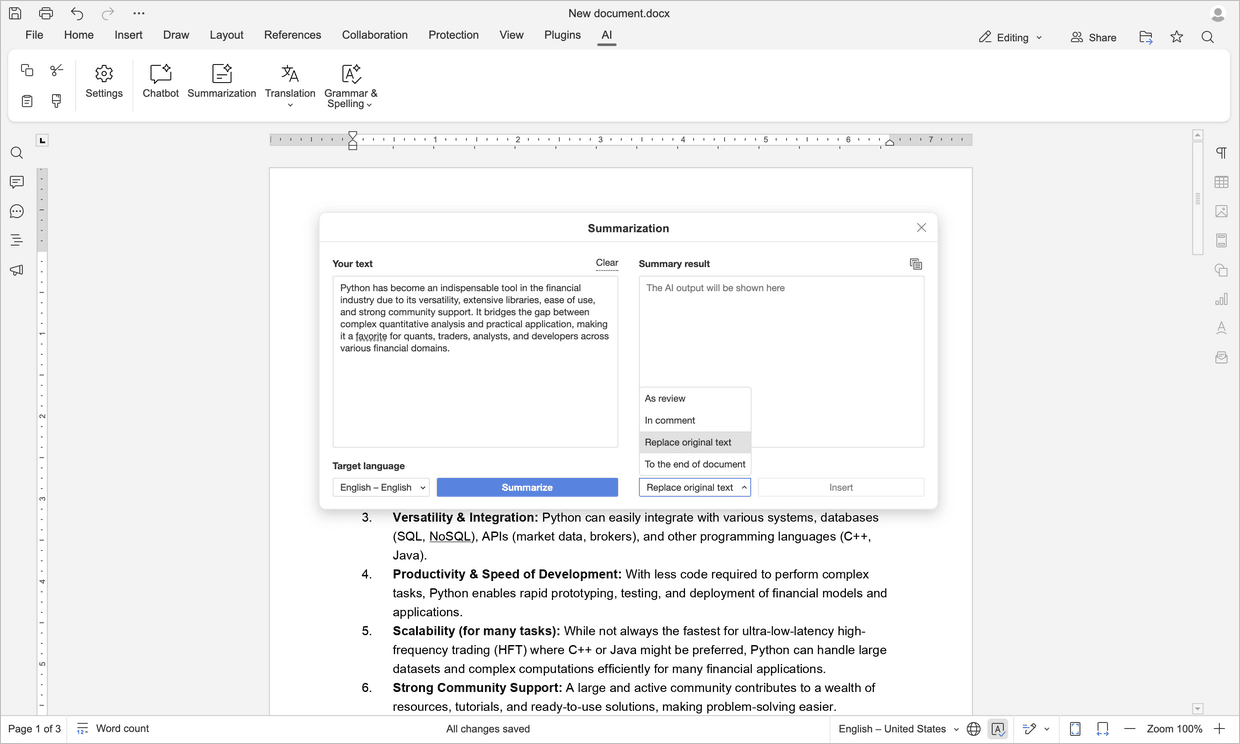
- Select the text you want to summarize.
- Go to the AI Tools tab on the top toolbar and select the
 Summarization option.
 - If you want the output in a different language, select it in the Target language field and click Summarize.
-
To insert, choose one of the following options:
- As review: Insert the AI output in the Track Changes mode so you can review, accept, or reject it before finalizing the document.
- In comment: Add the AI output as a comment in your document.
- Replace original text: Replace the original text with the AI output.
- To the end of document: Insert the AI output at the end of your document.
-
After choosing the option, click Insert
or
Right-click the selected text and choose AI Tools → Summarization from the context menu.
Accessing AI Translation
- Go to the AI Tools tab on the top toolbar.
- Click the drop-down under
 Translation and then click Settings.
 - Select your preferred language and click OK.
- Select the text you want to translate and click Translation.
-
The result will be inserted and replace the original text
or
Right-click the selected text and choose AI Tools → Translate and choose your desired language from the context menu.
Accessing AI Textual Analysis
Grammar and Spelling
- Go to the AI Tools tab on the top toolbar.
- Click the drop-down under
 Grammar & Spelling.
 - Click Check all or Check current text to review the document.
- The incorrect text will be underlined.
- Click the underlined text to open the suggestion dialog box.
- You will see Suggested correction and the corresponding Explanation.
-
Click Accept to replace the incorrect text with the suggested correction. Otherwise, click Reject
or
Right-click the selected text and choose AI Tools → Grammar & Spelling from the context menu
or
Use the keyboard shortcut Ctrl+/ (or ⌘+/ on macOS) to open the AI prompt and request a grammar and spelling check.
Text analysis
-
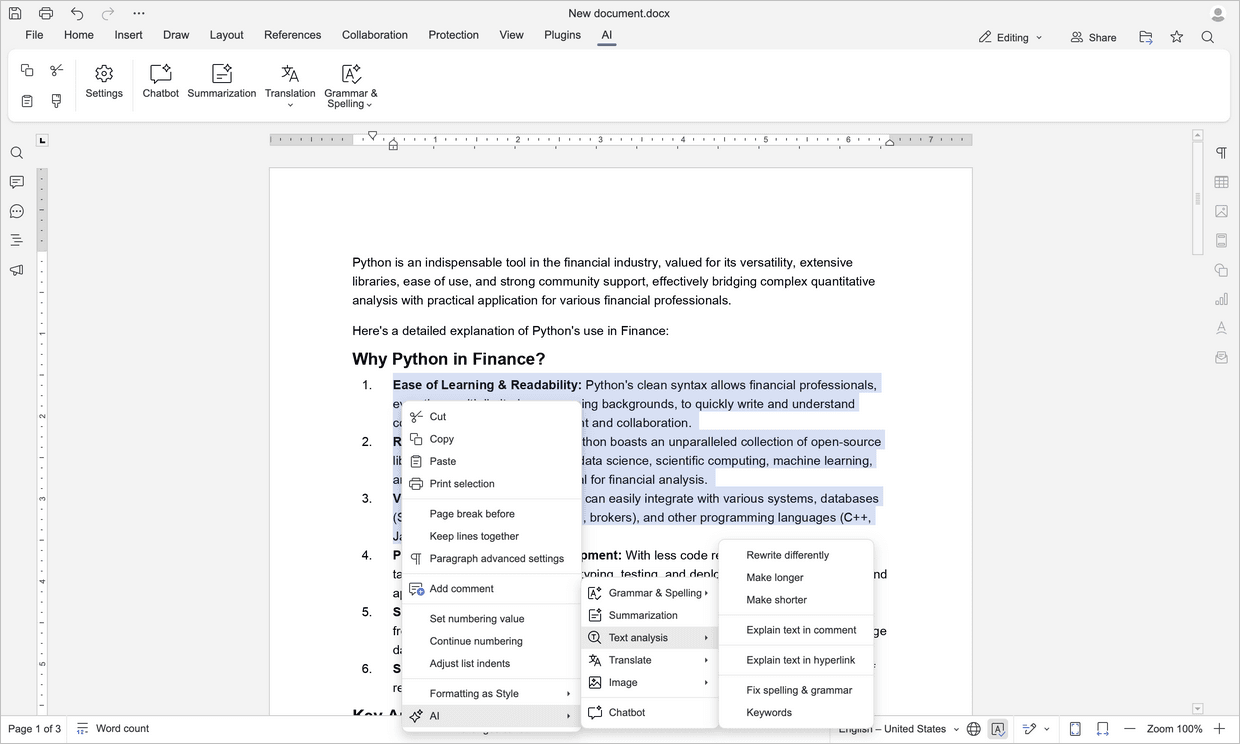
Right-click the selected text and choose AI Tools → Text analysis from the context menu. You can choose any of the following options:
- Rewrite differently: Click to rephrase the selected text differently.
- Make longer: Click to expand the selected text to be longer.
- Make shorter: Click to condense the selected text to be shorter.
- Explain text in comment: Click to add an explanation of the selected text as a comment.
- Explain text in hyperlink: Click to add an explanation of the selected text as a hyperlink.
- Fix spelling & grammar: Click to correct spelling and grammar errors in the selected text.
- Keywords: Click to extract and display keywords from the selected text.
or
Use the keyboard shortcut Ctrl+/ (or ⌘+/ on macOS) to open the AI prompt and refine your text.
Accessing AI image generation
-
Right-click the selected text and choose AI Tools → Image → Text to image from the context menu.
Your image will be generated and inserted at the cursor positionor
Use the keyboard shortcut Ctrl+/ (or ⌘+/ on macOS) to open the AI prompt and generate an image.