AI inline agent
AI inline agent
The AI inline agent is a contextual assistant integrated into ONLYOFFICE editors. It appears as a panel and allows you to interact with your documents using natural language commands directly inside the editor.
This feature is available as part of the AI plugin and is currently provided in beta.
The AI inline agent:
- Allows you to complete common editing tasks using natural language without navigating through menus.
- Provides a set of simple built-in functions adapted to each editor.
- Maintains conversation history so you can refine results step by step.
Connecting and configuring the AI inline agent
Follow these steps to install and set up the AI inline agent.
Step 1. Install or update the AI plugin
Go to Plugins → Plugin Manager, find the AI plugin, and click Install or Update. This enables AI functionality in the editors.
Step 2. Enable the AI plugin
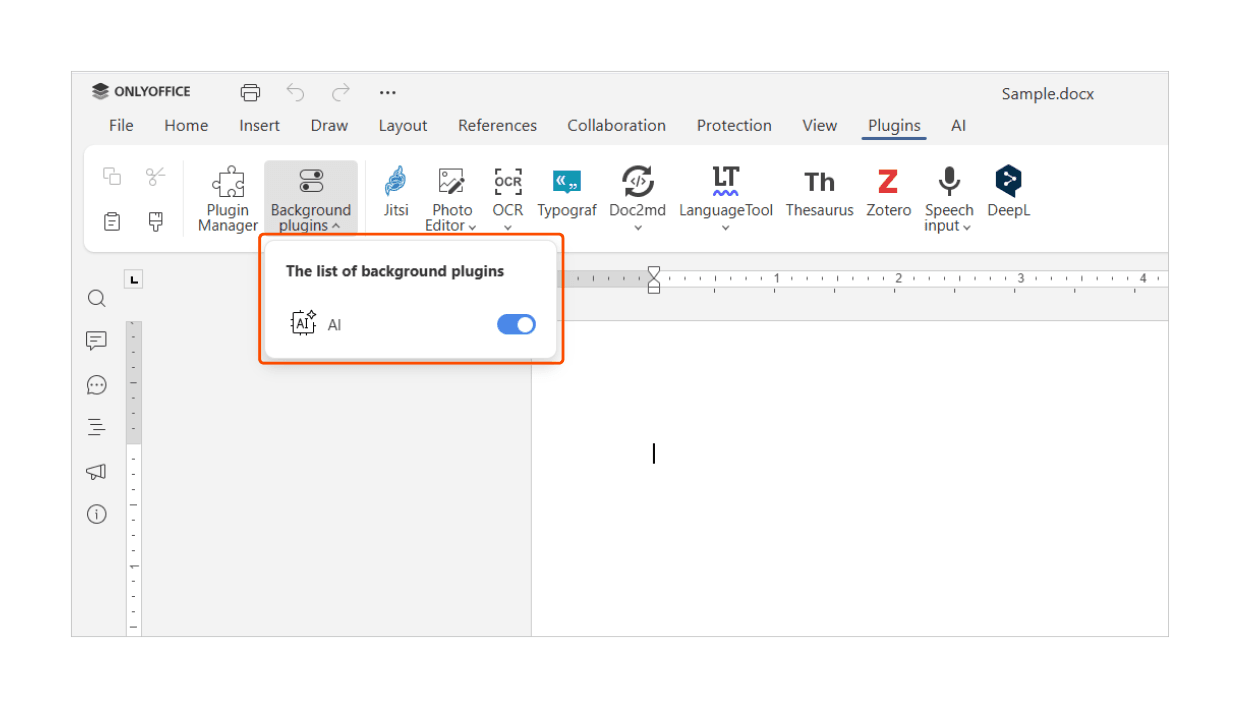
Go to Plugins → Background plugins and activate the AI plugin. This allows the agent to run in the background.
Step 3. Connect an AI provider
Navigate to AI → Settings → Edit AI models → Add (+ icon), then:
- Select an AI provider.
- Enter your API key.
- Update the models list.
This allows ONLYOFFICE to communicate with the selected AI model.
If you use a local provider such as LM Studio or Ollama, enter the base URL instead of an API key. API keys must be obtained directly from the provider’s official website.
ONLYOFFICE does not issue API keys or provide access to third-party AI services, and some providers may charge fees for usage. Always review the provider’s pricing and usage terms before connecting a model.
Step 4. Select a model for chat
In AI → Settings, choose a model for Chatbot. Once this step is complete, the AI inline agent is ready to use.
Usage
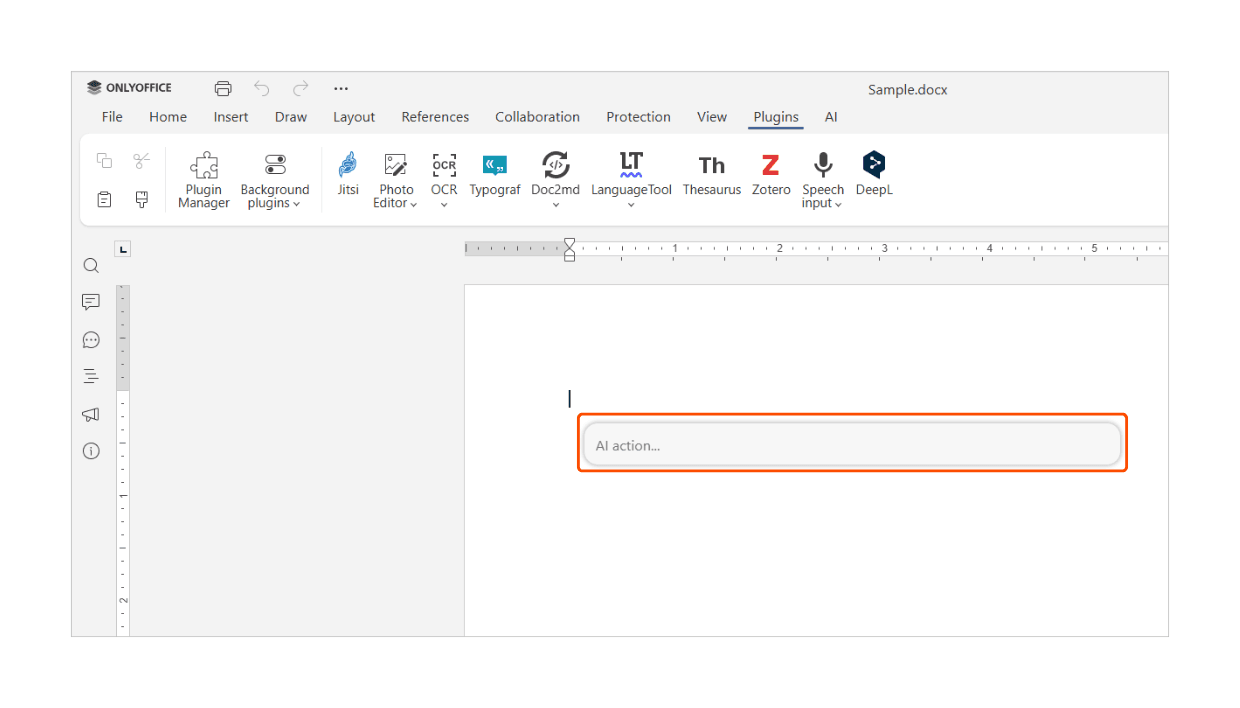
Press Ctrl+/ to open the agent input panel. Enter a prompt and press Enter to receive a response directly inside the editor. Continue the conversation to refine outputs.
| Action | Shortcut |
|---|---|
| Clear conversation history | Ctrl+Alt+/ |
| Close the agent panel | Esc |
The plugin is disabled by default and must be enabled manually, and users are responsible for selecting and connecting their preferred AI provider.
ONLYOFFICE is not responsible for the third-party AI models or assistants output accuracy. Since this feature is currently in beta, its behavior and functionality may change in future versions. Results may vary depending on the selected provider, model, and prompt.
Troubleshooting
Collapse all
-
If the AI inline agent is not visible, check that the AI plugin is installed and enabled in both Plugin Manager and Background plugins. Also make sure you are using a supported version of the editor. Restart the editor if you have just installed or updated the plugin.
-
This usually indicates an issue with the connected AI provider. Verify that your API key is valid and that the provider service is available. If you use a local model, confirm that the local service is running and accessible. Network restrictions, proxy settings, or firewalls may also affect connectivity.
-
Slow or partial responses can be caused by high provider load, limited system resources, or large requests. Try simplifying your prompt or breaking it into smaller steps.
-
When using local providers such as LM Studio or Ollama, ensure that the local service is running and that the base URL is correct. If the connection still fails, check firewall or proxy settings that may block local requests.
-
If the AI agent does not open when using Ctrl+Alt+/, check whether your keyboard layout includes the / key. On some layouts, this shortcut may not be available. In such cases, open the AI panel manually from the toolbar.
-
If the AI output does not match your expectations, try making the request more specific or provide additional context. Since this feature is in beta, some variation in behavior is expected, especially across different AI providers.